Summary
Volunteers are set up using Service and Task. This allows users to define both the service/location a volunteer is connected to and the specific task they will be performing.
A Service example would be something like Shop, Op Shop, or Community Centre.
A Task example might include roles such as Cleaner, Admin, or Sales.
This structure makes it easier to organise volunteers, assign responsibilities, and report on who is doing what across different locations.
Each volunteer can be configured with multiple Services and Tasks, allowing you to assign them to different locations and roles as needed. This flexibility makes it easy to manage volunteers who support several areas of your organisation.
Volunteers can also have Availability options recorded, helping you schedule them efficiently and ensure coverage across all services.
Their Training Courses can be tracked within the system, including courses they have completed and those still in progress. This ensures compliance, readiness, and clear visibility of each volunteer’s skill level.
Timesheets are captured directly in the system, and the Timesheet App can be used to transfer hours seamlessly into this section, reducing admin time and improving accuracy.
You can also record Skills and note conditions, which is ideal for capturing awards, certifications, or any special considerations relevant to the volunteer’s role.
Lastly, the system supports full Police Vetting progress tracking, including renewal dates, so you always know when checks need to be updated to keep volunteers compliant and active.
Viewing Volunteers
By accessing Service and Volunteers from the menu, you’ll see a full list of all volunteers in the system. From here, users can apply filters such as Services, Tasks, and Status to quickly narrow down and locate specific volunteer groups. This makes it easier to manage assignments, track activity, and organise volunteers across different areas of your organisation.
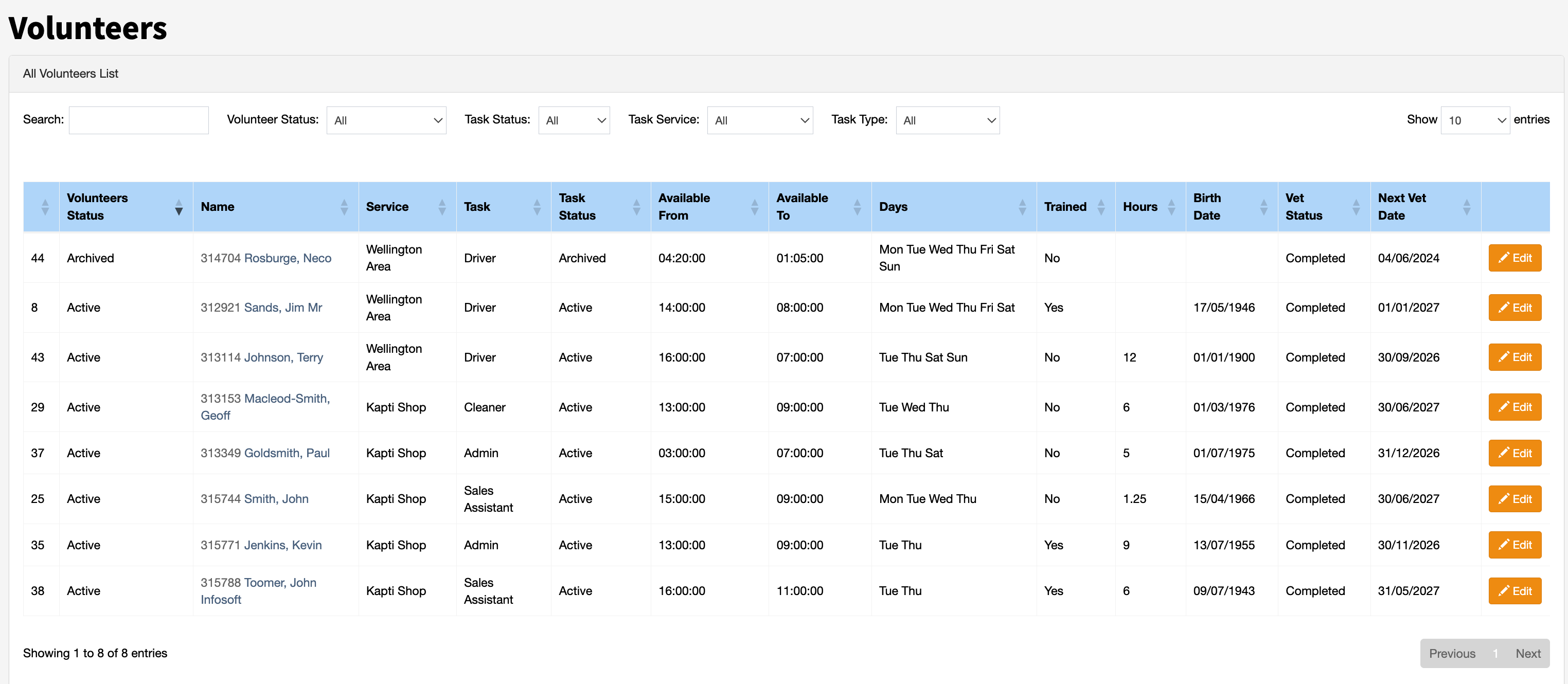
From this screen, users can easily view each volunteer’s Next Police Check Date, making it simple to identify upcoming renewals and follow up with volunteers who are due for re‑vetting. This helps ensure compliance is always up to date and no important checks are missed.
Using the Edit button allows users to open the volunteer’s Contact record, where emails can be sent directly. In most cases, it’s recommended to create email templates for common processes, ensuring consistency and saving time. These emails can then be sent using the user’s personal email address, making communication simple and efficient.
Adding Services & Tasks
Most of the dropdown lists in the system can be customised to suit individual organisational requirements. Ideally, before you begin setting up volunteers, you should scope out the Services and Tasks your organisation needs. Defining these early ensures your volunteer structure is consistent, easy to manage, and aligned with how your teams operate. See the related article on Adding & Updating User Defined Lists.
Templates
Templates are extremely useful because they save a significant amount of time and help ensure consistency across your communication. Ideally, you should create the Templates you need before starting your volunteer processes. Examples include welcome templates for new volunteers joining the programme or Police Vet Review Notices for upcoming renewals.
You can also take advantage of One Push notifications, which allow you to automatically send messages for anniversaries such as birthdays or volunteer milestones. This helps maintain engagement and strengthens your relationship with volunteers.
There are related articles below that explain how to create templates and how they are used within the system. Templates can be sent via email, and for quick responses, SMS is also available.
Reporting
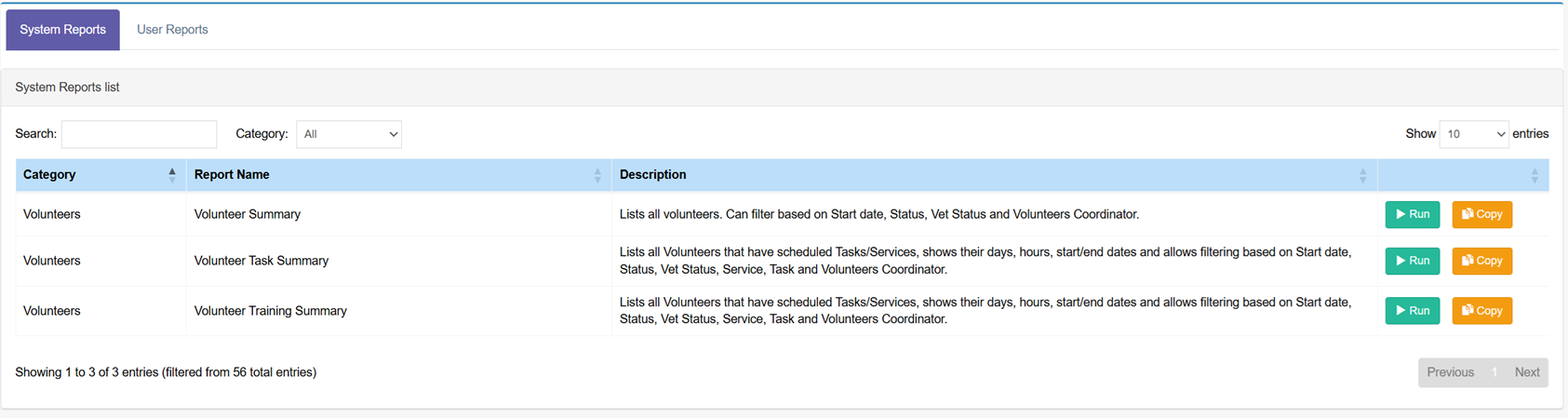
Volunteer reporting includes a range of system volunteer reports that can be accessed from the Reporting menu by selecting Reports.
Queries can also be used to create custom volunteer reports tailored to specific requirements.
Queries - Volunteer birthdays
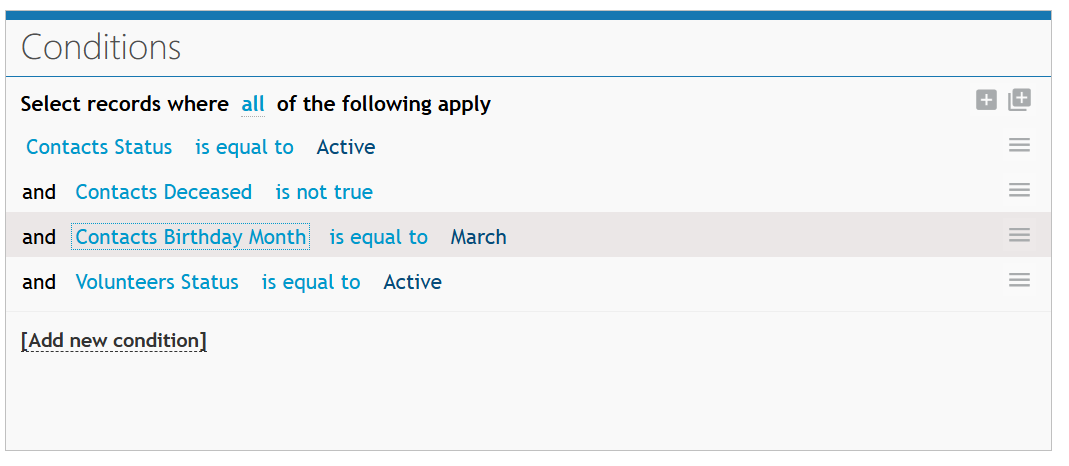
The following query will display all volunteers who have a birthday in March. Use the Columns option to add the Birth Date field to the output so it is visible.
Queries - All active volunteer
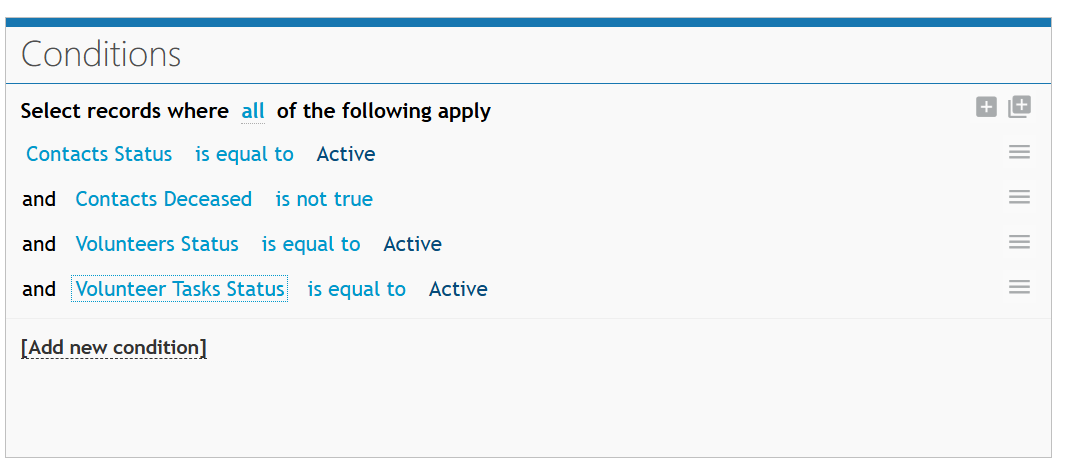
This query enables users to report on all volunteers and can be used for mail merge purposes. It can also be expanded to report on volunteers assigned to a specific Volunteer Task Type.