Summary
Online Review provides users with a comprehensive view of all contact data entering the system, regardless of its source. This includes donations submitted by donors, contacts created through signup widgets, imported records from external systems, and other incoming data streams.
The primary purpose of Online Review is to give users visibility into how incoming data has been processed into Fundraiser One. Users can quickly identify whether a record has been successfully matched to an existing contact or whether a new contact record has been created. This helps ensure data quality, reduces duplicate records, and provides confidence that contact information is being handled correctly.
In this area user can consolidate all incoming data into a single review area, users can monitor activity, verify matching outcomes showing the user the matched and similar possible matches too that the user can decide to use.
To access Online Review, select Online Review from the Services menu.
Viewing Online Review records
The Online Review screen displays all data entries that have been received by FundraiserOne. A search function is available if you need to locate a specific contact, and a Type filter allows the list to be filtered based on the entry source.
The available filter options are:
All
Donation Widgets
Signup Widgets
Contact Import
Call Results Import
API
Each record is identified as either Matched or New. By selecting the expand icon (\/) on the left-hand side of a record, additional details can be viewed, including the information that was imported and any potential matching contacts that have been identified by the system.
This review process allows users to quickly verify imported data and determine whether records should be matched to existing contacts or created as new records.
Incoming data vs matched data
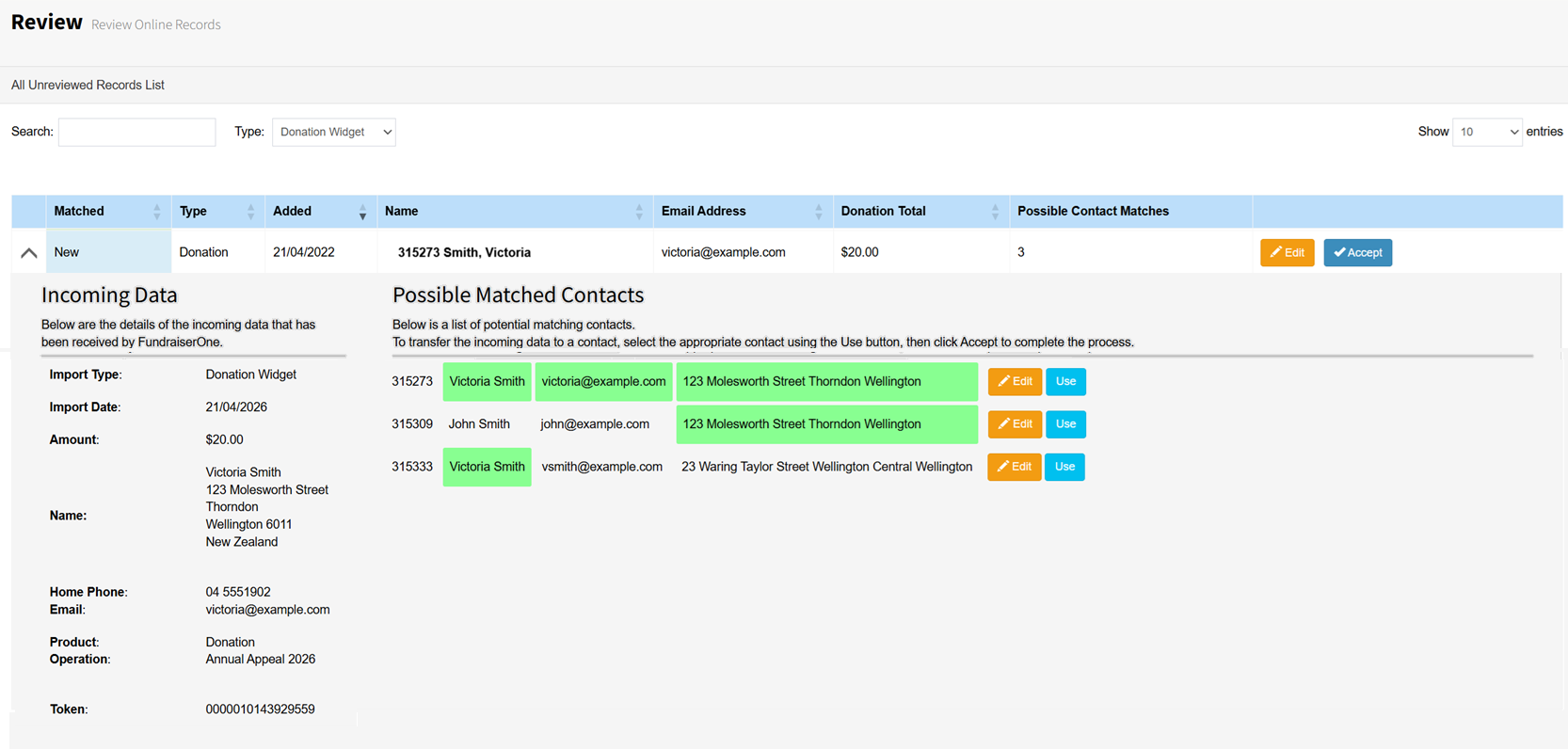
The Incoming Data section shows the information that has been imported into the system, whether it originated from a Widget, an Import, or an API integration.
The Matched Data section displays the record that the system believes is the best match, highlighting key attributes that are similar between the incoming data and the existing contact record. These attributes may include:
Email Address
First Name
Last Name
Address
Users can review the suggested match and choose the appropriate option by selecting Use on the desired record and then clicking Accept to confirm the decision.
The matching process uses a weighted scoring system based on multiple attributes to determine the likelihood that the incoming data belongs to an existing contact. If the system determines that a suitable match cannot be confidently identified, it will automatically create a new contact record.
This can occur, for example, when an existing donor uses a different email address when making a donation. In these situations, users can manually review the suggested records and, if necessary, select Use and Accept to associate the incoming data with the correct contact.
If a new record was created during the import process and all associated data is transferred to an existing contact record, the system will automatically remove the newly created duplicate record if no additional data remains attached to it.
Editing transaction & matched contacts
Records can be viewed by selecting the Edit button on the main record.
The information displayed will depend on how the data entered the system:
Donations will open and display the Transaction record.
Signups and Imports will open and display the Contact record.
For records that have been identified as potential matches, users can also select Edit Contact to review and update the details of the proposed matched contact. This allows users to verify information, compare records, and make any necessary changes before confirming a match.
The Edit function provides a convenient way to review both incoming data and existing records, helping to ensure data accuracy and maintain high-quality contact information within the system.
Accept records or Accept selected
Accepting a record confirms that the matching process has been reviewed and the user agrees that the incoming data has been correctly matched to the appropriate contact or transaction record.
When a user selects Accept, the system applies the matching decision and processes the imported information accordingly. Once accepted, the record is considered resolved and is removed from the Online Review screen, as no further action is required.
Sorting the list by Possible Matches allows users to bulk Accept records without any possible matches.
Accepting multiple records
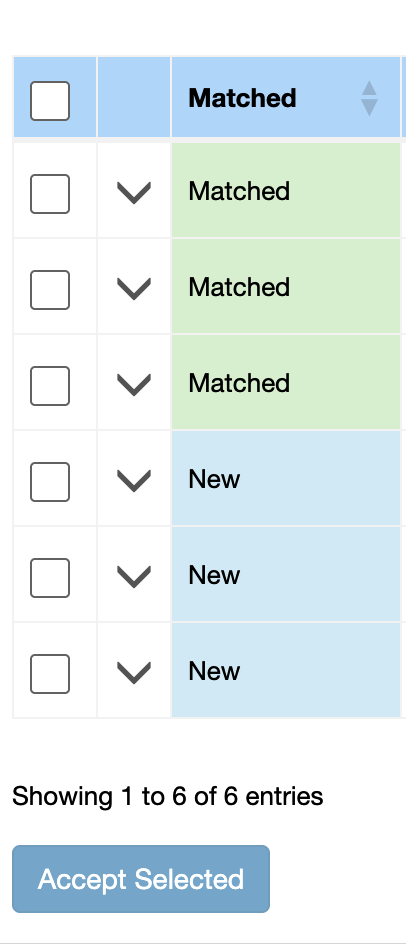
Multiple records can be accepted at once by selecting the checkbox next to each record and clicking Accept Selected. The Show Count can be increased to display more records, and the checkbox in the header row can be used to select all records currently visible in the view.
Note: Incoming Regular Giver records do not have checkboxes and therefore cannot be accepted in bulk. These records must be reviewed and accepted individually.