

Summary
Operations are activities like appeals, acquisitions and most activities that include solicitation to donors. Operations are associated to Campaigns, your Campaigns are how your Operations are grouped. This section can be accessed from the side menu below.
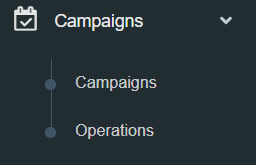
Campaigns can also be associated to grouping your income streams. Operations are mainly used to track income for the activities being run within your organisation. An example for a campaign/operation structure can be similar to below.
Direct Mail
Annual Appeal
Newsletter April
Newsletter August
Newsletter December
Regular Giving
Regular Giving
Telemarketing
TeleFund
Grants
Grant Applications
For the example above the campaigns are Direct Mail, Regular Giving, Telemarketing and Grants. These are are the main income streams that should be defined if they are income streams for your organisation. The heading under the campaigns are Operations they are the activities.
Selecting Operations from the side menu will list all the active or achieved Operations. From here new Operations can be created or edit existing ones.

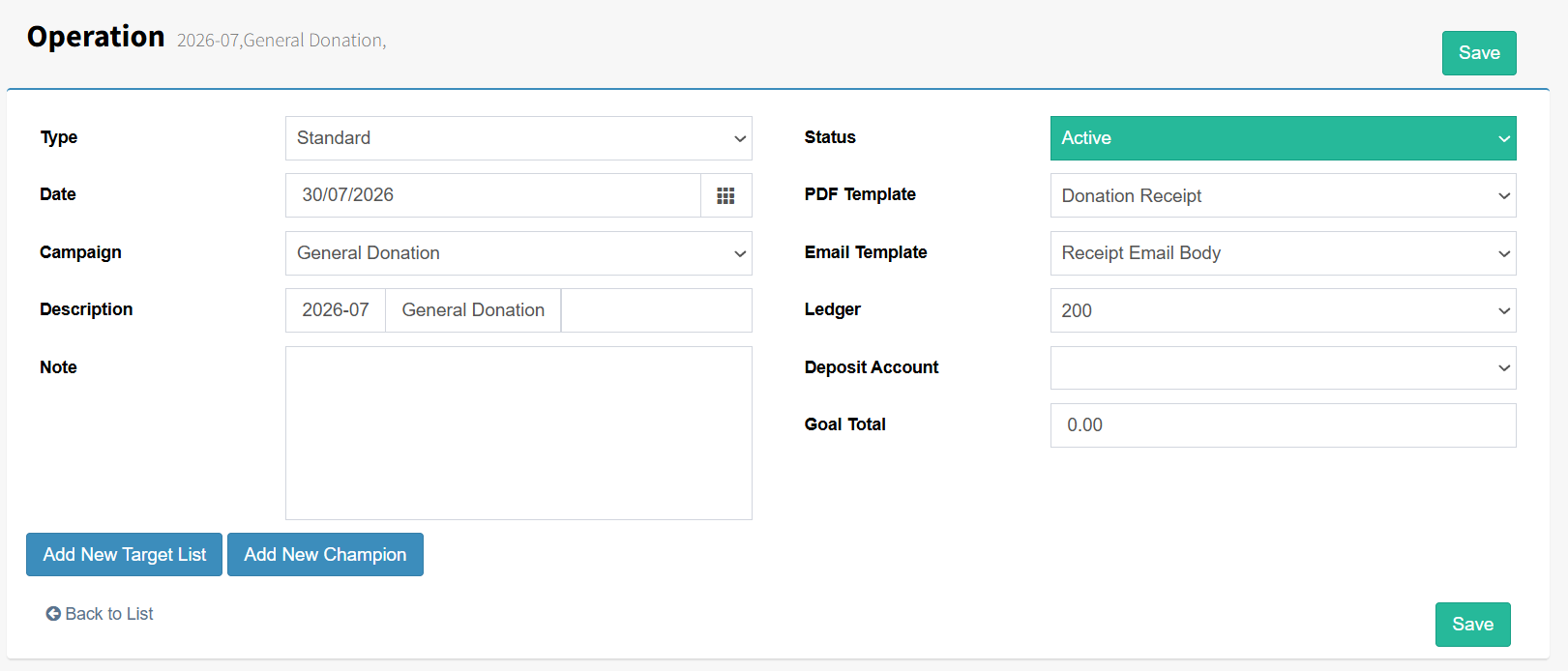
When creating a new or editing an Operation this is done in the Operation screen. On the left-hand side select the ‘Type’ of operation, the ‘date’ of the operation, the ‘Campaign’ that this operation is associated, the ‘description’ of the operation and any ‘notes’ regarding the operation.

Adding a new Campaign
To create a new campaign in FundraiserOne:
From the main menu, select Campaigns.
Once the list of existing campaigns has loaded, click the Add New Campaign button.
A blank campaign form will be displayed, ready for data entry.
Enter the Campaign Description, for example:
Direct Mail
General Donations
Regular Giving
Major Gifts
Bequests
Click Save to create the campaign.
The new campaign will then be available for use when creating an Operation, configuring fundraising activities, and generating campaign-based reports.

Adding a new Operation
Fundraising Operations allow transactions, donations, and other fundraising activity to be assigned to a specific appeal, event, or initiative for reporting and receipting purposes.
To create a new Fundraising Operation, follow these steps:
From the Campaigns menu, select Operations.
Once the list of Operations has loaded, click the Add New Operation button.
Complete the fields below:
Field | Description |
|---|---|
Type | Defaults to Standard. This defines the type of Fundraising Operation being created. |
Date | Enter the commencement date for the Operation. |
Campaign | Select the Campaign that this Operation belongs to. This allows Operations to be grouped for reporting purposes. |
Description | Enter a meaningful description, such as July Appeal 2026. This description will be displayed when allocating transactions to the Operation. |
Note | Add any notes about the Operation here. |
Status | Allows the Operation to be marked as Active or Archived. Archived Operations remain available for historical reporting but cannot be selected for new transactions. |
PDF Template | Select the PDF receipt template that will be used when donations are receipted against this Operation. This can be overridden during donation processing if required. |
Email Template | Select the email template used when sending receipts. This is typically a thank-you email informing the donor that their receipt is attached. |
Ledger Account | Assign a General Ledger account to the Operation. This is used when transferring financial data to accounting systems such as Xero. |
Deposit Account | Defines the bank account that funds will be deposited into. This is primarily used for reporting purposes. By default, this field is left blank. |
Goal Total | Enter the fundraising target for the Operation. This allows progress towards the fundraising goal to be monitored and reported. |
Once all required information has been entered, click Save.
The Fundraising Operation will then be available for assigning donations and transactions, generating receipts, transferring data to accounting systems, and tracking fundraising progress against targets
Creating Segments for the Operation.
Once a Fundraising Operation has been completed, Segments can be created to identify and group donors for future communications, appeals, and mailing campaigns.
Segmentation allows users to create targeted mailing lists based on donor activity and engagement with specific fundraising Operations. These segments can then be used for email campaigns, direct mail appeals, donor stewardship, and reporting purposes.
Campaign Summary Report
The Campaign Summary Report allows users to view all Fundraising Operations grouped by their associated Campaigns. This report provides a consolidated view of fundraising activity, making it easier to monitor and compare the performance of Operations within each Campaign.
To access the Campaign Summary Report:
From the main menu, select Reporting.
Click Reports.
Locate and select Campaign Summary Report.
Run the report using the desired criteria and date range.
The report will display all Fundraising Operations grouped under their respective Campaigns, allowing users to review fundraising performance, track progress against goals, and analyse campaign activity across the organisation.