

Summary
This article explains how to manage contacts and constituents in FundraiserOne. It covers creating, searching, updating, and maintaining records, while highlighting the difference between a contact and a constituent.
FundraiserOne allows organisations to store contact records even when there is no existing interaction history. As individuals begin engaging with the organisation, their records can be developed into constituent records, enabling the tracking of communications, donations, memberships, event participation, volunteer activities, and other interactions.
All contact management functions are available through the Contacts section in the side menu, where users can view recently accessed contacts, search for records, create new contacts, and update existing information. By maintaining accurate contact and constituent records, organisations can build a complete history of engagement, support effective relationship management, improve communications, and enhance fundraising and reporting activities.
Accessing Contacts
Managing contacts in FundraiserOne is simple and intuitive. Everything you need is accessible from the Contacts in the side menu. From here, you can view recently accessed contacts, search for specific people, and create new records.
Select Contacts from the side menu to view your recently accessed contacts. This is your central hub for searching, editing, and adding contact records.
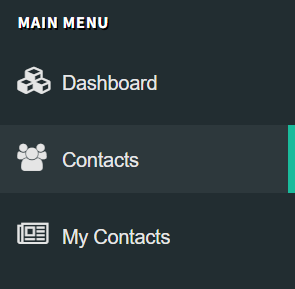
The Contacts workspace is the central location for managing contact records in FundraiserOne. From this area, you can search for existing contacts using a range of search criteria, open and edit contact details, and create new contact records as required. Whether you are maintaining existing information or adding new individuals to the database, all contact management functions are conveniently accessible from the Contacts section, providing a simple and efficient way to keep your records up to date.
Searching for Contacts
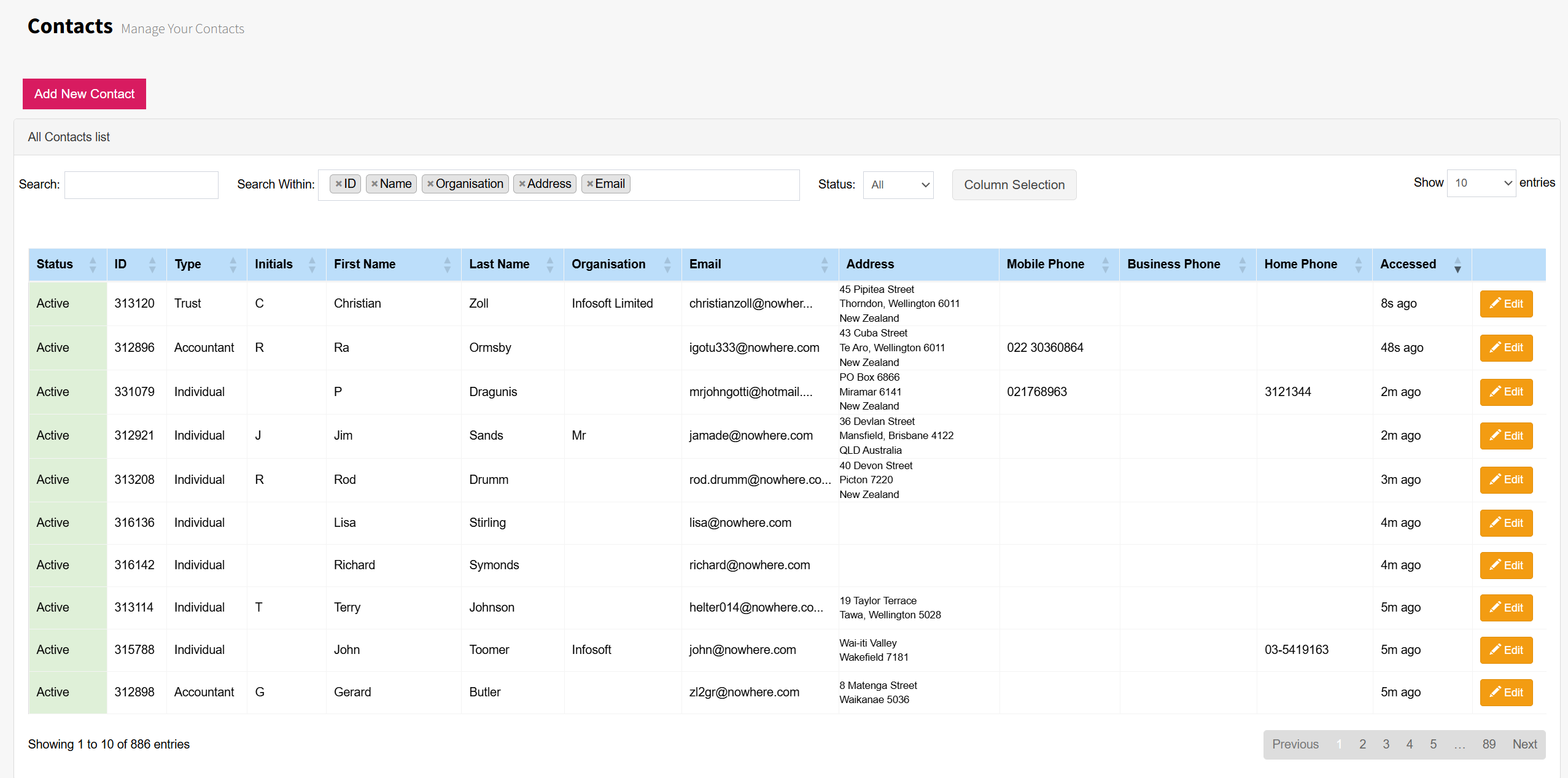
Use the Search box to quickly locate contacts by entering one or more keywords. To refine your search, you can enter multiple terms separated by commas, helping you narrow down the results and find the correct contact more efficiently this is commonly used when searching for names.
The Search Within option allows you to specify which fields or areas of the contact record you would like to search. This setting can be adjusted at any time to suit your needs. FundraiserOne remembers your selected search preferences in your browser, so your chosen search settings will automatically be applied the next time you return to the Contacts workspace.
Example searches:
john,smithjohn,smith,wellingtonPartial search:
smith,joh,wellin
Tip: john,smith - will return all the john smith's you can more parameters to narrow down searches further. For example, john,smith,wellington or partial criteria smith,joh,wellin
Search column selections
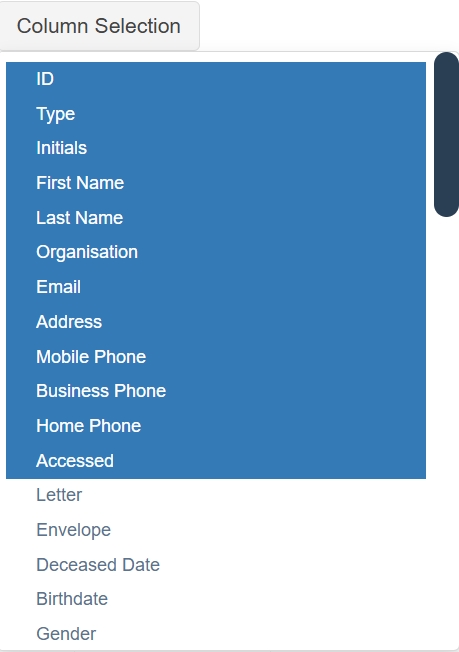
Viewing search results effectively is important when working with large numbers of contact records. FundraiserOne provides a Column Selection feature that allows users to customise the information displayed in the search results grid, making it easier to focus on the data that is most relevant to their role or task.
The columns highlighted in blue represent the default fields displayed when viewing search results. These default columns have been selected to provide commonly used contact information and help users quickly identify records.
Editing selected contacts
Once in the Contacts section contacts can be edited by selecting the orange Edit button. Each contact will have an Edit button on the row selecting the contact row to be edited and pressing the Edit button will show the Contacts Details screen. This where contact details can be edited.

Tip: By right-clicking on the edit button and select Open Link In a New Tab will allow multiple screens to be opened very handy when trying to compare contacts.
Adding new a contact
To add contacts, select contacts from left hand menu. Select the purple button Add New Contact at the top left side of the screen. This will open a blank Contact Details screen ready where the new contact details can be added.

Tip: By right-clicking on the Add New Contact button and selecting Open Link In a New Tab will allow multiple screens to be opened very handy if you want to keep your search results active.
Saving contact details
After making changes to a contact record, it is important to save your work to ensure that all updates are stored in the FundraiserOne database.
The green Save Contact button, located at both the top and bottom of the screen, can be used to save any changes you have made. Having a Save button in both locations allows users to conveniently save their work regardless of where they are on the page, reducing the need to scroll back to the top of the record.
To avoid losing information, it is recommended that you save your changes regularly, particularly after updating important details such as contact information, addresses, communication preferences, or other constituent data.
Once the record has been successfully saved, your changes become immediately available throughout FundraiserOne and can be used for communications, reporting, fundraising activities, and other organisational processes.

Viewing contact details
The Contact Details screen is organised into a series of tabs across the top of the page, with each tab representing a different section of information for the selected contact.
A blue square indicator on a tab signifies that data exists within that section for the contact. These indicators provide a quick visual reference, allowing users to see which areas contain information without needing to open each tab individually.
Several fields within the Contact Details section are particularly important, as they are used for communication and correspondence with the contact. These include:
Letter Name
Envelope Name
Email Address
Postal Address
It is important that these fields are entered accurately and kept up to date, as they are used when generating correspondence, sending emails, and mailing communications to contacts.
The Letter and Envelope fields are salutations are populated automatically from the contact's personal details are entered when creating new contact. When values such as First Name and Last Name are entered, FundraiserOne can generate the appropriate letter and envelope formats, helping to ensure consistency and reduce manual data entry. Users can then review and modify these values if a different format is required. These fields are typically used for mailing used to address contacts either by Email, SMS or Post.
The General details section is the personal section about a contact. All information from name, address, email, phone numbers, date of birth is stored here. Although most of the fields are self explanatory there are some key fields that need explaining.
Note: All Drop Down Selection can be maintained in Settings > User Defined Lists. In this section existing can be edited and new ones added.
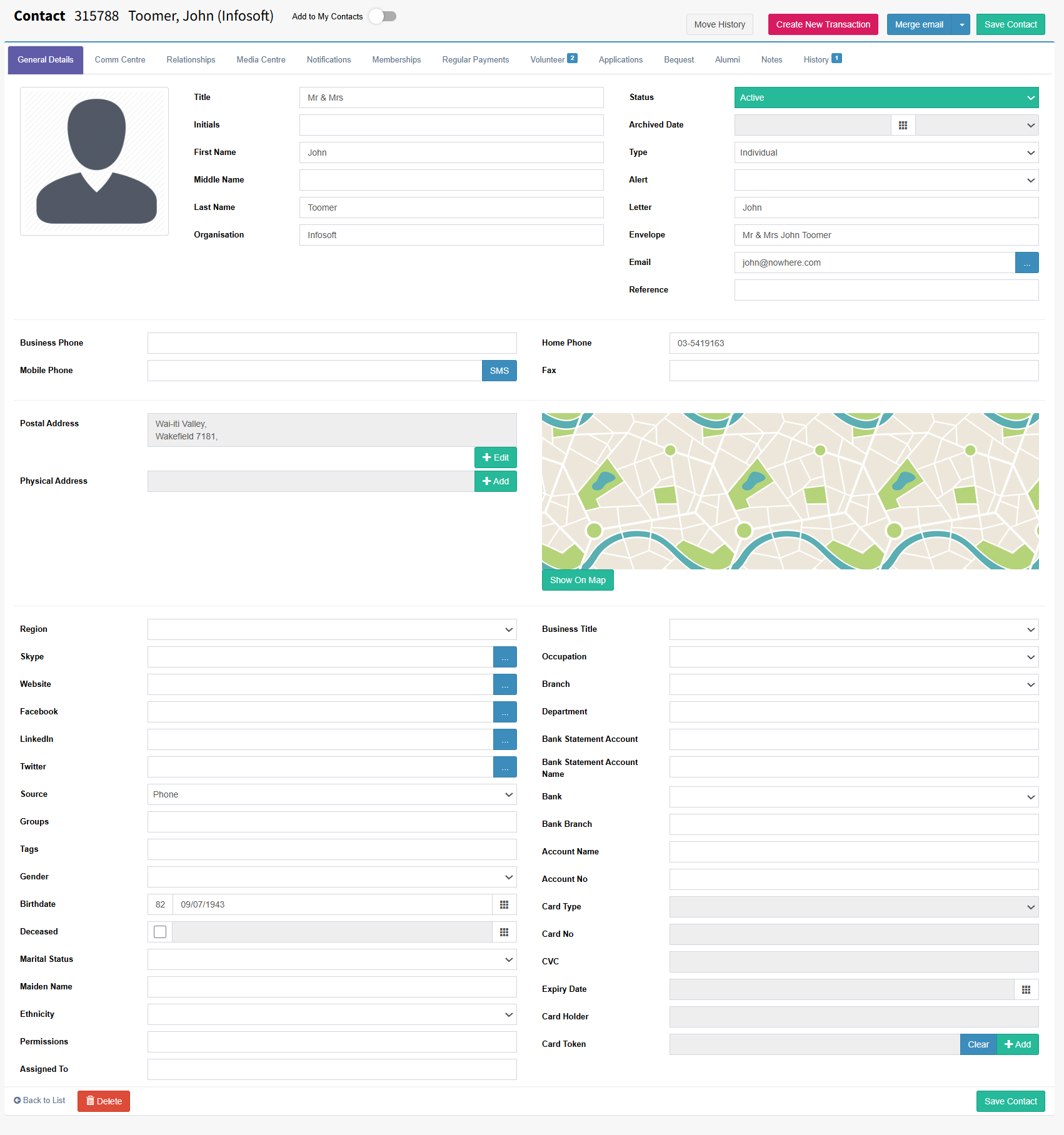
Move History: Allows history to be transferred from one contact record to another. This is useful when duplicate contacts exist and one needs to be deleted. The history can be moved to the correct contact before the duplicate record is removed.
If you need to transfer a stored credit card, ensure that the destination contact does not already have credit card details stored. If credit card information exists on the destination contact, it must be cleared before the history and card details can be moved.
Create New Transaction: Selecting this button allows a new transaction to be created. The transaction will be automatically populated with the selected contact’s details where applicable, reducing data entry and helping ensure accuracy.
Merge Email, Letter, SMS: Creates a merged communication based on the channel selected. This button includes a dropdown list of available communication channels, such as Email, Letter, and SMS. Selecting a channel will take the user to the Merges screen, where a template can be selected and merged with the relevant contact and transaction data. The merged communication can then be reviewed, sent electronically, or printed, depending on the selected channel.
Status: Determines whether the record is Active or Archived. When Archived is selected, the Archived Date and Archived Reason fields can be completed.
Tip: Archived Reasons are maintained through User Defined Lists, where users can add, edit, and manage available archive reason options.
Mobile Phone: Stores a mobile phone number and enables users to send SMS/text messages to that number, either through a mail merge process or by composing and sending a custom message manually.
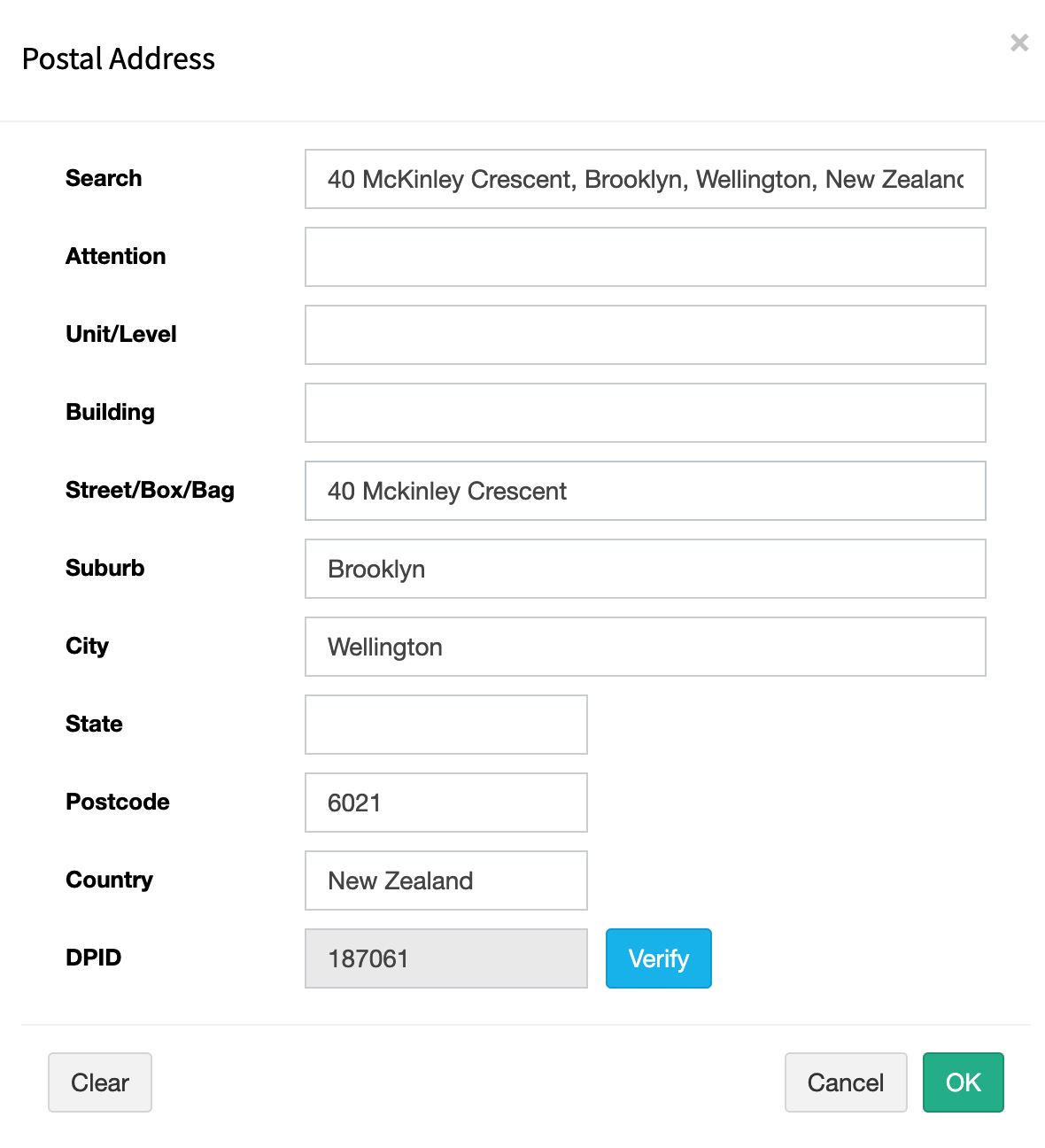
Address Box: Use the Address Box to search for and select an address. The address lookup system is integrated with New Zealand’s address database, allowing addresses to be verified and automatically assigned a unique Delivery Point Identifier (DPID). This helps ensure address accuracy and supports reliable mail delivery.
Groups: Groups are tags that can be assigned to a contact to help organise and segment contacts into specific categories. A contact can belong to one or more groups, making it easier to manage targeted communications, reporting, marketing activities, and contact searches based on shared characteristics or business requirements.
Tags: Interest Tags are automatically populated based on a contact’s engagement with email communications. When a contact clicks on links within an email, the system can automatically identify their areas of interest and assign the appropriate Interest Tags. These tags can then be used for contact segmentation, targeted marketing, reporting, and future communications.
Deceased: Select this option when a contact has passed away. A date of death can also be recorded, which is used to help manage communications and prevent inappropriate or honorary correspondence from being sent to the contact. Recording this information ensures that future communications are handled respectfully and accurately.
Bank Statement Account & Name: These fields are key identifiers used during bank statement imports. The system matches the Bank Statement Account and Account Name against existing contact records to help automatically identify and allocate payments to the correct contact.
Card Information: For security purposes, the full credit card number is not stored. Instead, a secure token is retained, allowing authorised card transactions to be processed without access to the actual card number. This functionality is primarily used for recurring memberships, regular payments, and other ongoing payment arrangements.
Other tabs on the contact form
Below are some of the additional tabs available on the contact card. These tabs are populated by different features and services. Each tab has its own section containing related articles that provide detailed information on how to use and take advantage of these features.
Comm Centre - This is used to manage a contact’s communication preferences and channels. It defines how the contact wishes to receive communications, including mail, email, SMS messages, and phone calls. Communication Groups are also managed here. These groups determine the types of communications a contact receives, the channel through which they are delivered, and, where applicable, the number of copies the contact should receive.
Relationships - This section allows contacts to be linked to other contacts, creating associations between individuals or organisations. Relationship types can be defined to clearly identify the nature of the connection, such as family, business, employer, spouse, or other relevant relationships.
Media Centre - This allows files, documents, and website links to be stored against a contact record, providing a central location for all related information. Files can be uploaded directly or linked from cloud storage services such as OneDrive or Dropbox. Linked files can be previewed from within the contact record, and documents stored in cloud services can be updated without changing the link attached to the contact.
Notifications - Set up automatic print, email, or SMS notifications for important events such as birthdays, anniversaries, and other key dates. Notifications can be scheduled and sent automatically to individuals, managers, or groups, helping ensure important occasions are never missed.
Memberships - This section is used to create and manage membership records for contacts. It supports membership renewals, expiry tracking, and the automatic sending of renewal reminders and notifications, helping to ensure memberships remain current.
Regular Payments - This section is used to manage recurring payment arrangements. Payment schedules can be configured with a start date, payment amount, frequency, and payment method. This functionality is commonly used for regular giving, subscriptions, memberships, and ongoing donation programmes.
Notes - This section stores notes and comments related to the contact. Each note is saved as a separate entry and can be viewed, edited, or updated as required, providing a historical record of important interactions or information.
History - This section provides a complete record of the contact's activity within the system. This includes financial transactions, donations, memberships, correspondence, letters, receipts, emails, SMS messages, and other interactions, allowing users to view a comprehensive history of engagement with the contact.