

Summary
My Contacts enables users to create and manage frequently accessed contacts, providing quick and convenient access to frequently used contacts through the My Contacts menu. The feature also includes powerful search capabilities within the list, allowing users to quickly locate specific contacts without having to browse through large sets of contacts. My Contacts helps streamline navigation, improve productivity, and ensure that important contacts are always easy to find.
Adding & Removing contacts from My Contacts
Contacts can be added to My Contacts by opening and editing a contact card, then enabling the Add to My Contacts option. Once enabled, the selected contact is automatically added to the My Contacts list for quick and easy access. If a contact is no longer required in the list, it can be removed at any time by editing the contact card and disabling the Add to My Contacts option. Changes are applied immediately, ensuring that the My Contacts list remains up to date and tailored to the user's preferences.

The Assigned To field on the contact card displays the users who have been assigned to the selected contact within My Contacts. This field provides clear visibility into which users have added the contact to their personal My Contacts.

Accessing My Contacts
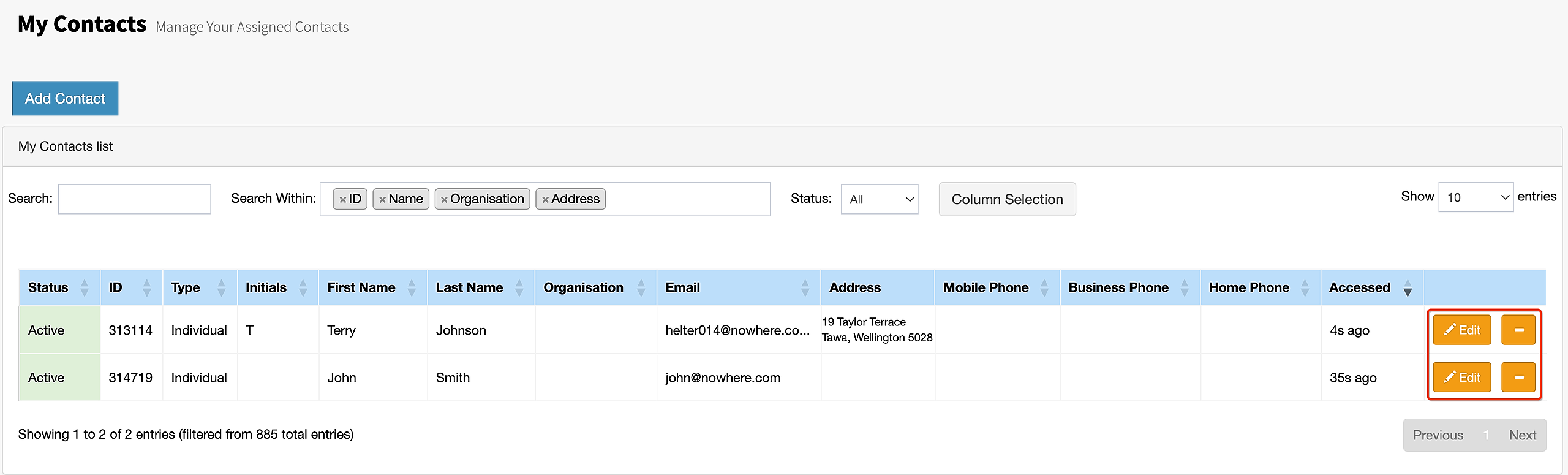
To view your contacts, select My Contacts from the menu. This will display all contacts that have been assigned to the logged-in user and marked as part of their My Contacts list. Users can browse their lists or use the search functionality to quickly locate specific contacts.

With My Contacts, users have complete control over their contact lists, making it easier to manage and organise important connections. This feature allows contacts to be efficiently searched, quickly edited, and easily removed from personalised their list.
Adding contacts to My Contacts using the Mass Update Tool.
My Contacts can also be populated using the Mass Update Tool, which provides an efficient way to add large numbers of contacts to a user's My Contacts list. Rather than updating each contact individually, users can create or select a query that returns the required set of contacts and then use the Mass Update process to append those contacts to one or more users' My Contacts lists.
This approach is particularly useful when onboarding new users, assigning groups of contacts to team members, or managing large contact lists where manual updates would be time-consuming. By applying a query-based update, multiple contacts can be assigned in a single operation, ensuring consistency and significantly reducing administrative effort.
Once the Mass Update process has been completed, the selected contacts will appear in the users' My Contacts list and can be accessed through the My Contacts menu. Users can then view, search, and manage these contacts in the same way as contacts that were added individually through the contact card.