

Summary
The Mass Contact Updater allows users to select multiple contacts using the Query and update key information across their contact records in a single action. Instead of editing each contact individually, users can efficiently apply changes to a group of contacts at once, saving time and ensuring data consistency. Supported updates can include contact statuses, group assignments, notes, tags and other contact attributes.
Access the updater by select Services and Tools from the menu.
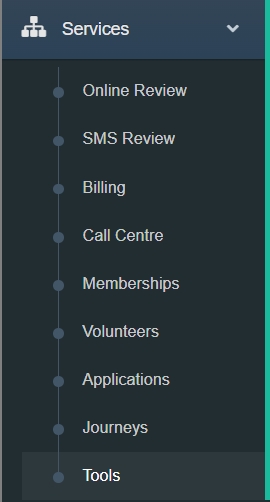
Now select Run on the Mass Contact Update option show in the list.

Mass Updater
The Mass Updater displays a list of all contacts that will be affected before any changes are applied, allowing users to review and confirm the selection. Contacts can be added to the update list using the following methods:
Add Contact – Allows users to select individual contacts to include in the update. Contacts can also be added by scanning returned mail barcodes, making it quick and easy to identify and update specific records.
Select Customers – Allows users to select contacts in bulk by running a query using the Query Generator. This option is ideal for targeting large groups of contacts that meet specific criteria, such as status, location, membership type, or other contact attributes.
These selection methods provide flexibility for updating either individual contacts or large groups, ensuring the right records are included before changes are applied.
Important: Make sure Clear List is select before loading any contacts.
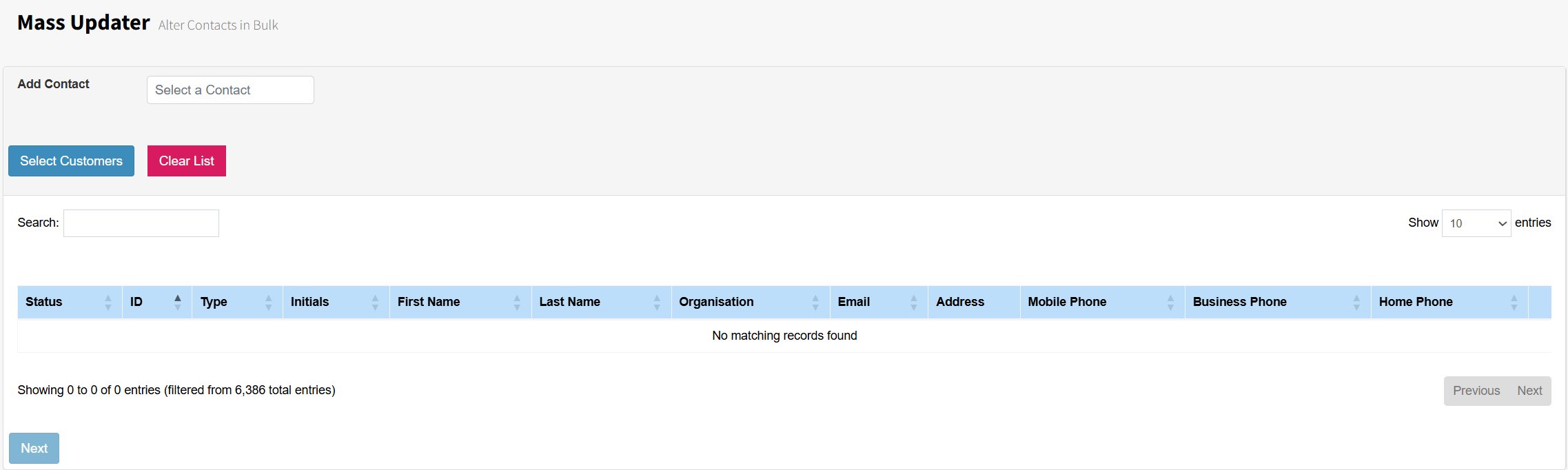
When using Select Customers, create the required conditions in the Query Generator and run the query to generate a list of matching contacts. Review the results to ensure the correct contacts have been selected, then click Accept List to transfer the contacts to the Mass Contact Updater. Once accepted, the selected contacts will be added to the update list and will be available for any bulk changes you wish to apply. There are some related articles on the Contact Query Generator below.
Once contacts have been selected, the contact list will be populated with the names of all contacts included in the update. Users can review the list to ensure the correct contacts have been selected before proceeding. If any contacts have been added in error, they can be removed individually by selecting the Remove from List button next to the relevant contact. This allows users to refine the selection and ensure that updates are only applied to the intended contacts.
Once the list is created select The Next button below this will load the Update Tool screen.
Update Tool
This allows users to choose which contact attributes will be updated across the selected contacts. Each available update option is accompanied by a checkbox, and users can select one or multiple checkboxes depending on the changes they wish to make. This flexibility enables multiple contact fields, such as status, groups, notes, and other attributes, to be updated in a single operation, reducing the time required to make large-scale changes and ensuring consistency across contact records.
For example setting contacts to Archived users would check the Status Include and set the data to Archive.
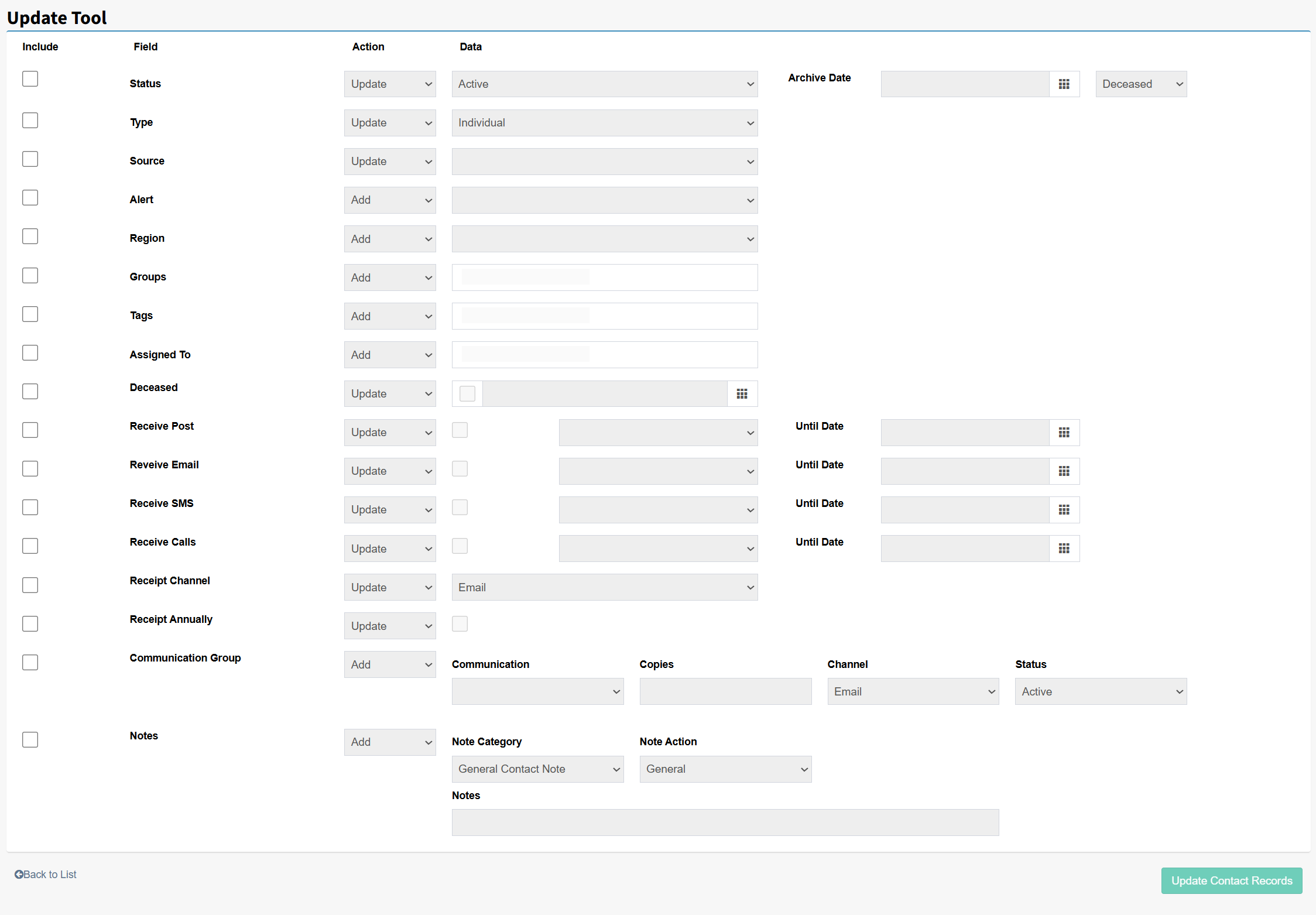
The Action setting determines how the selected data will be applied to the chosen contacts. Depending on the field being updated, users may have the option to Add, Update, or Remove information.
Add – Adds the selected value or information to the contact record without affecting existing data where applicable.
Update – Replaces the current value with the new value entered or selected.
Remove – Removes the specified value or information from the contact record.
The actions available will vary depending on the type of data being updated. For example, Group Tags and Communication Groups support adding or removing groups, while a contact status field only allow updating the existing value. This flexibility ensures users can efficiently manage contact information while applying only the changes required.
To complete the update, select Update Contact Records below. The system will apply the selected changes and, once processing is complete, return you to the Mass Contact Updater screen.
From there, you can make additional updates using the same contact list or exit the tool. The selected contacts will remain in the list until Clear List is selected, allowing you to perform multiple updates without having to reselect contacts.