

The Query tool is used in various places in FundraiserOne. For reporting it can be accessed from the Reporting Menu it is also used in the Operations screen to create segments.
Running query will always default to the standard conditions and output fields. These can be changed by either adding more or removing them.
There are two options for output which are CSV and Excel output files.
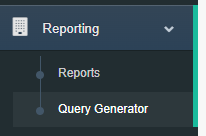
To access the Query Generator go to the reporting menu expand it and select Query Generator. This will load up the Query Generator on the right hand side of the screen.
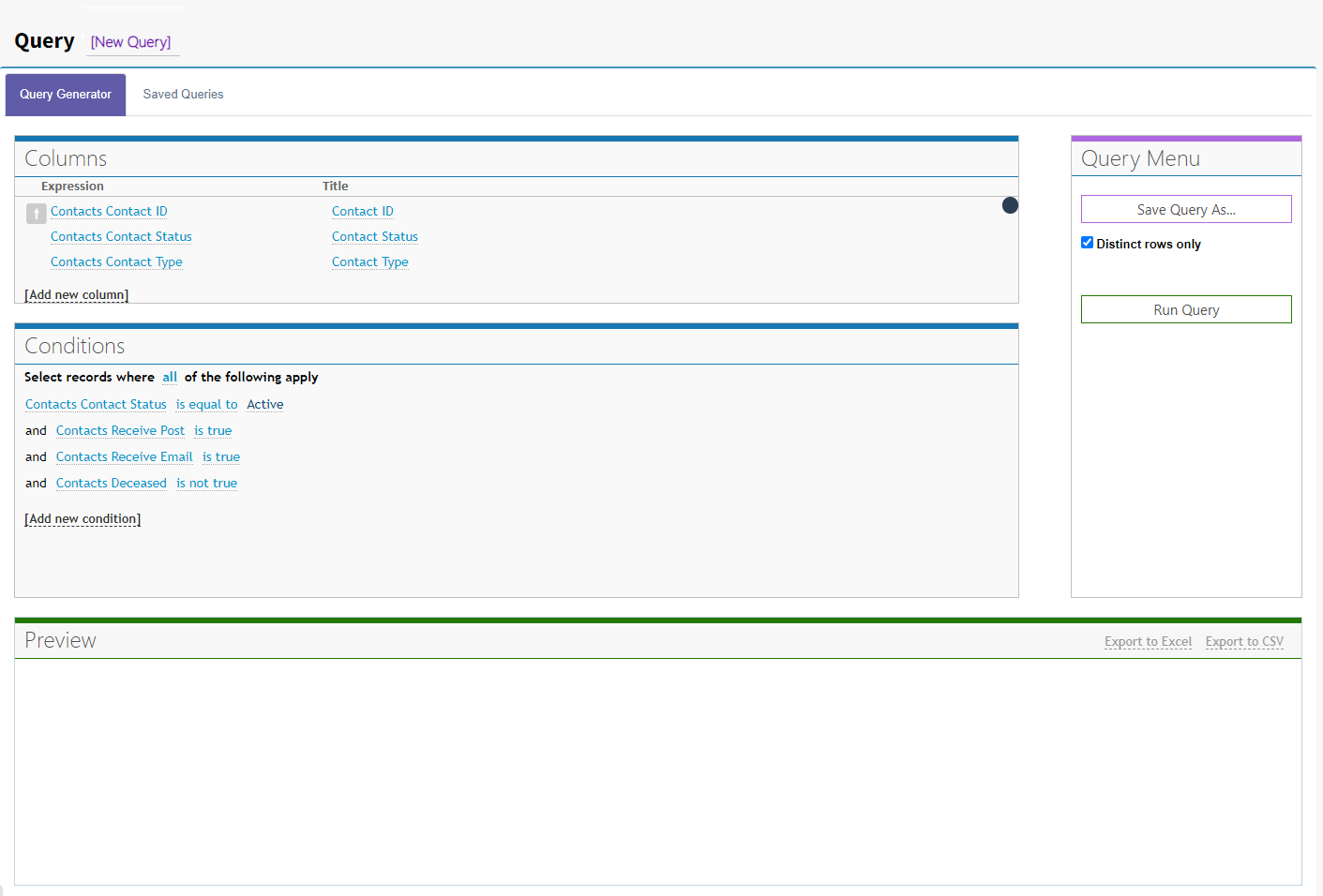
Columns: These are the columns that will be in the output. More columns can be added by selecting the Add New Column link, they can also be sorted in order by moving the columns. There are also functions where Sums and Counts can be added.
Conditions: This area is used to create filters that allows data to be selected based on the criteria added here. New conditions can be added by selecting the Add New Condition link. Conditions can also be Enabled or Disabled very handy when comparing results.
Preview: When the Run Query button is pressed the results appear in the preview section. Some result columns like Contact ID's, Transaction ID's and Batch ID's have links t allow loading data based on the results.
Save Query As: Queries can be saved and stored in the Save Queries tab to be used at later time. Saving the query will prompting with a screen to name it which also saves it.
Distinct Rows Only: This allows multiple line results based on the conditions.
Run Query: Starts the query and retrieves results from the database.