

The Query Generator is used to select data from the database using different conditions by default it returns contacts but this can be changed to return required data. The Query Generator is used in other areas in FundraiserOne, For Example, Selecting Champions, Target lists when creating an Operation and when creating a Newsletters from Jobs. Some really nice features are queries can be previewed and slight changes can be made while running queries again. Contact ID's Transaction ID's and Batch ID's are links in the results this means they will open associated Contact, Transaction or Batch if its clicked on. All queries can be saved to be used other times and exported to CSV or Excel.
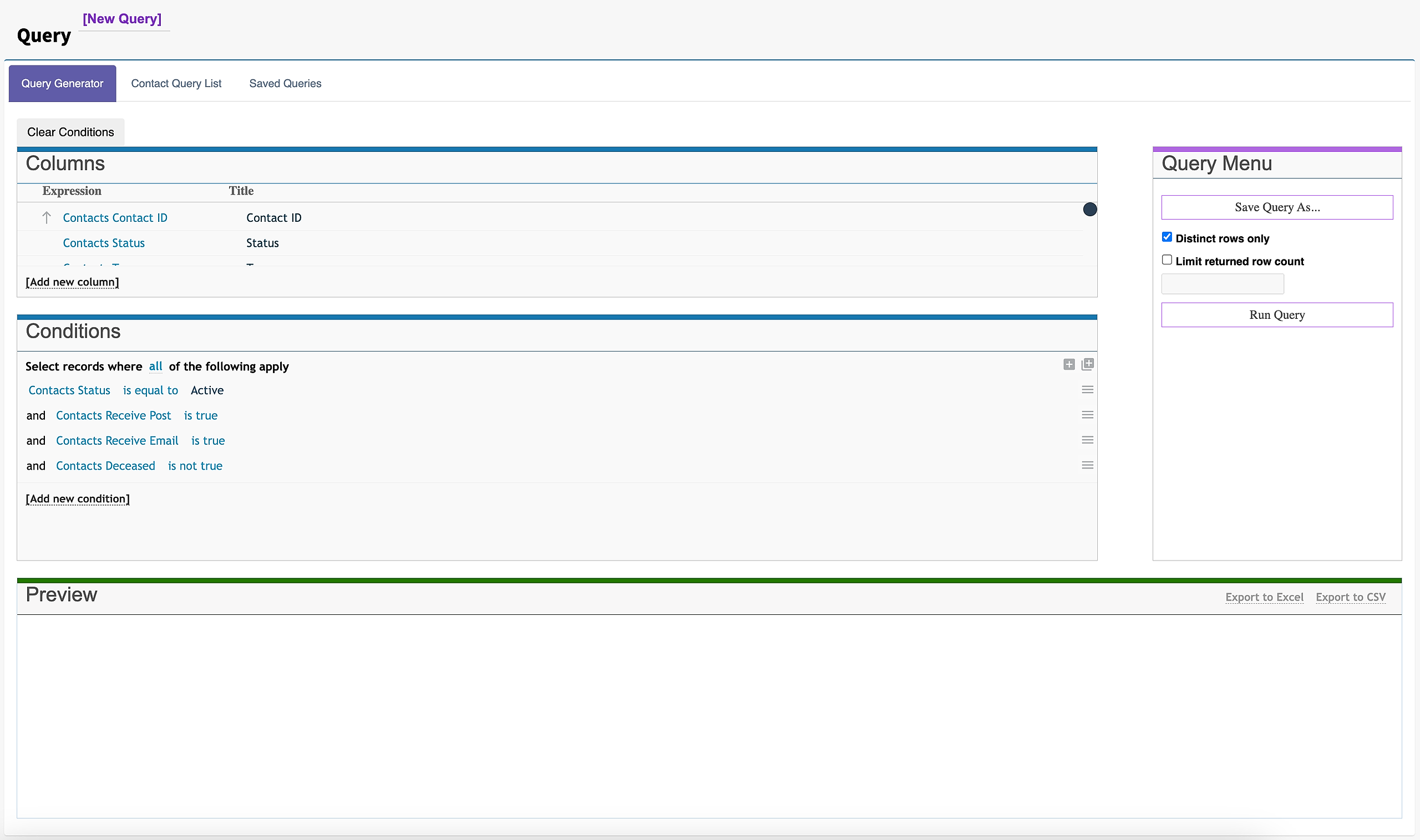
Columns
Columns are the data fields that will be retrieved as an output and displayed in Preview when the query has be run. By default, ID, Name, Organisation, Envelope Salutation , Letter Salutation, Address, Status and Type are selected . Whichever column expression has an arrow next to it, is how the query will be sorted. Column fields can also be moved so they can placed in a particular ordered as required. Selected columns can also be removed by highlighting the column name and pressing the X on the right hand side.

Add columns by selecting ‘Add New Column’. After adding a new column, an option to the left of the columns name appears, displaying; sort options and movement options. Selecting the column name under ‘Title’ allows the column name to be edited. On the right-hand side of the column name are the options to enable/disable, aggregate function which changes depending on the type of data contained in the column. These include functions like , count, sum, distinct summaries and other functions. Columns can also be deleted from the list columns too by selecting the X.

Conditions
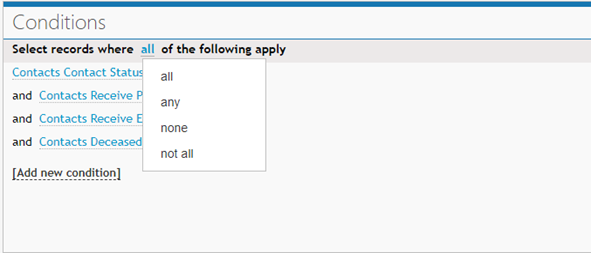
The first expression displayed is the ‘Select Records where’ all, any, none, not all ‘Of the following apply’. If ‘all’ is selected, it will display records where all of the conditions are met, if any is selected only one or more of the conditions have to be satisfied, if ‘none’ is selected, it will display every record except the records that meet the conditions and finally selecting ‘Not all’, which is similar to ‘any’, displays records which do not meet one or more of the conditions.
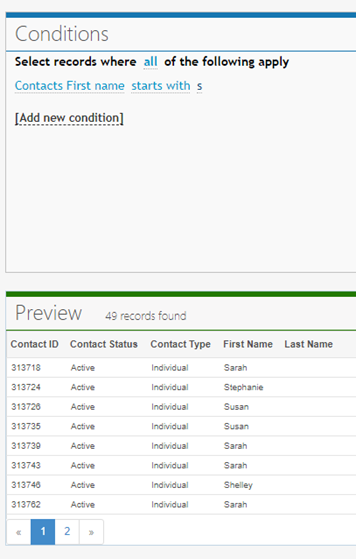
Conditions can have from 2 – 3 components usually. Our example starts with selecting from the first component ‘Contacts First Name’, next the operator or second component will display a drop-down box with different operand to choose from (Starts With, contains, is equal to… etc). After selecting the operator, we can select the value or 3rd component, if we selected ‘starts with’ as our operator we could add an ‘S’ into the value position and running the query would display only first names starting with ‘S’.
This can get very difficult, check the documentation on their website as they have many other examples for the Query Generator, and more in-depth examples.
Choosing the { + } button adds a group, which displays ‘and’ all, any, none, not all ‘of the following apply’, for this you can add more conditions but they only to apply to this condition. The group is included with any of your other conditions.

Query Menu
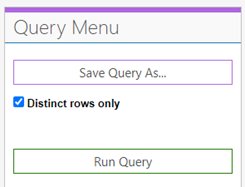
Buttons for saving the query, and running the query to view the output. When used for target lists, champions etc. there is a button for accepting the current list.
Preview
Preview displays the query after selecting ‘Run query’.

Contact Query List
Allows csv files to be uploaded and compared with data in FundraiserOne.
Saved Queries
Displays a list of all the queries already created, gives you the ability to load any of those queries, or delete them.
The fields the queries show is ‘Added Date’, ‘Added by’ and ‘Query Name’.
