

Reports can be found by accessing the Reporting side menu and selecting Reports. The reporting system allows users to run various pre-developed reports but users can also copy and modify the reports to suit their own requirements.
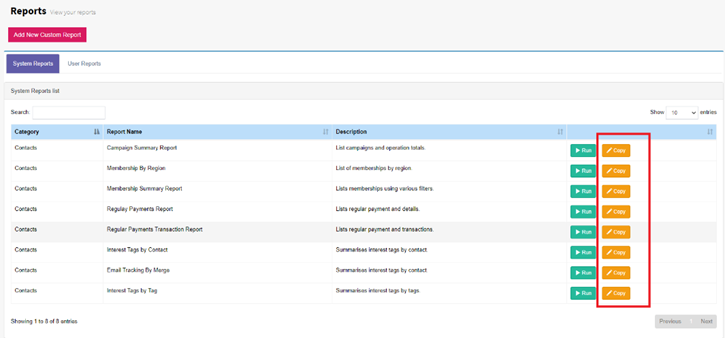
The reports page has two tabs, ‘System Reports’ and ‘User Reports’ there is a ‘Add New Custom Report’ button.
System Reports: This section lists all the system reports can accessed and run by using the Run button on the right hand side. Each of these reports can be copied into User Reports where they can modified.
User Reports: Any reports that are copied from System Reports or created as new reports by using the Add New Custom Report are stored in this section. All the reports in this can be edited, customized and deleted if they are no longer required. System Reports can not be changed.
Using System Reports
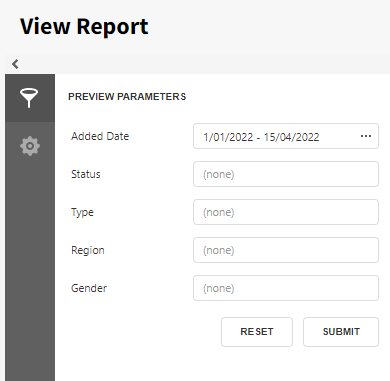
Selecting Reports from the menu will list the system reports as shown below. Let’s open the most basic reports, ‘Contact Summary’. In the System Reports section and select ‘Run’. You’ll be greeted with the ‘Preview Parameters ’ where filters can be added to narrow the data to the users requirements.
Below is the Preview Parameters, most reports have different filters, for this report the user can specify contacts added dates, Status, Type, Regions and Gender. To run the report press Submit.
The report will be displayed once data has been displayed from here it can be Printed or Saved to any format required (Excel, CSV, HTML Image etc.
Tip: Some reports have drill down data selections and can be sorted by clicking on the column headers. Drill down information is identified with a triangle next to the data being shown.
The preview screen has its toolbar top of the report with buttons that navigate pages, magnifies the report and also has a search which allows users to search contents of the report data shown.
