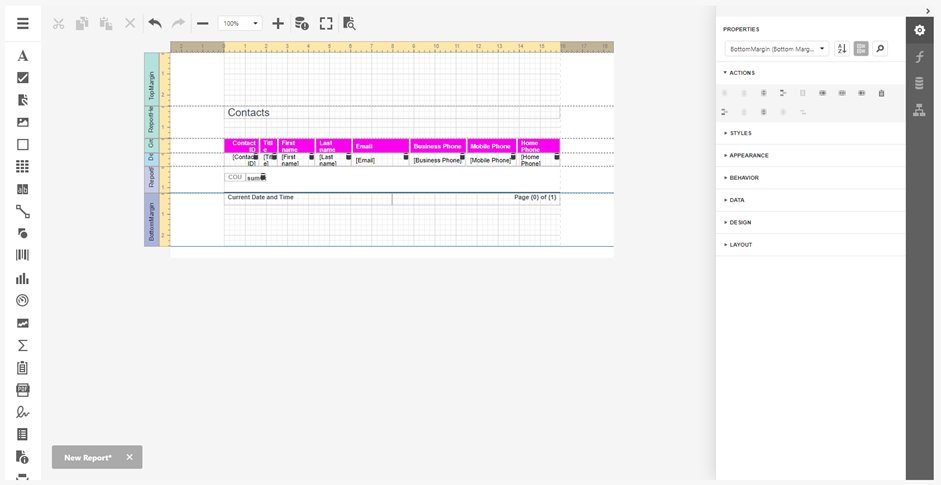
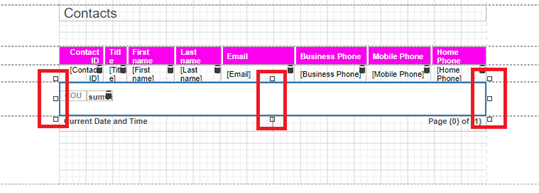
To begin creating a report selecting Reporting and Reports from the side menu. From there click on 'Add New Custom Report' as shown below.

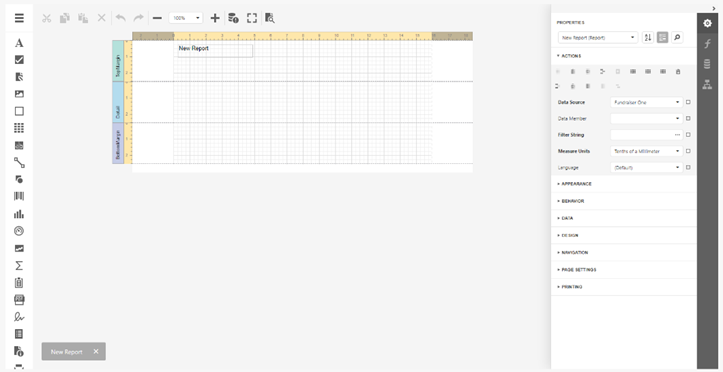
The report editor will be displayed with an empty canvas where the report can be created. FundraiserOne's reporting is very unique where users don't need to know SQL or how the data entities connect together. The reporting engine will show this using a hierarchy of tables from there, fields can be selected by dragging and dropping on to the report canvas. For this exercise we will be using the Design in Report Wizard.
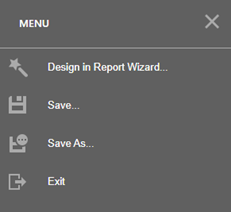
Opening the top left-hand menu icon displays the menu below. Select Design in Report Wizard.
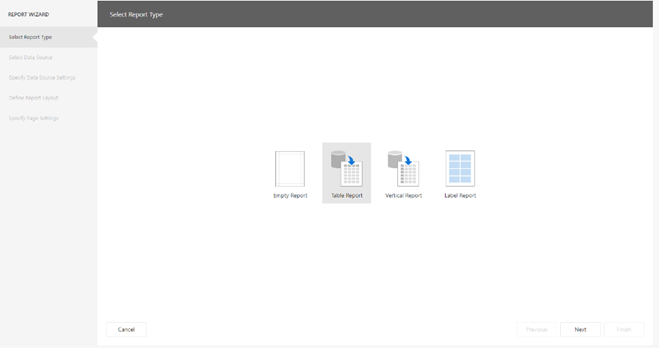
Select ‘Table Report’ from the above screen.
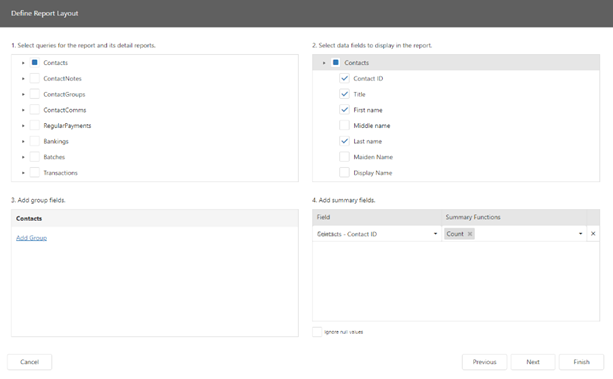
Firstly before selecting the tables and fields there will have to be basic knowledge on what data is required for the report. For similar report to the Contact Summary, Contacts and select fields Contact ID, Name, Title, Email and Phone. For Contact Summary we want a contact count, so select Contact ID as the field, and Count as the summary function.
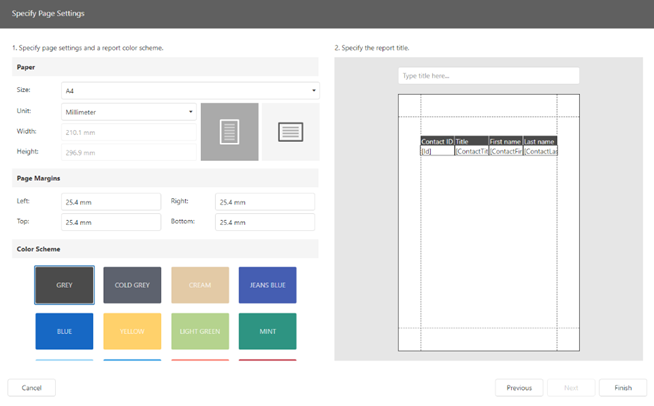
Select ‘Next’ to be taken to the Page formatting settings. Here report orientation can be selected, paper size, paper unit, width and height if requiring custom paper size), page colour scheme and a report title can also be added. Once completed, press finish and FundraiserOne will create your report in the canvas section.
The completed report will look similar to below. Fields can be moved and adjusted from here because the wizard doesn't adjust fields to size. From here the report can be previewed to confirm adjustments are completed.