

Summary
FundraiserOne can be integrated with Xero to enable the direct transfer of banking transactions between the two systems. Once configured, users can send banking batches to Xero using the Send to Xero function in FundraiserOne, eliminating the need for manual file exports and imports.
Prerequisites
Before transactions can be exchanged between FundraiserOne and Xero, the General Ledger (GL) structure must be aligned between both platforms.
Step 1: Obtain General Ledger Codes from Xero
Log in to Xero.
Navigate to Accounting > Advanced > Chart of Accounts.
Print or export the Chart of Accounts.
Identify the General Ledger codes that will be used for fundraising products, operations, income, and other transaction types.
Step 2: Add GL Codes to FundraiserOne
Log in to FundraiserOne.
Open User Defined Lists.
Create or update the list containing the Xero General Ledger codes.
Enter the GL codes exactly as they appear in Xero.
Important: GL codes in FundraiserOne must exactly match the corresponding codes in Xero. Any discrepancies may prevent transactions from being posted correctly.
Step 3: Connect FundraiserOne to Xero
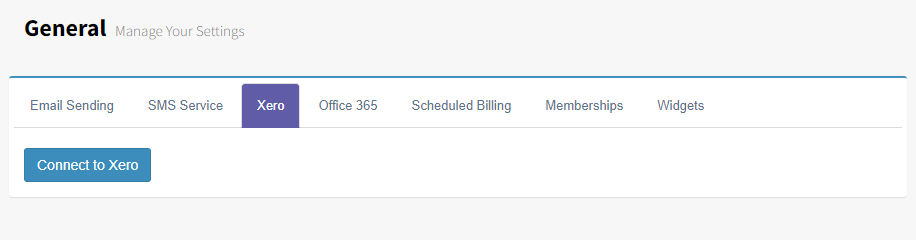
Once the General Ledger Codes are loaded and assigned go to Settings and General Settings and select the Xero tab. From here you can connect Xero with FundraiserOne.
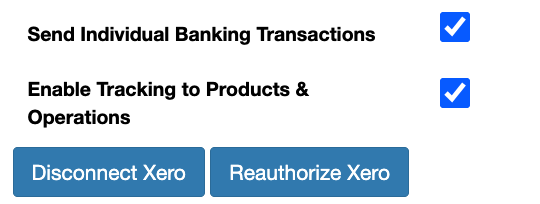
Once connected users can select preferences to send the following to Xero.
Send Individual Banking Transactions - Enable this option to send each transaction to Xero separately, rather than combining transactions into a total for each GL code.
Enable Tracking to Products & Operations - Enable this option to assign Xero Tracking Codes to Products and Operations in FundraiserOne. Each transaction sent to Xero will be tagged with its configured tracking code. If this option is disabled, tracking codes are applied at the banking level, meaning all transactions within a banking batch share the same tracking code.
Step 4: Assign GL Codes & Tracking Codes to Products and Operations
Once the GL codes have been added:
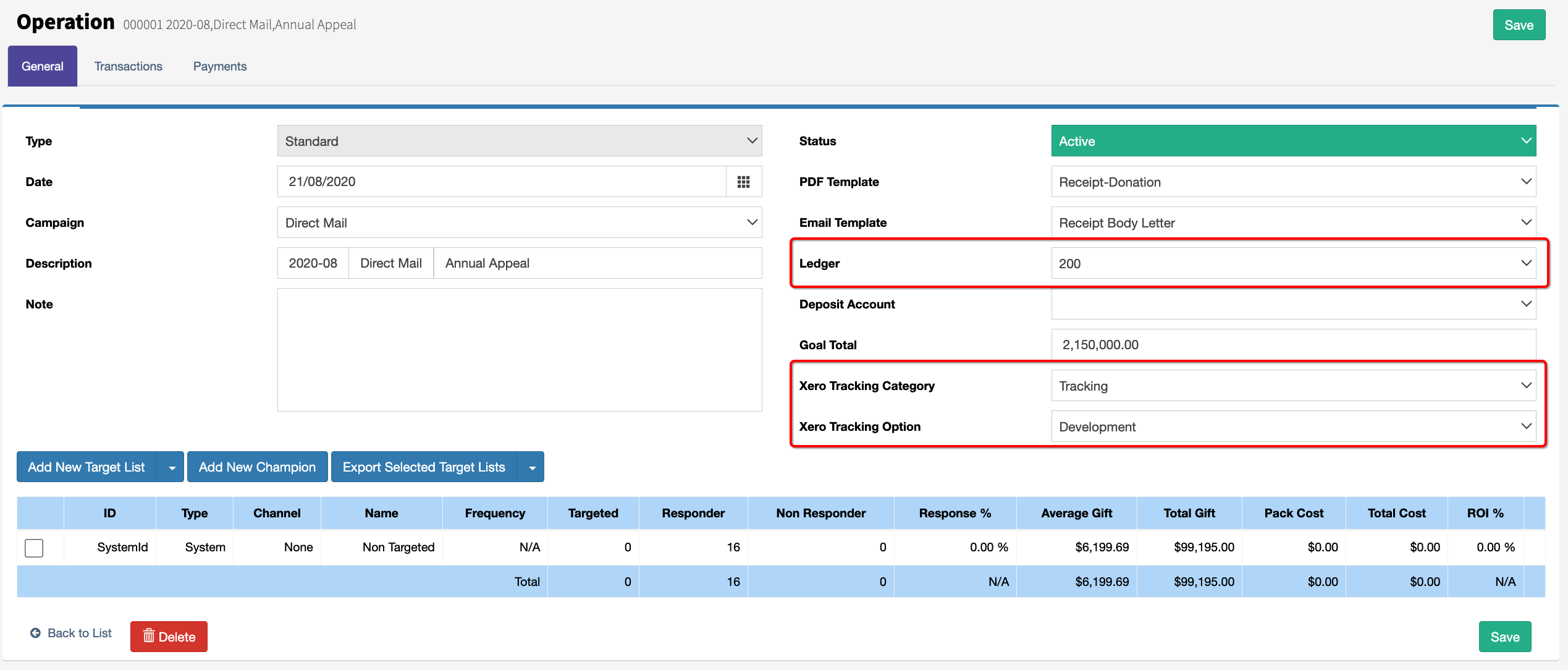
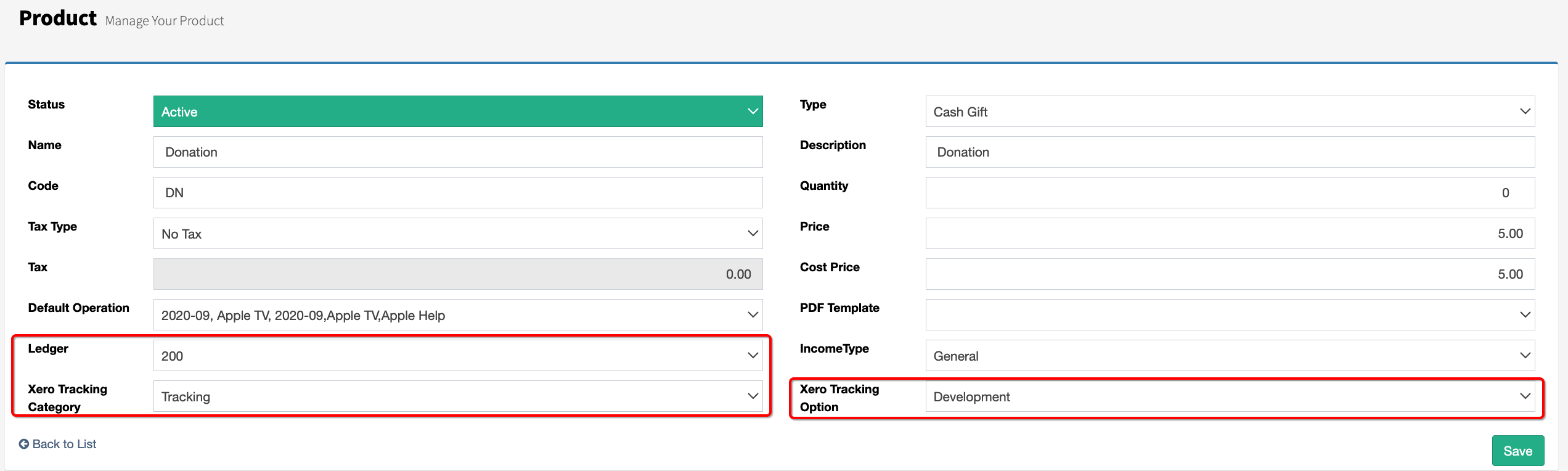
Assign the appropriate GL codes Tracking codes to Products.
Assign the appropriate GL codes Tracking codes to Operations.
Verify that all fundraising activities have the correct account mappings.
Note: Xero allows up to two Tracking Categories to be created and named. These Tracking Categories will automatically appear in FundraiserOne with the same names used in Xero. Also Product-level Tracking Code settings take precedence in FundraiserOne. If a Product does not have Tracking Codes assigned, the system will automatically use the Tracking Codes configured for the Operation.
Sending Bankings to Xero
To send a Banking to Xero follow the following steps.
Note: This process requires Xero to be connected via Settings.
Step 1: Go to the Banking section FundraiserOne by selecting Bankings under the Financial menu.
Step 2: Select the Banking and press the Send to Xero button.
The Banking screen will appear, displaying the selected banking account.
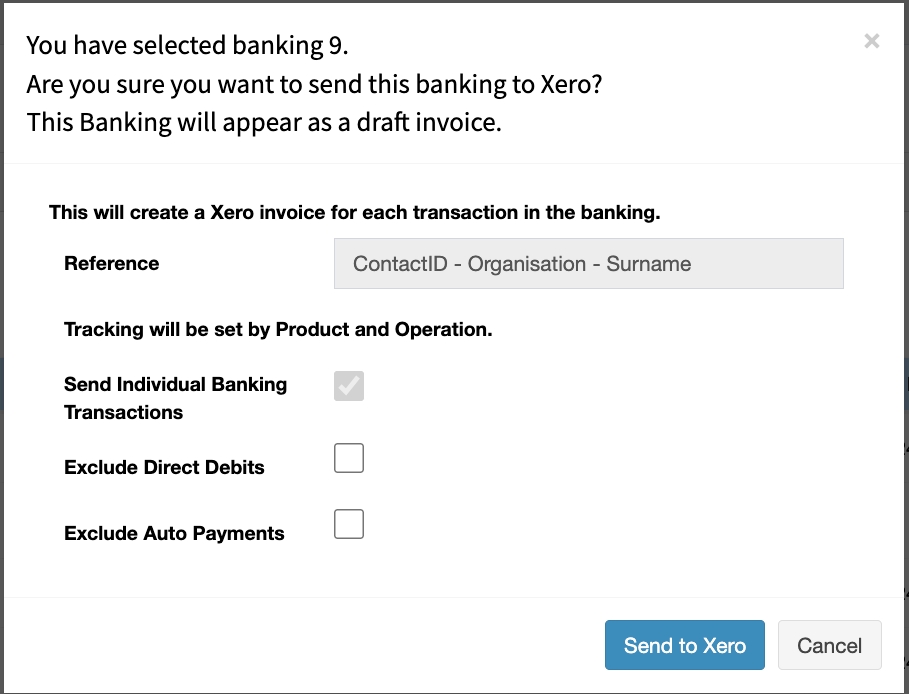
When Send Individual Banking Transactions has been selected, the Reference field will automatically default to the name of the contact making the transaction.
When Enable Tracking to Products & Operations is set in Settings, the relevant Tracking Categories will be applied to the transaction.
If these options are not selected, the Reference field and Tracking Categories can be entered and selected manually.
There is also options ‘Exclude Direct Debits’ and/or ‘Exclude Auto Payments’.
Step 4: Select ‘Send to Xero’
Viewing banked data in Xero
Step 1: Login into Xero.
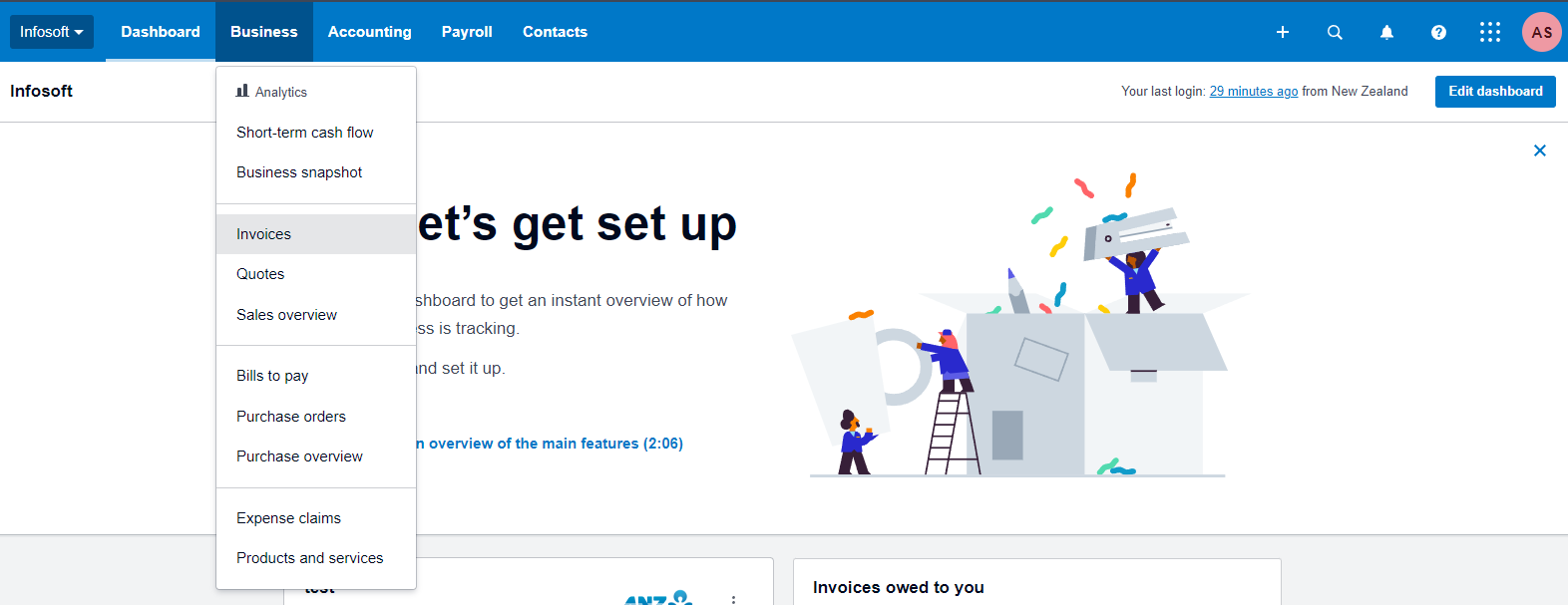
Step 2: Go to the Business menu and select Invoices as shown below.
Step 3: All records can be found in Draft tab. From here payments can be viewed and approved.
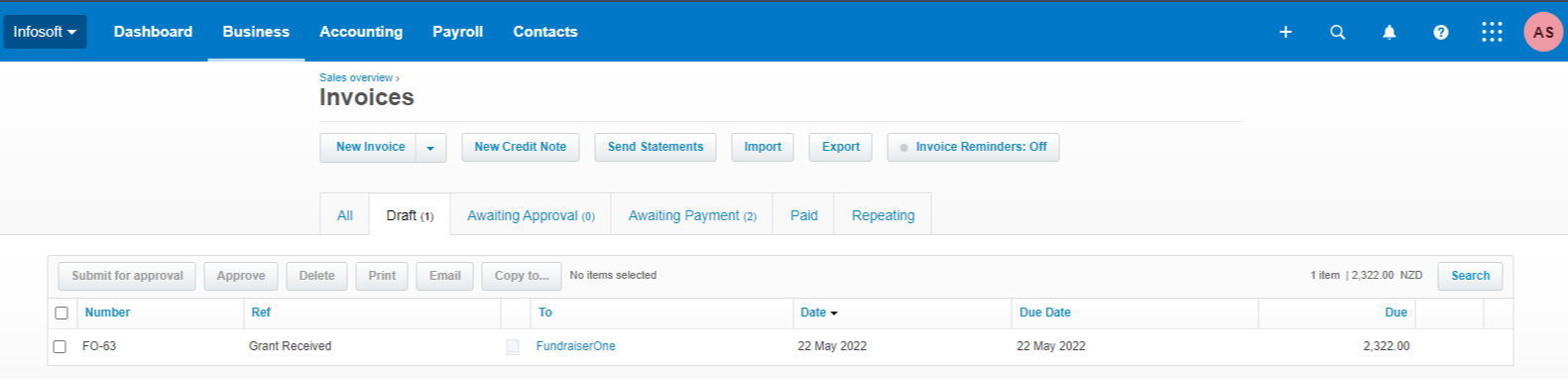
Step 4: From here they can be approved and deposited if the transactions match the banked amounts.