

Summary
The following section describes how to integrate FundraiserOne with the Funraisin platform to enable the automatic transfer of supporter and fundraising data into FundraiserOne.
Through this integration, data collected from Funraisin is synchronised directly with FundraiserOne, reducing manual data entry and ensuring supporter information remains accurate and up to date. The integration supports a range of fundraising scenarios and can be configured to:
Automatically transfers donation data to FundraiserOne.
Automatically generates the appropriate donation receipts based on Funraisin event pages and stores them in FundraiserOne for future reference.
Automatically creates new regular giving commitments by setting up recurring payment schedules using the supporter and payment details received from Funraisin.
This integration streamlines fundraising operations, improves data quality, and ensures that supporter activity captured through Funraisin is reflected in FundraiserOne quickly and consistently, providing a seamless experience for both administrators and supporters.
Configuring the Funraisin API Connection
To enable integration between FundraiserOne and Funraisin, the Funraisin API credentials must first be configured within FundraiserOne. This allows FundraiserOne to securely communicate with the Funraisin platform and retrieve supporter, donation, and fundraising data.
To configure the connection:
Log in to FundraiserOne.
Navigate to Settings.
Select General Settings.
Once the General Settings page has loaded, select the Funraisin tab.
Check the Use Funraisin checkbox.
Enter the API Key and Secret Key provided by Funraisin.
Select the Funraisin Batch Period. This setting determines whether the system creates daily or monthly batches to store processed transactions.
Click Save to store the settings.
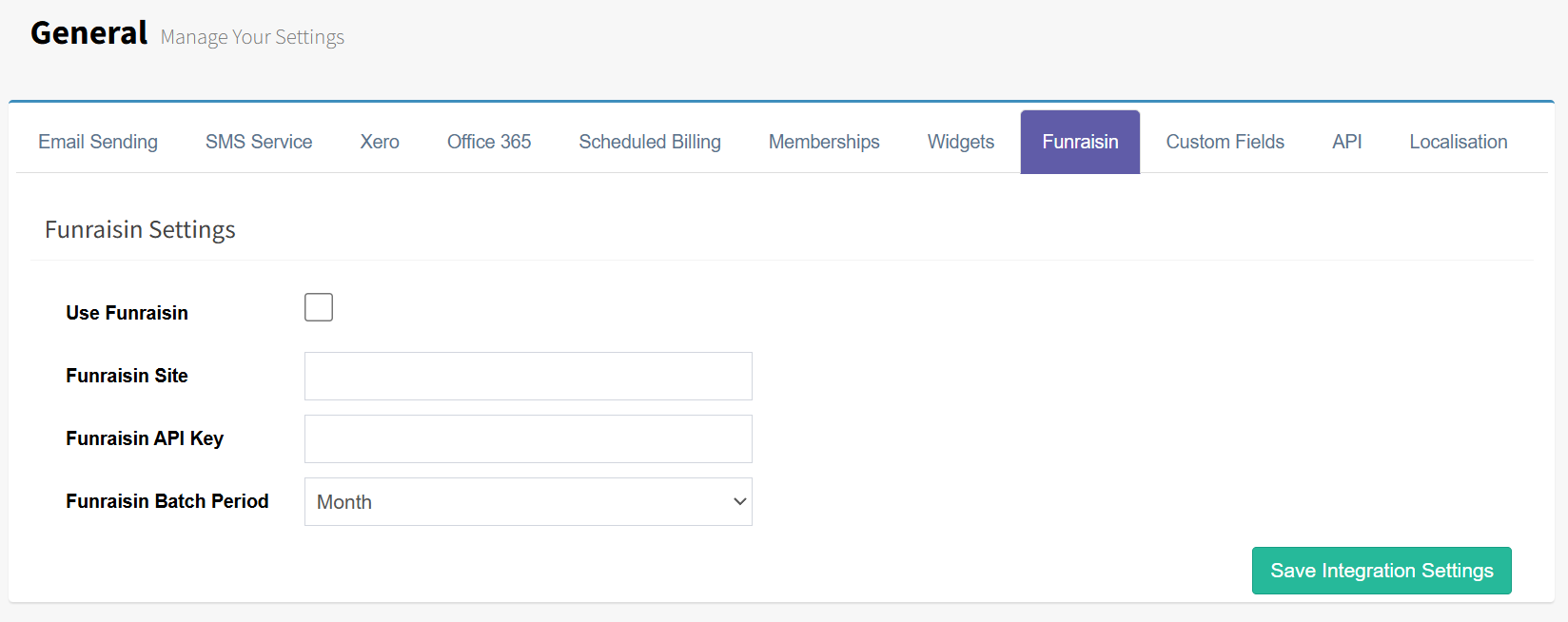
Once the API credentials have been saved successfully, FundraiserOne will be able to connect to Funraisin and synchronise fundraising data based on the configured integration settings. This connection is required before event pages, supporter records, donations, receipts, and regular giving information can be imported and processed automatically.
Configure Funraisin Event Pages
This section is used to configure how FundraiserOne processes data received from a specific Funraisin event page. It ensures that when data is imported from Funraisin, FundraiserOne can correctly identify the source event and apply the appropriate processing rules.
For each Funraisin event page, a corresponding configuration can be created within FundraiserOne. This configuration determines how incoming supporter and donation data is handled, including:
Assigning the correct Product and Operation for reporting and financial processing.
Assigning correct receipt templates for the event, where FundraiserOne will create and send automatically.
To ensure data received from a specific Funraisin event page is processed correctly, an Event Page configuration must be created in FundraiserOne. This configuration determines how donations, receipts, and regular giving commitments associated with the event are handled.
To configure an Event Page:
Log in to FundraiserOne.
Navigate to Settings.
On the General Settings page, select Funraisin Events.

4. Click Add New Integration to open the Integration screen.
Set Status to Active.
Set Integration Type to Funraisin.
Select the appropriate Funraisin Event Page.
This is the event page hosted in the Funraisin platform that the integration will use.
If no event pages are available, the Funraisin API credentials may be invalid.
Select Processed Date this is the starting FundraiserOne will pull data from Funraisin.
Select a Region, if applicable.
Select the Single Gift Product to assign to one-off donations received through the event.
Select the Single Gift Operation to assign to one-off donation transactions.
Select the Email Template to use when issuing receipts for eligible one-off donations.
Select the Print Template to use for printed receipts, where required.
Select the Regular Gift Product to assign to recurring donations created through the event.
Select the Regular Gift Operation to assign to recurring donation transactions.
Select the Regular Gift Email Template to use when issuing acknowledgements for recurring gift commitments.
Create Merge Job: Create a merge for the donor automatically with correct template.
Receipt Transaction: Sets the incoming donation transaction as receipted.
Auto Send Merge Job: Automatically send the receipt when the donation is received.
Note: Ensure all products, operations, and templates are configured correctly before activating the integration to guarantee donations and acknowledgements are processed as intended.
Select the Add button to save the integration, FundraiserOne will use these settings whenever data is received from the selected Funraisin event page, ensuring that supporters, donations, receipts, and regular giving records are created and processed consistently according to the event's configuration.
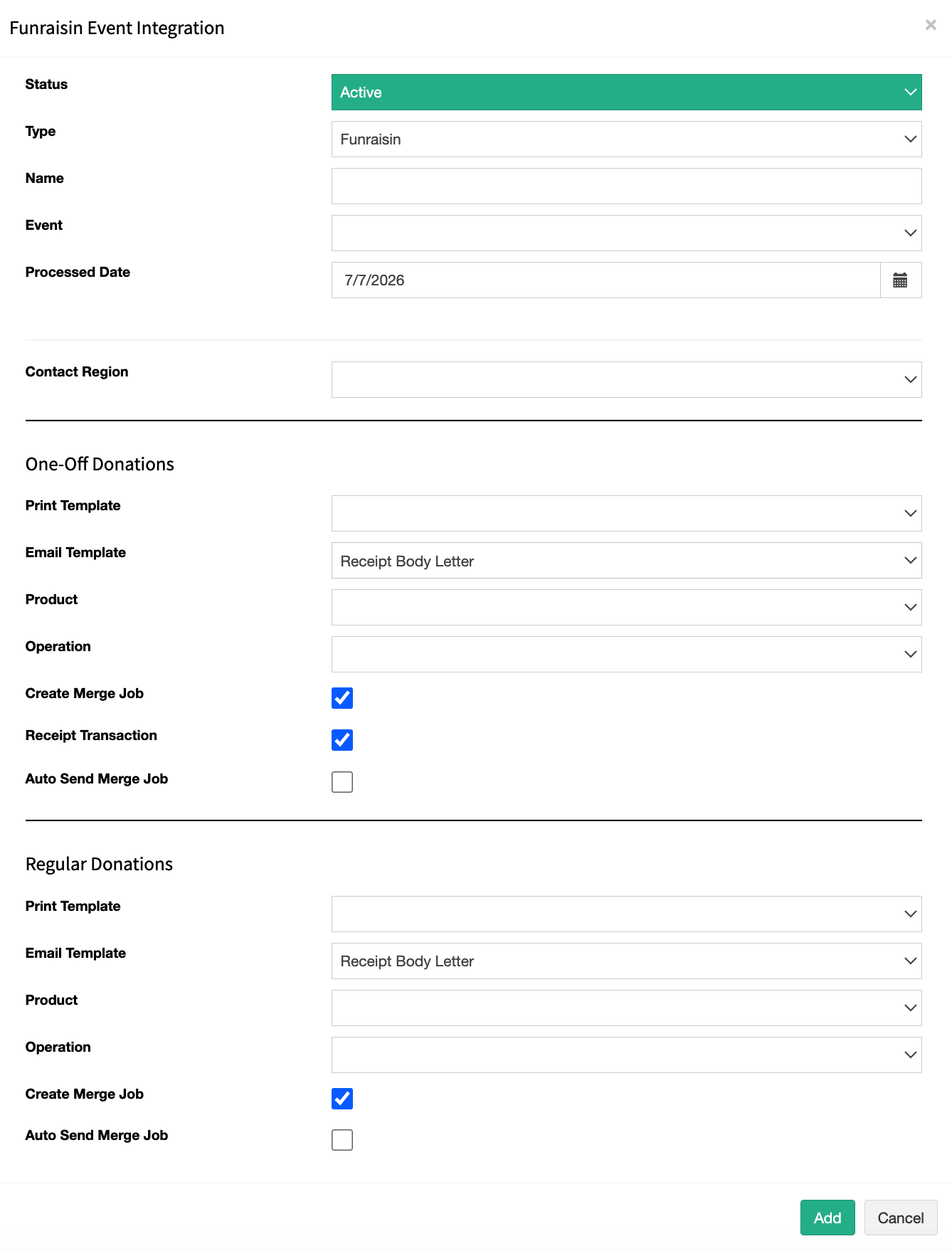
This process can be repeated for other Funraisin event pages, ensuring that incoming supporter records are reviewed, matched, and allocated correctly across all events.
Verifying incoming new and match contacts
All contacts received from Funraisin are matched using email address, first name, and last name. Based on this information, the system determines whether to match the record to an existing contact or create a new contact record.
Funraisin also allows supporters to enter their supporter number, which is taken into consideration during the matching process.
To view all incoming records, navigate to Services > Online Review from the menu. This screen allows users to review incoming records.
For newly created records, the system will display any similar records that may already exist in the database. This can occur when a supporter enters their details incorrectly or uses a shared/family email address when making a donation.
In these cases, data can be reviewed and reallocated to the correct contact directly from the Online Review screen. See the related article on how to use Online Review.