

Summary
This article explains the process for recording and managing gifts and donations received from a supporter. It provides step-by-step guidance on how to accurately enter donation details, allocate funds where required, and ensure that all supporter information is maintained correctly within the system. The article also covers best practices for handling different types of donations, including one-off gifts, recurring donations, and other supporter contributions. By following these instructions, users can ensure donations are processed efficiently, supporter records remain up to date, and financial reporting is accurate and reliable.
Creating a batch
Gifts are all processed in the Financial menu section but before these can be entered a Batch will need to be created. A Batch is used to store the Transactions and can contain one or more transactions depending on how many need to be processed.
Batches are used to group transactions which are assigned to batches, typically by day, which simplifies the reconciliation process. The Target Count and Target Amount can be used to verify that the actual transactions entered into the batch match the expected banking totals before the batch is finalized.
Create a Batch: Select Batches from the Financial menu and press Add New Batch.

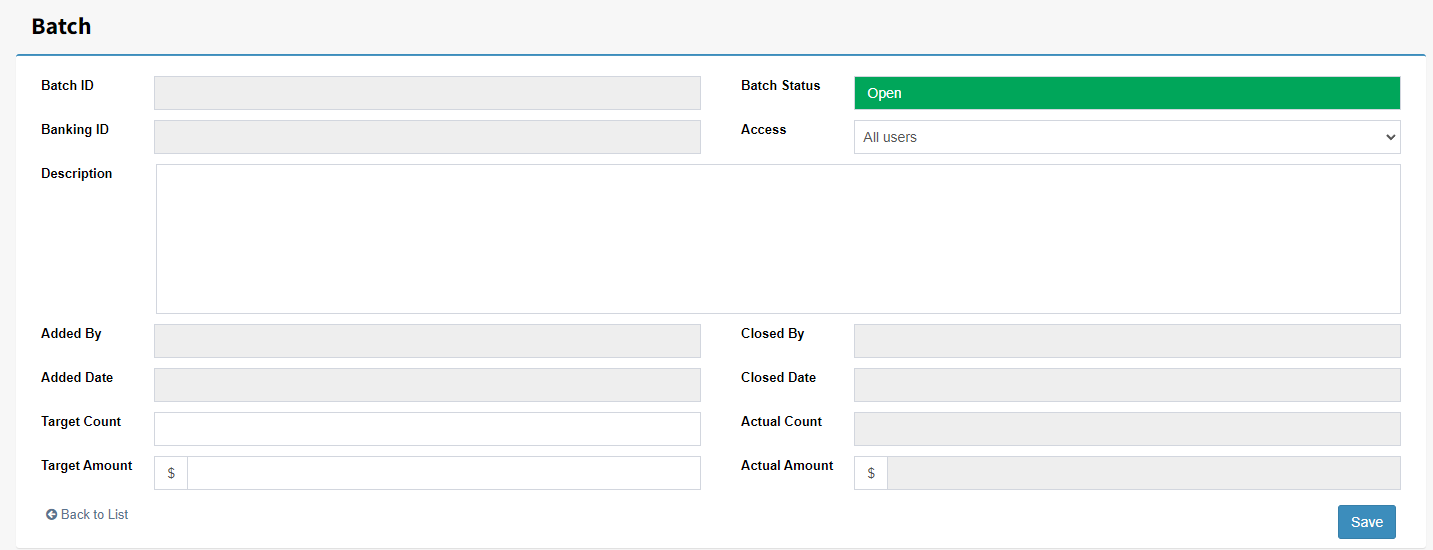
The Batch screen contains several fields used to manage and reconcile transaction batches:
Status – Indicates the current state of the batch (for example, Open, Closed, or Processed).
Access – Controls or identifies who can view or modify the batch.
Description – A user-defined description that helps identify the purpose or contents of the batch.
Target Count – The expected number of transactions contained within the batch.
Target Amount – The expected total value of all transactions within the batch.
Save: Saves the record and allocates a Batch ID.
Creating a transaction to process a donation
To create a transaction for an incoming gift, navigate to Financial > Transactions and select Add New Transaction.
In the Contact field, search for the donor who made the gift. You can locate the contact by entering one or more of the following details:
Last Name
First Name
Organisation
Other available search criteria
As you enter the search information, matching contacts will be displayed. Select the appropriate contact from the list before proceeding with the transaction entry. Ensuring the correct contact is selected will allow the gift to be accurately recorded against the donor's history and included in future reporting and reconciliation processes.
Tip: Use commas to separate search fields to help narrow the results. For example:
Smith, John
or
Smith, John, ABC Foundation
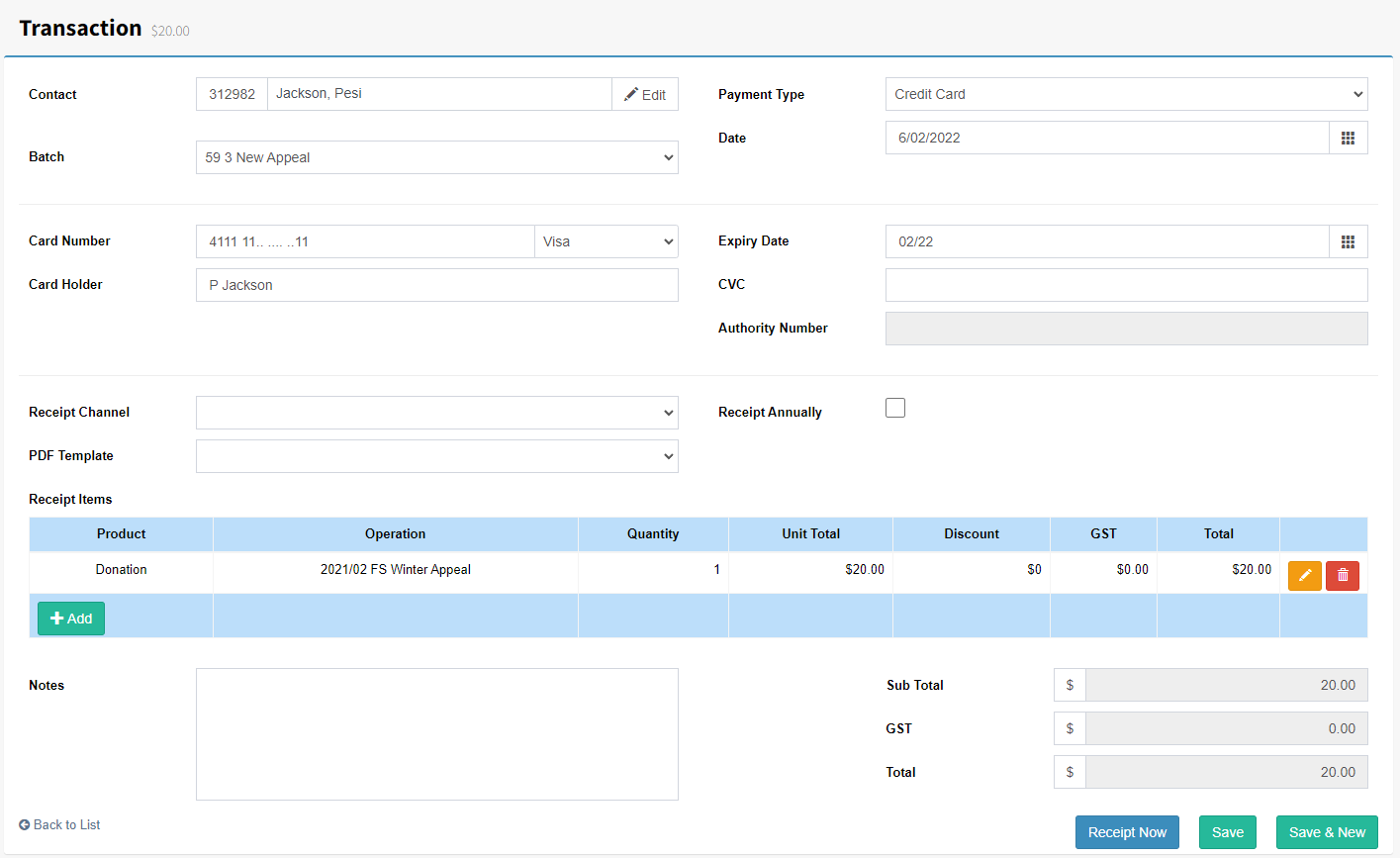
Once the correct contact has been selected, choose the select the Batch, Payment Type and enter the Transaction Date.
Different Payment Types may require different information to be entered. Depending on the payment type selected, additional fields may be displayed, such as:
Credit Card - Selecting Credit Card as the payment type allows the transaction to be processed directly from within FundraiserOne.
When Credit Card is selected, the user will be prompted to enter the card details either before the transaction is saved or during the save process, depending on the payment gateway that has been enabled for the organisation.
The fields and workflow presented may vary between payment gateways, but all required card and authorization information must be entered before the transaction can be successfully processed.
Direct Debit - Account name, Branch Name and Account number. Capturing this information allows bank schedules to be generated from FundraiserOne. These schedules can then be uploaded to the organisation's banking portal, enabling payments to be processed efficiently and reducing the need for manual data entry. This helps streamline payment processing, improve accuracy, and support reconciliation activities.
In Kind is a payment type used when physical goods, products, or services are donated without any monetary payment being exchanged.
This payment type is used to record and track the estimated value of the donated goods or services for reporting and stewardship purposes. Examples of in-kind donations include donated equipment, catering services, venue hire, professional services, or other non-cash contributions.
Recording in-kind gifts ensures that the organisation maintains an accurate record of all donor contributions, including those that do not involve a direct financial transaction.
Other Payment Types - Auto Payments, Cash, Direct Credit and user defined Payment Types can be created too usually when third party systems are integrated.
Receipt Channel determines how the donor will receive their receipt. This field is automatically populated from the Receipt Channel setting on the contact's Communication Centre tab.
The Receipt Channel can be changed when entering the transaction if required, allowing a one-off override for that specific gift. A Template Override can also be selected at this point. If no template override is specified, the receipt template assigned to the selected Operation will be used by default.
Receipt Annually will exclude the transaction from standard batch receipting and instead allocate it to the Annual Receipting process.
This option is typically used for donors who prefer to receive a single consolidated receipt covering all eligible gifts made during the financial year. These transactions can then be receipted in bulk as part of the organisation's annual receipting process.
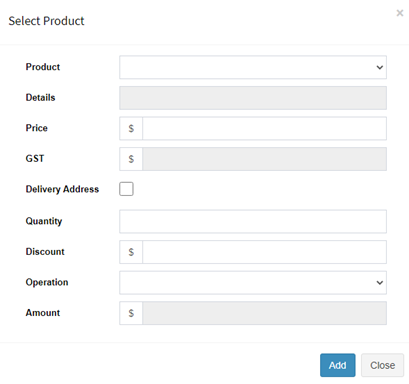
Select the + Add button to assign a Product and Operation to the transaction and specify the Amount being allocated.
Depending on how the Product has been configured, the Operation and Amount fields may be populated automatically when the Product is selected. Review the information and make any necessary adjustments before selecting Add to save the allocation.
Note: If a single payment needs to be allocated across multiple products, repeat this step for each additional product until the entire payment amount has been assigned. Ensure the total value of all product allocations matches the transaction amount before saving the transaction.
Click on Save or Save & New to save the record.
Note: If the transaction is a credit card saving the transaction will prompt for the card to charged. Selecting Yes will attempt to charge the card and return the outcome at the top right hand area of the screen.
Editing a transaction to update it's details
Once a transaction has been processed, it can still be edited provided the batch remains open. There may be occasions where a transaction requires changes after it has been entered.
To locate the transaction, you can either:
Find the relevant contact and navigate to History > Financial; or
Select Transactions from the Financial menu.
Once you have located the transaction, select Edit.
Make the necessary changes and if the Product Operation or Total needs updating select the orange pencil to edit the line item. Once complete click Save to update the transaction.
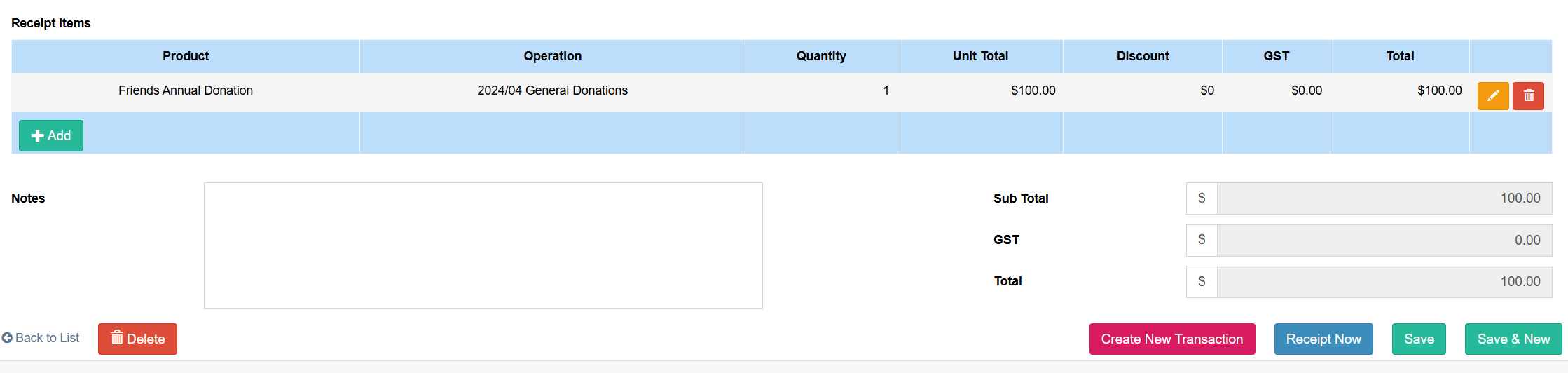
Note: Total can not be edited on a credit card transaction that have been processed sucessfully.