

Templates store mergeable documents used for printing, emailing, and texting. FundraiserOne includes three template types, each designed to work in a specific way depending on what you need to send or produce.
A newsletter or any message intended for email should be created as an Email Template, which uses the email document format.
A formal letter, receipt, or thank‑you message is best created as a Print Template. Print templates can be printed, and they can also be emailed when they are used for receipting because they are automatically converted into PDFs. When sending an emailed receipt, FundraiserOne uses two templates an Email Template for the body of the email, and a Print Template for the receipt itself, which is attached as a PDF.
When a Print Template is emailed, FundraiserOne automatically generates a PDF attachment and includes it in the outgoing email.
This structure ensures each communication is formatted correctly and delivered in the most effective way.
The types of templates you store should reflect how you communicate with different contacts. You can create receipt templates, newsletters, birthday messages, and any other documents you regularly send.
Managing Templates
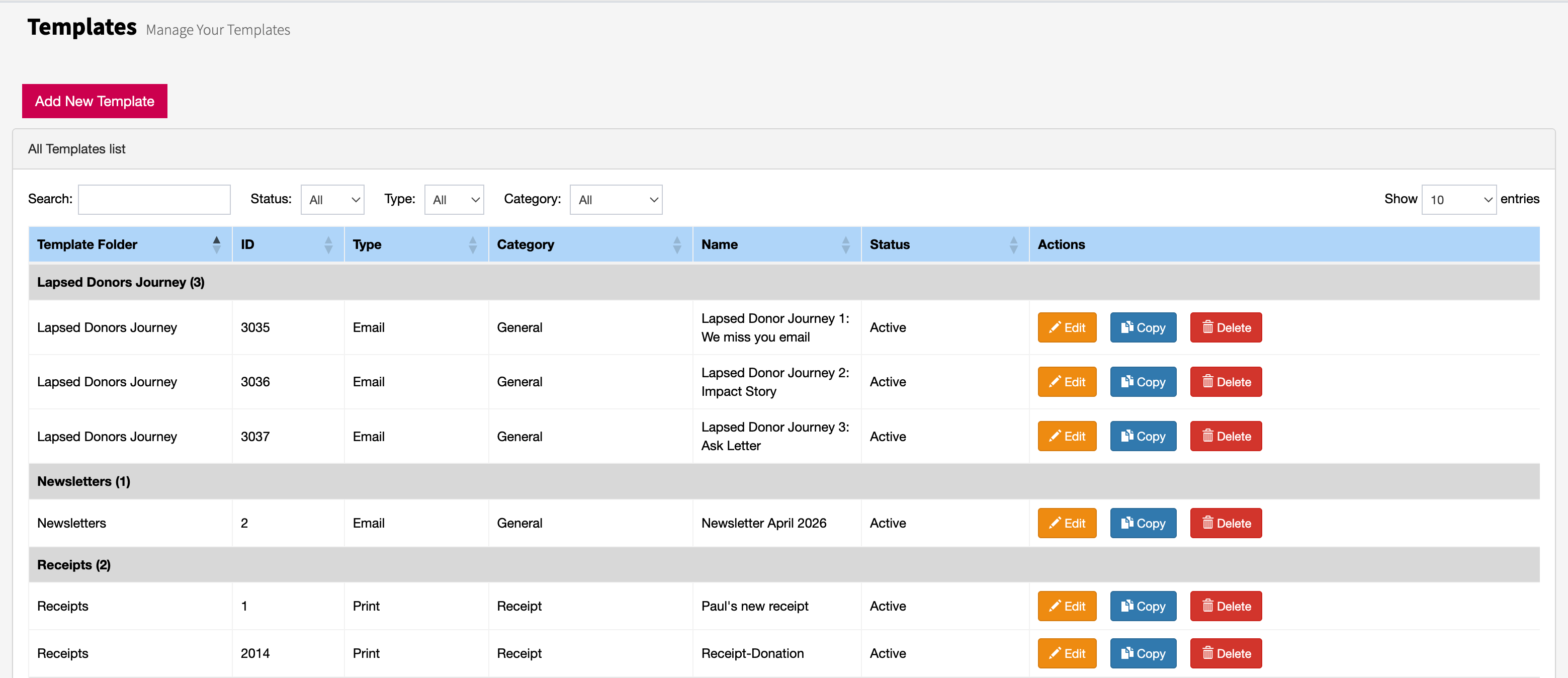
Selecting Templates from the menu displays all available templates. You can use the filters to narrow the list by status, type, or category, and the search bar to find a template by name.
Use the control buttons on the right to edit a template, copy a template, or delete a template. These tools make it easy to manage and update your template library.
Creating new folders
Storing templates in folders helps keep everything organised and easy to find. By grouping similar templates together, you can quickly access what you need and maintain a clear, structured filing system.
Use the New Folder button to create additional folders whenever you need to organise your templates. Creating folders helps keep related files grouped together, making it easier to manage, locate, and maintain your template structure over time.

Renaming & Deleting folders
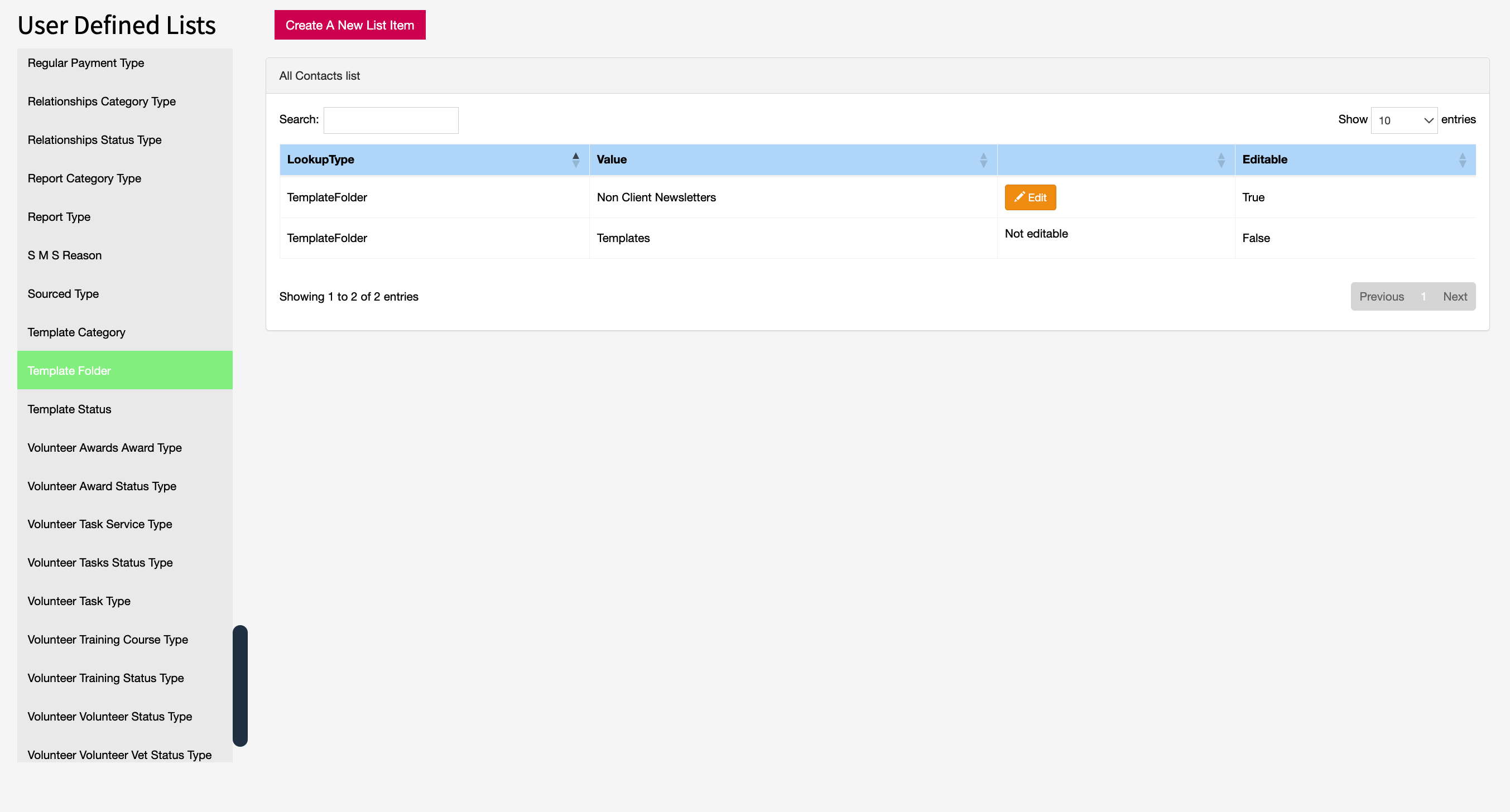
Folder names can be edited or deleted by going to System → User Defined Lists. From the list, select Template Folder, then choose the folder you want to update by pressing Edit.
Folders can be deleted if they are not in use. To remove an unused folder, press Delete when editing.
Creating new templates
To create a new template, select the Add New Template button. This opens the template properties screen, where you can set up all key details — including choosing the Template Type, Status, naming the template, and assigning it to the appropriate Folder. Setting these properties correctly ensures the template behaves as expected when printing, emailing, or texting.
The Category you select determines which merge fields are available when editing a template. This is important because different categories unlock different types of data. For example, a General template does not include transaction‑related merge fields, while a Receipt template provides access to all the transaction fields you need for issuing receipts.
Choosing the correct category ensures your template can pull in the right information automatically.

For Email Templates, you can set a Subject line. This is where you enter the text you want to appear as the email’s subject when it is sent. A clear subject helps recipients understand the purpose of the message before opening it.