

To view all templates in FundraiserOne, select Templates from the menu. You’ll see a full list of available templates, similar to the example below. From this screen, you can add new templates or choose Edit on any template row to update it. The list can also be sorted by Type or Category to help you find what you need quickly.
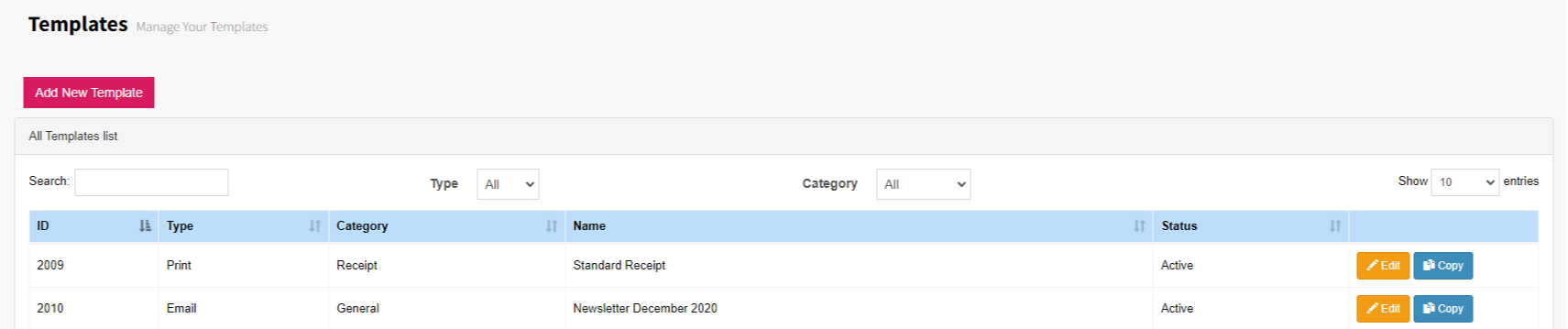
For this example, we’ll create a new template. Select ‘Add New Template’ to begin.
The Template Properties screen will open, where you’ll need to set the required defaults before the template can be created. Choose the Template Type, give your template a name, and assign it to a Category.
Set Template Type to SMS, leave Status to Active. Folder will default to Templates you place the templates into Folders to allow better management of templates. Category can be set to General.

Selecting Save & Edit Template will display the editor ready to type in your message. Merge fields can be used to personalise the message.
Note: SMS messages have a limit of 160 characters per message. Any additional characters will be split into multiple message blocks, which may result in multiple charges for a single message, even though the recipient will see it as one continuous message. SMS messages are limited to 320 characters in total.
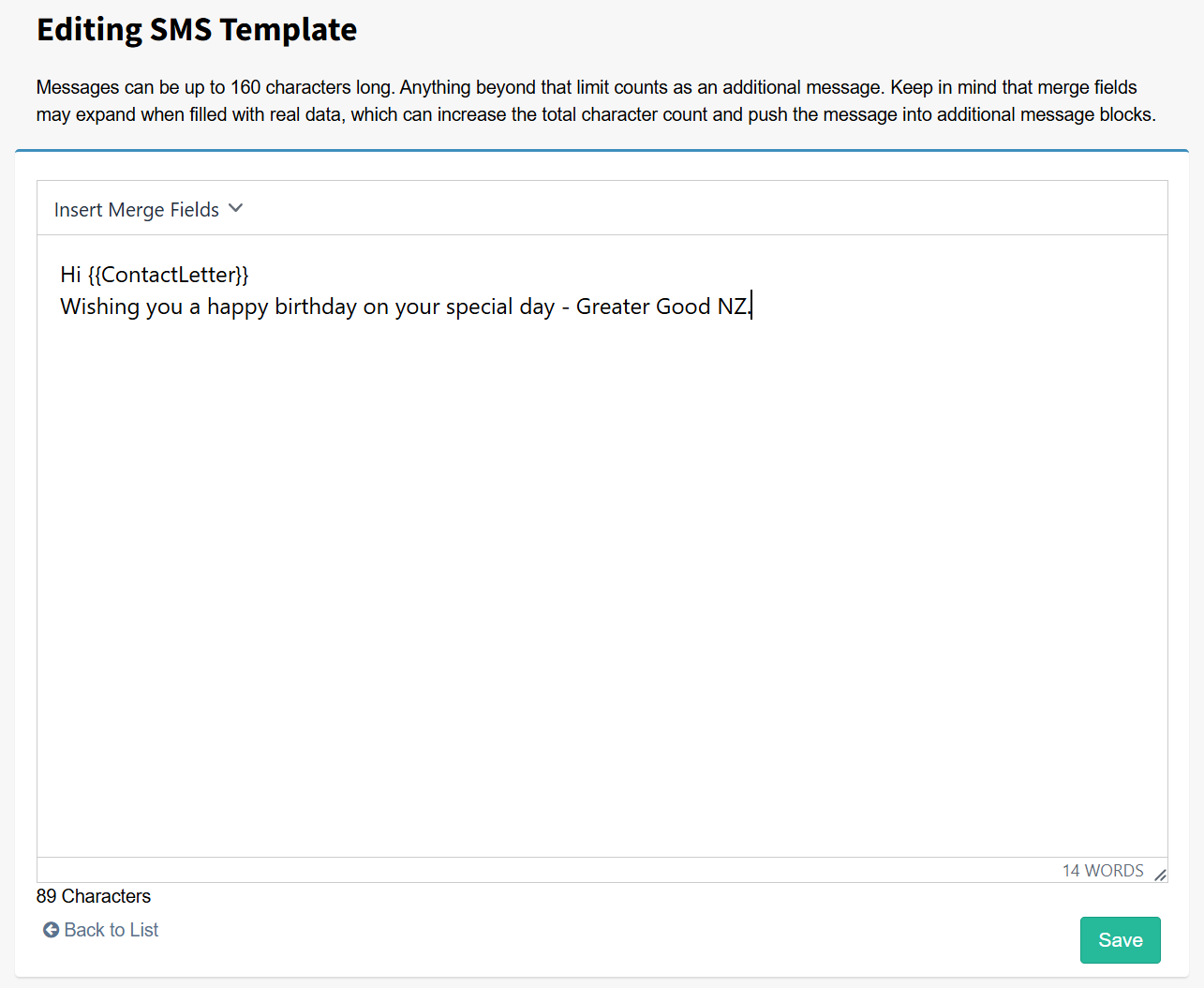
Once the message is completed the Save button to store the changes.