Send SMS messages directly to individual contacts from the Contact Card, or create personalised messages in bulk using the Merging feature. This gives you the flexibility to communicate one‑to‑one or reach larger groups efficiently while still keeping each message tailored to the recipient.
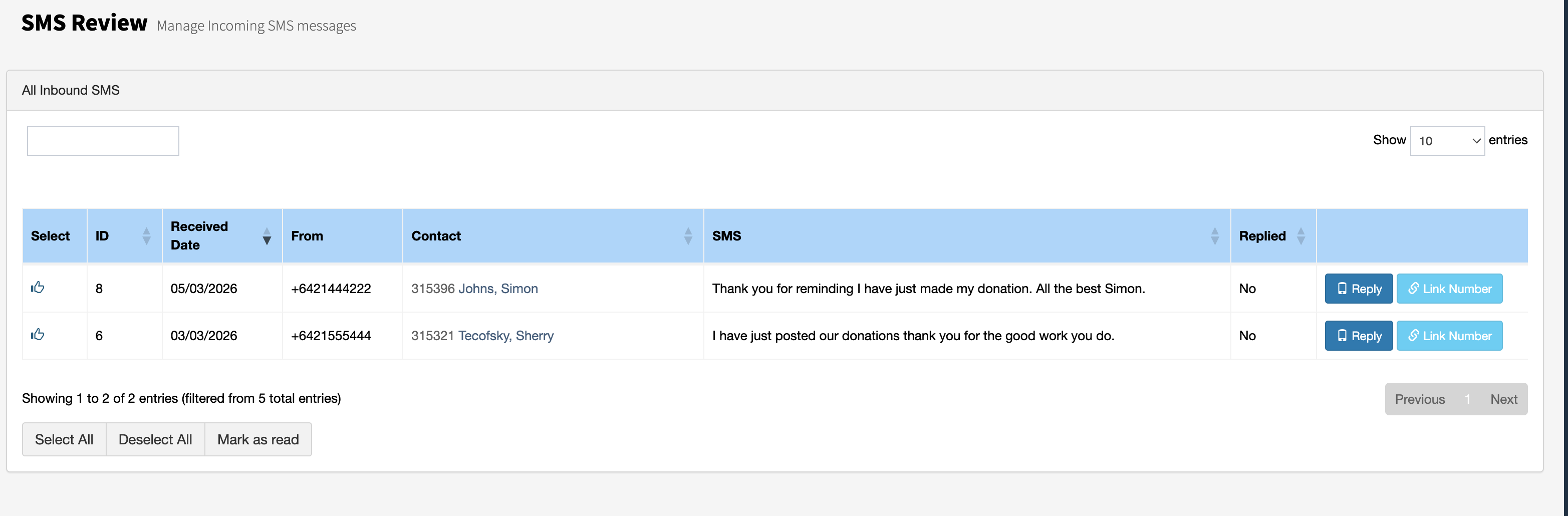
You can now receive SMS replies directly back into FundraiserOne, making two‑way communication seamless. All inbound messages are visible when viewing a contact’s profile, so you can easily track the full conversation history. Additionally, the SMS Review area allows you to view and manage all incoming messages in one place.
Sending a personalised SMS message to a contact
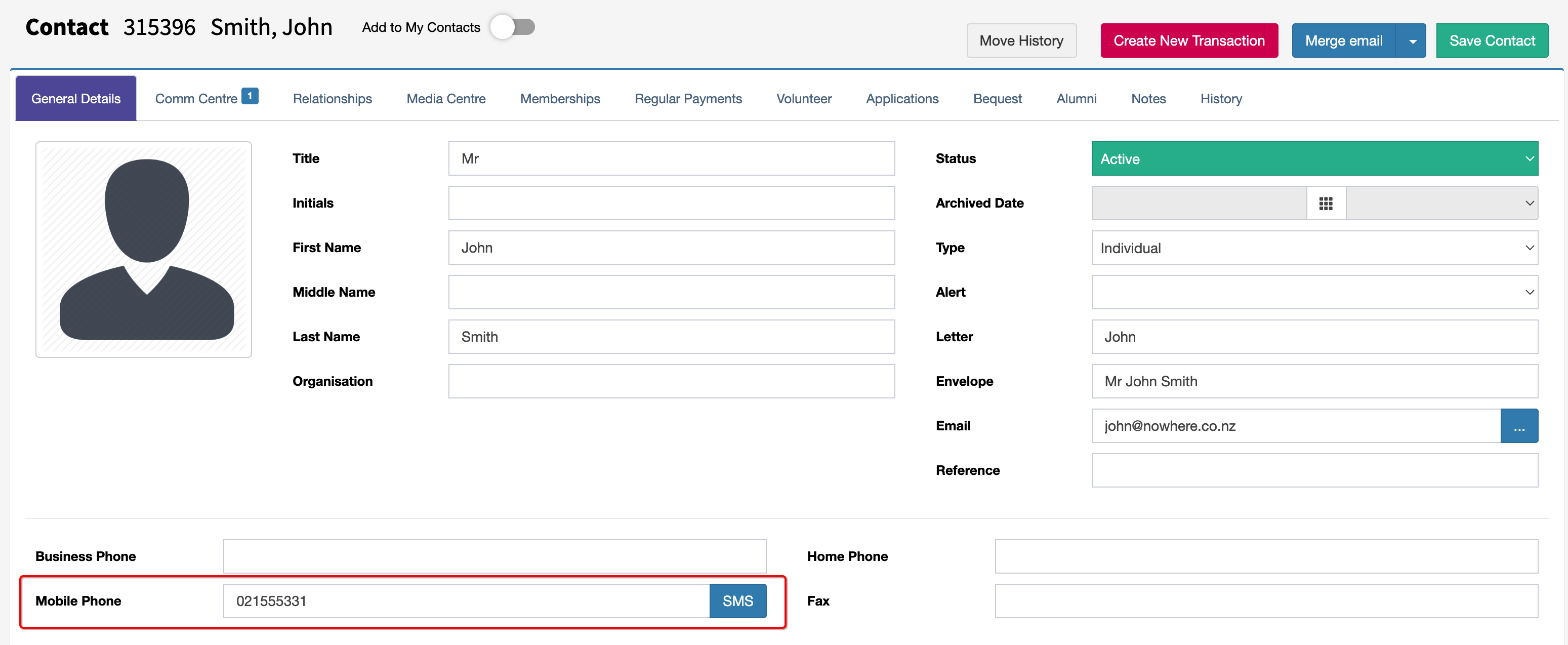
Compose a SMS message simply by opening a Contact and selecting SMS next to the mobile number field.
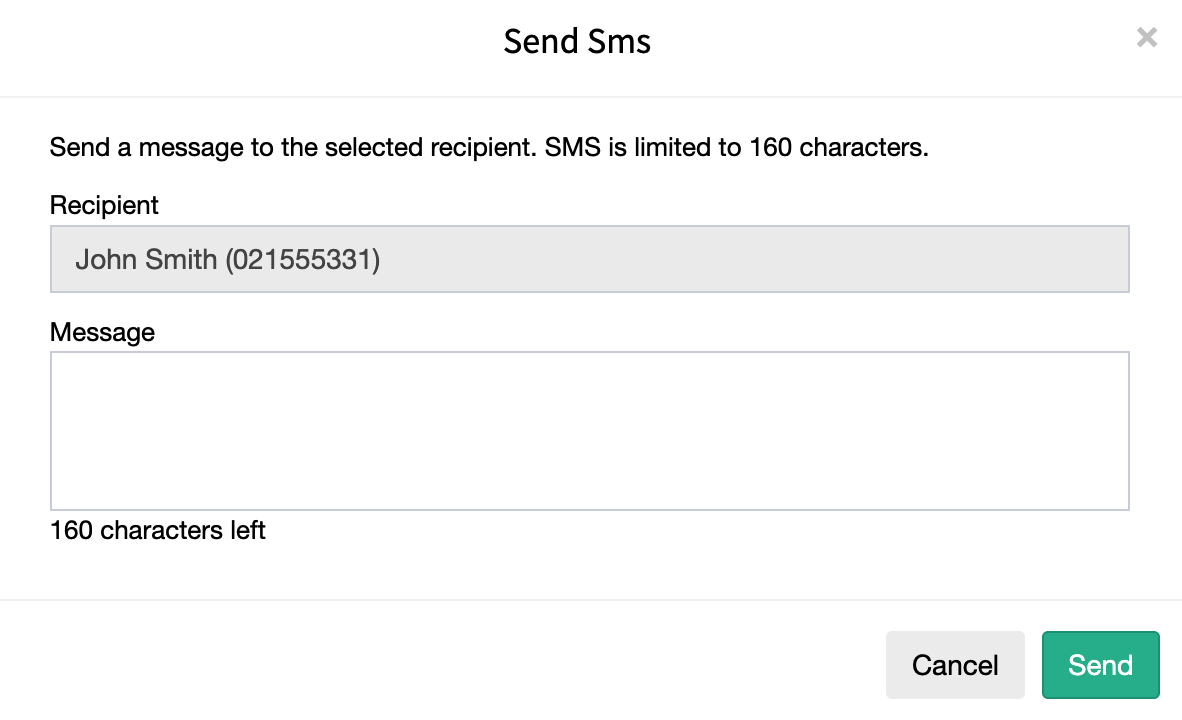
Enter the message and press send. Messages can only be 160 characters long.
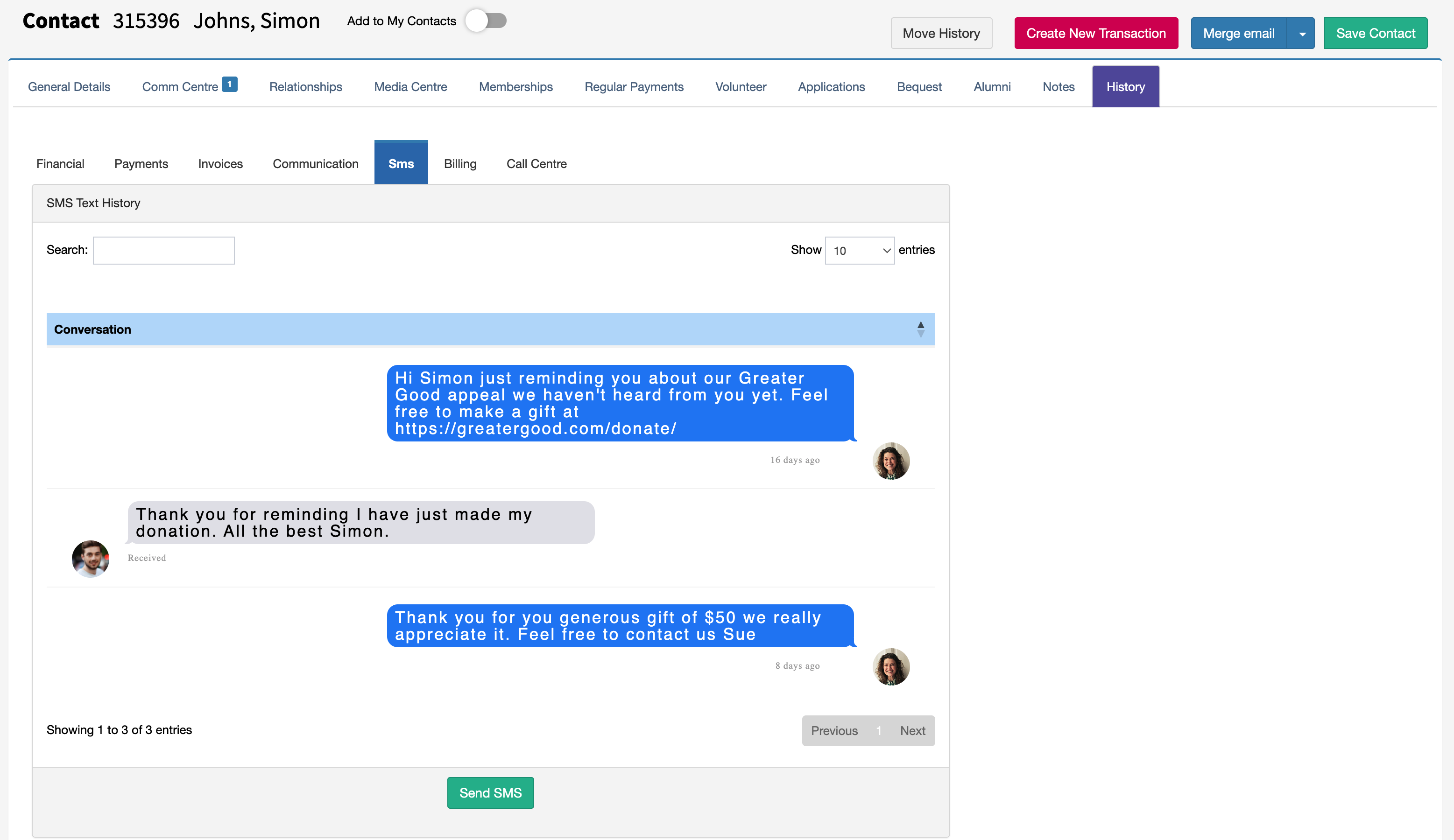
The SMS conversation history can be viewed in the SMS tab, located under the History section. New messages can be sent from this screen also by selecting the Send SMS button.
Sending a message using a SMS template
Messages can be sent to contacts using SMS Templates. When a template is set up with a predefined message, FundraiserOne automatically personalises the content for each contact and sends it through the merging system. This ensures every recipient receives a customised version of the message based on their stored information.
Open a contact and use the Blue button on the upper right and select Merge SMS.
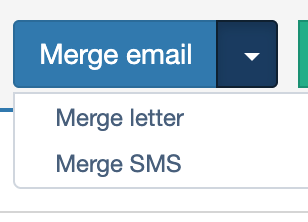
Once Merge SMS is selected, the list of available merges appears. This section is where you choose an SMS template, personalise it through the merge process, and then send the final messages to the selected contacts.
Sending bulk messages
Bulk SMS messages can be sent by first creating an SMS template, then using that template to send personalised messages to a selected list of contacts through the Merging feature. This allows you to efficiently communicate with large groups while still tailoring each message to include individual contact details.
First, create an SMS template if needed. The template will contain the message you plan to send. To do this, go to Templates and create a new template, making sure the Type is set to SMS. Press Save & Edit Template to load the editor.
Important: Each message can only be up to 160 characters. If it exceeds this limit, it will be sent as an extended message, which uses multiple message credits per SMS.

To send your bulk SMS messages, go to Merges from the main menu and create a new merge. Choose SMS as the channel, then select the SMS template you want to use for the message.
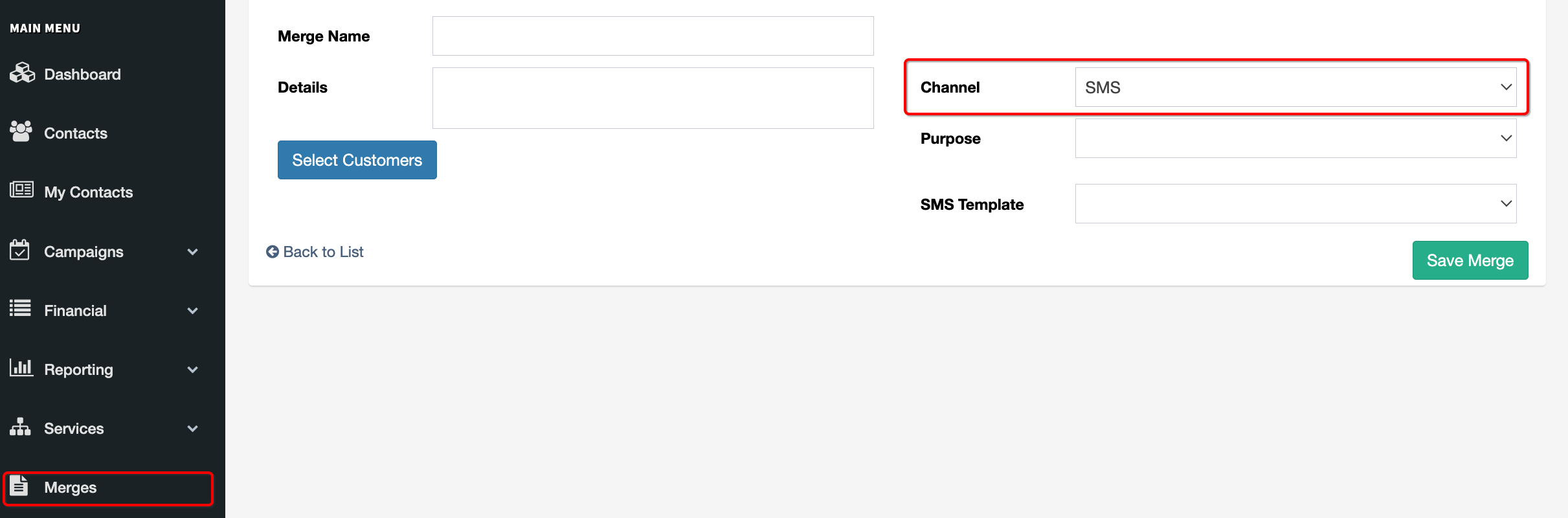
Select the Customers you want to receive the SMS. Once your list is chosen, start the merge and then select Send Now when the merging process is complete.
View incoming messages
Incoming messages can be viewed by selecting Services and then SMS Review from the main menu. This screen displays all incoming SMS replies in one place, allowing users to monitor responses, review message history, and take any necessary follow‑up actions.