Summary
The following example is designed to manage a new non-donor journey for individuals who have signed up to receive information.
This example uses FundraiserOne’s signup widget to capture details and trigger the Day 0 Welcome template. Other methods can also be used; however, in those cases, the Welcome trigger will need to be adjusted accordingly.
Simple Timeline Overview
Time | Journey Flow | Email Templates |
Day 0 | Welcome | New Contact 1 |
Day 3 | Impact story | New Contact 2 |
Day 7 | Soft ask | New Contact 3 |
Day 15 | Trust / credibility | New Contact 4 |
Day 19 | Strong ask | New Contact 5 |
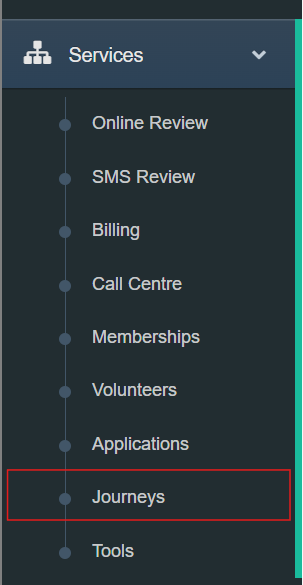
Step 1: Go to Journeys under the Services menu.
Welcome & Thank You (Day 0)
The signup widget system will send the initial email. For more information on setting up a signup widget https://support.fundraiserone.net/help/creating-a-signup-widget
Once a contact subscribes using the signup widget, the “New Contact 1” template is sent automatically. This action then activates the journey and moves the contact into the next stage of the New Contact workflow.
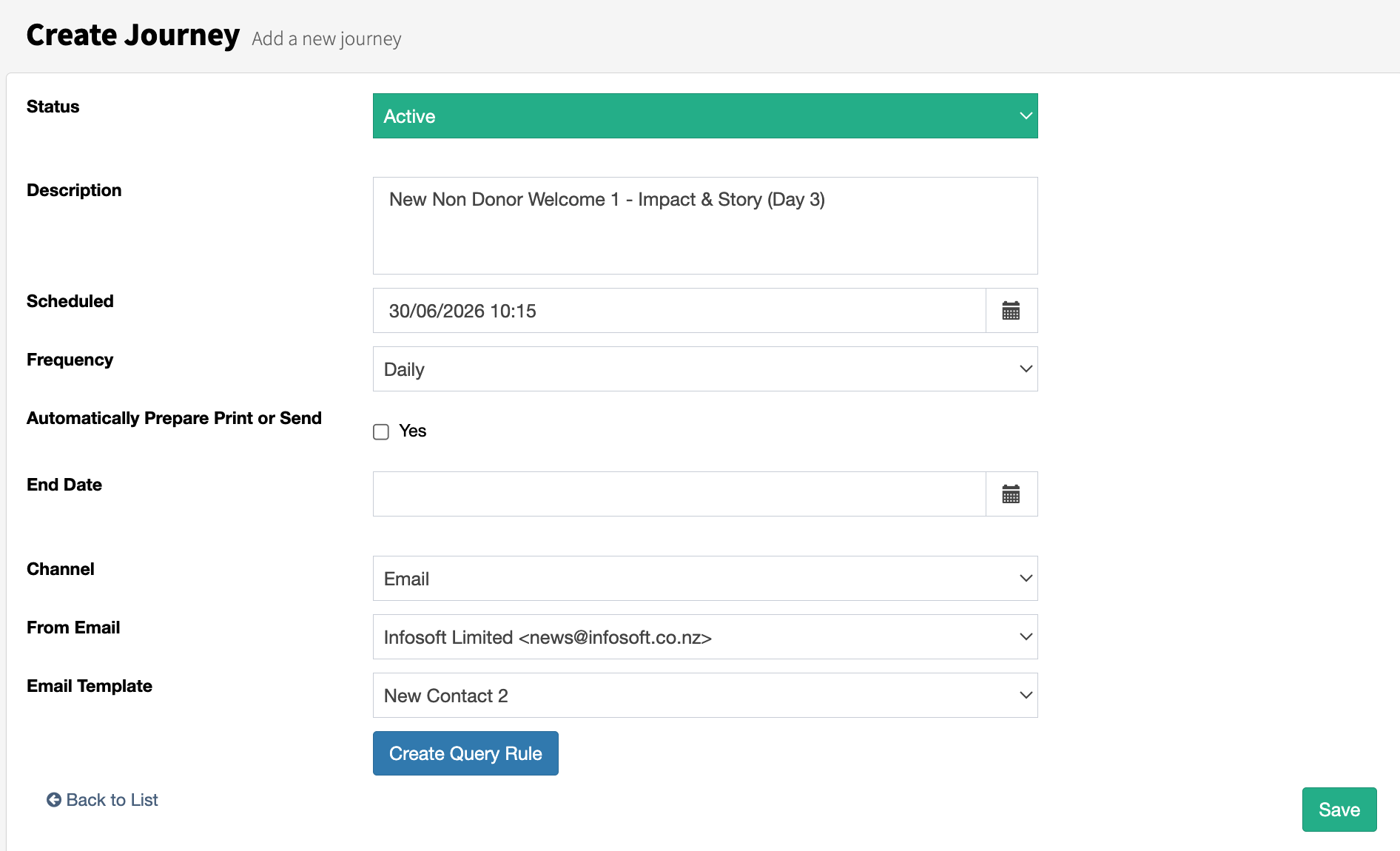
Step 2 – Impact & Story (Day 3)
We are using the following for this Query.
Contact Must be Active.
Must Receive Emails.
Not Deceased.
Exclude any contacts who have made a gift.
Include anyone who has received "New Contact 1" AND sent 3 days ago.
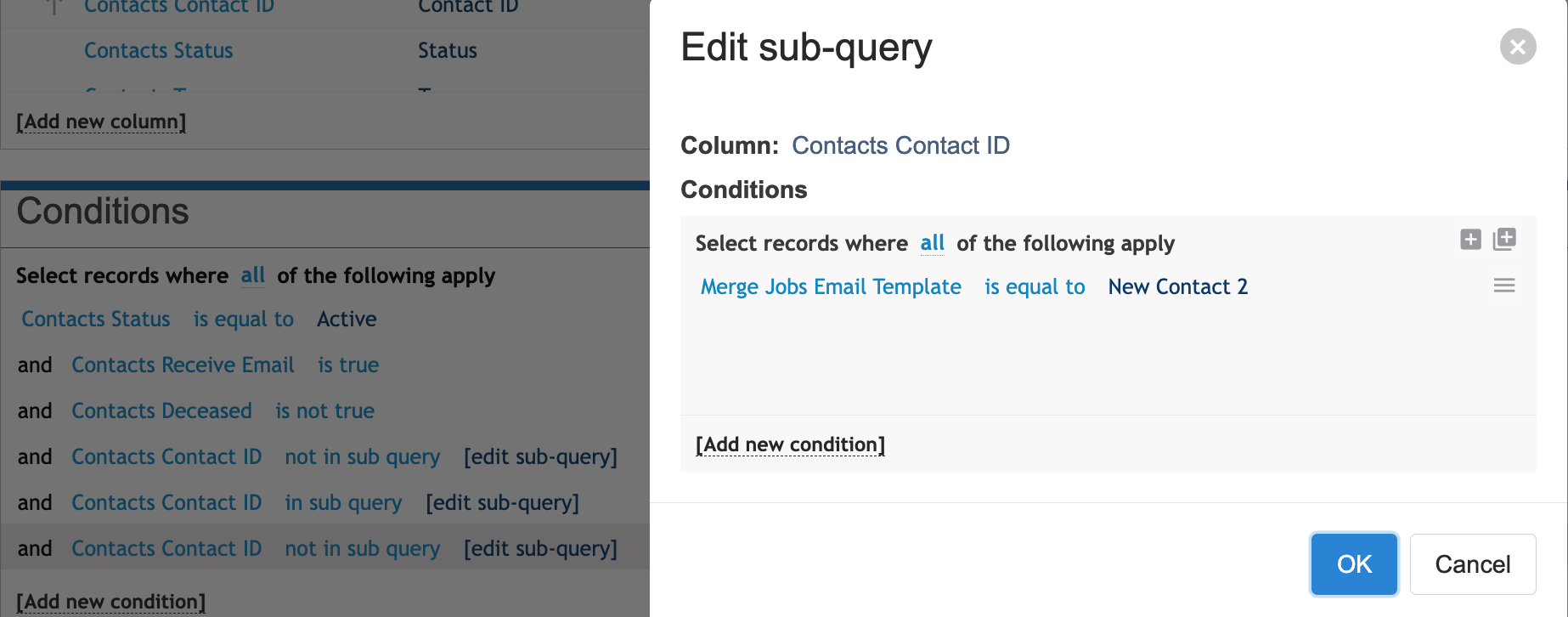
Exclude anyone who has received "New Contact 2"
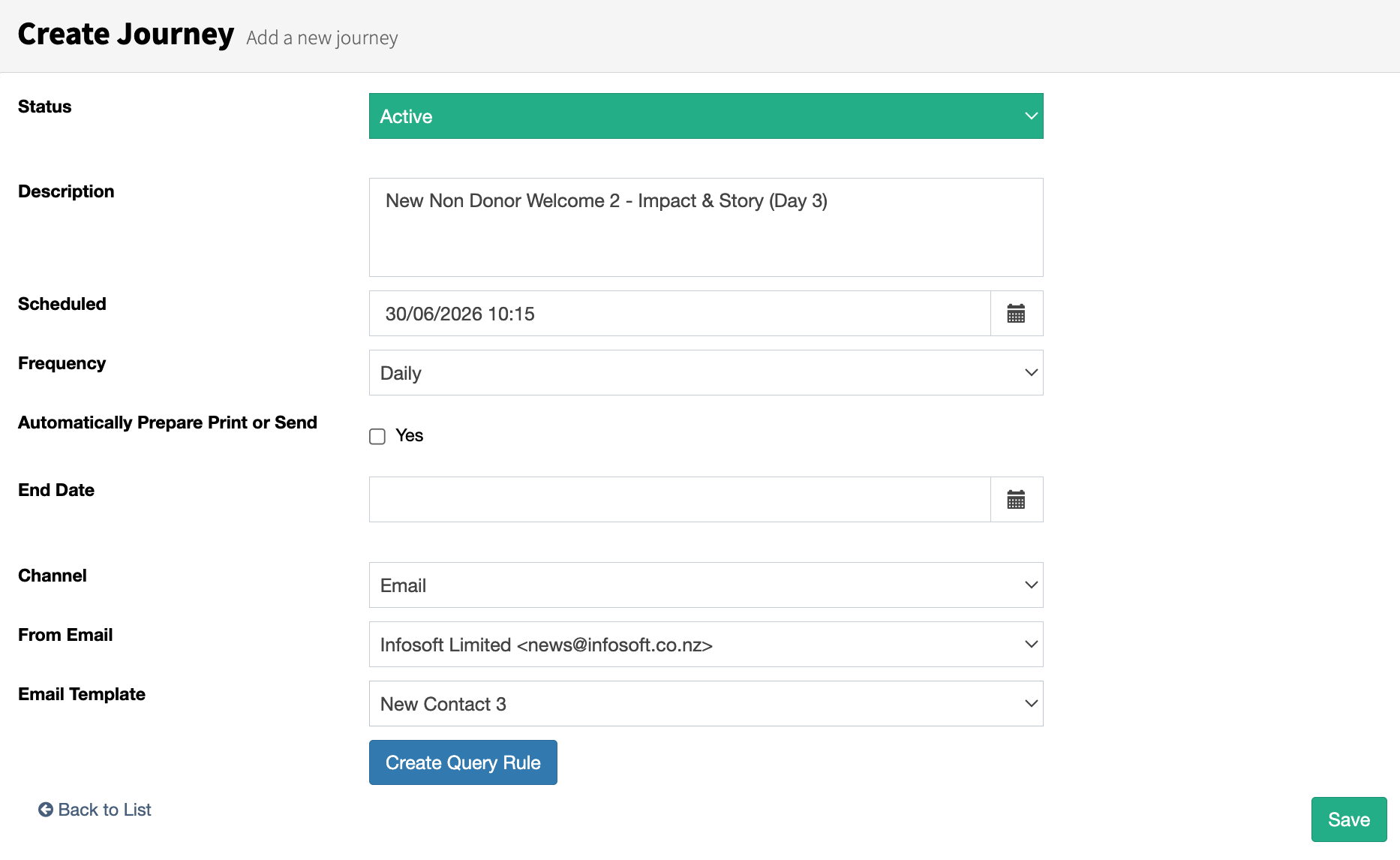
Step 3 – Soft Ask (Day 7)
We are using the following for this Query.
Contact Must be Active.
Must Receive Emails.
Not Deceased.
Exclude any contacts who have made a gift.
Include anyone who has received "New Contact 2" AND sent 4 days ago.
Exclude anyone who has received "New Contact 3"
Step 4 – Trust & Credibility (Day 15)
We are using the following for this Query.
Contact Must be Active.
Must Receive Emails.
Not Deceased.
Exclude any contacts who have made a gift.
Include anyone who has received "New Contact 3" AND sent 8 days ago.
Exclude anyone who has received "New Contact 4", "
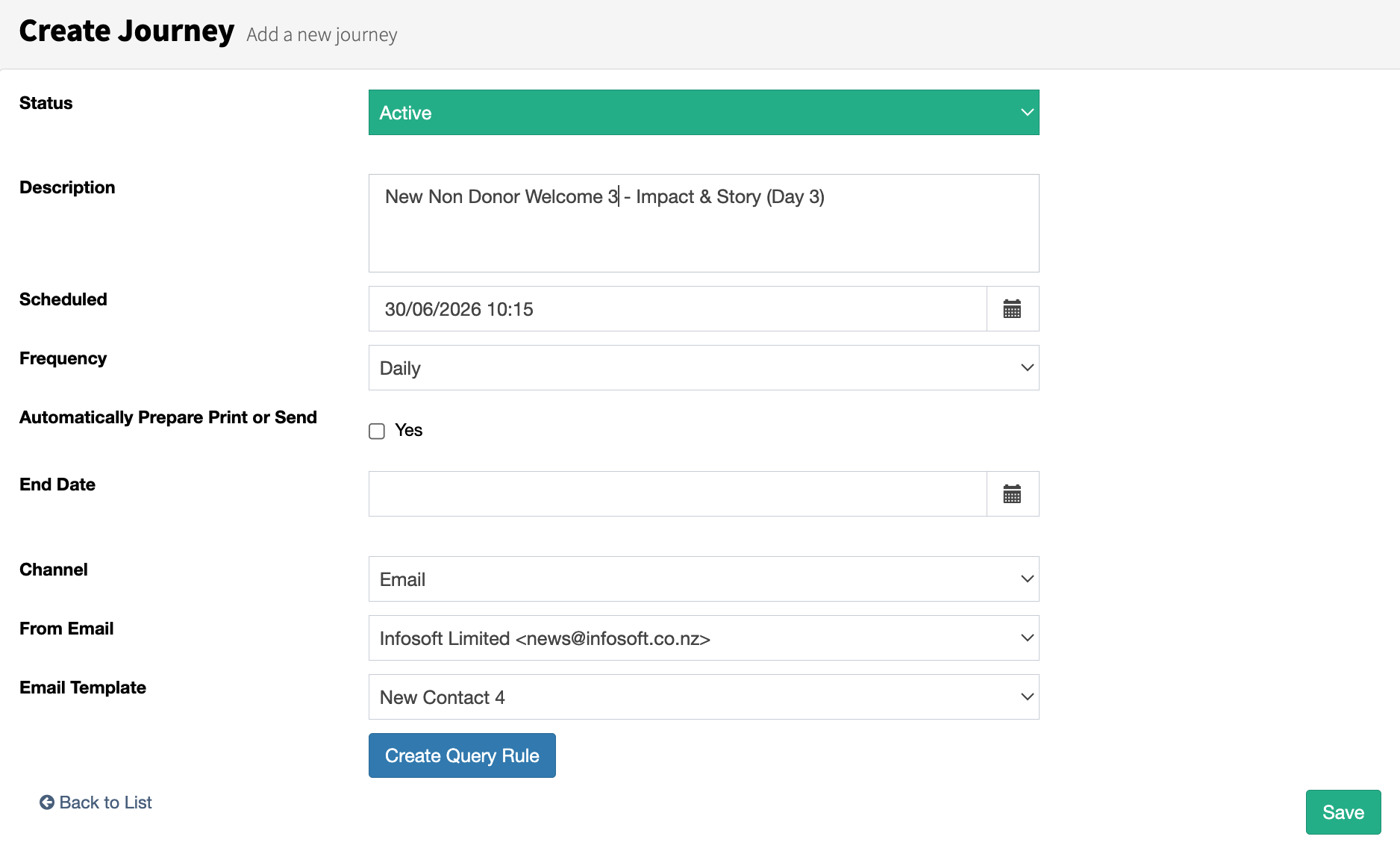
Step 5 – Stronger Ask (Day 19)
We are using the following for this Query.
Contact Must be Active.
Must Receive Emails.
Not Deceased.
Exclude any contacts who have made a gift.
Include anyone who has received "New Contact 4" AND sent 4 days ago.
Exclude anyone who has received "New Contact 5"
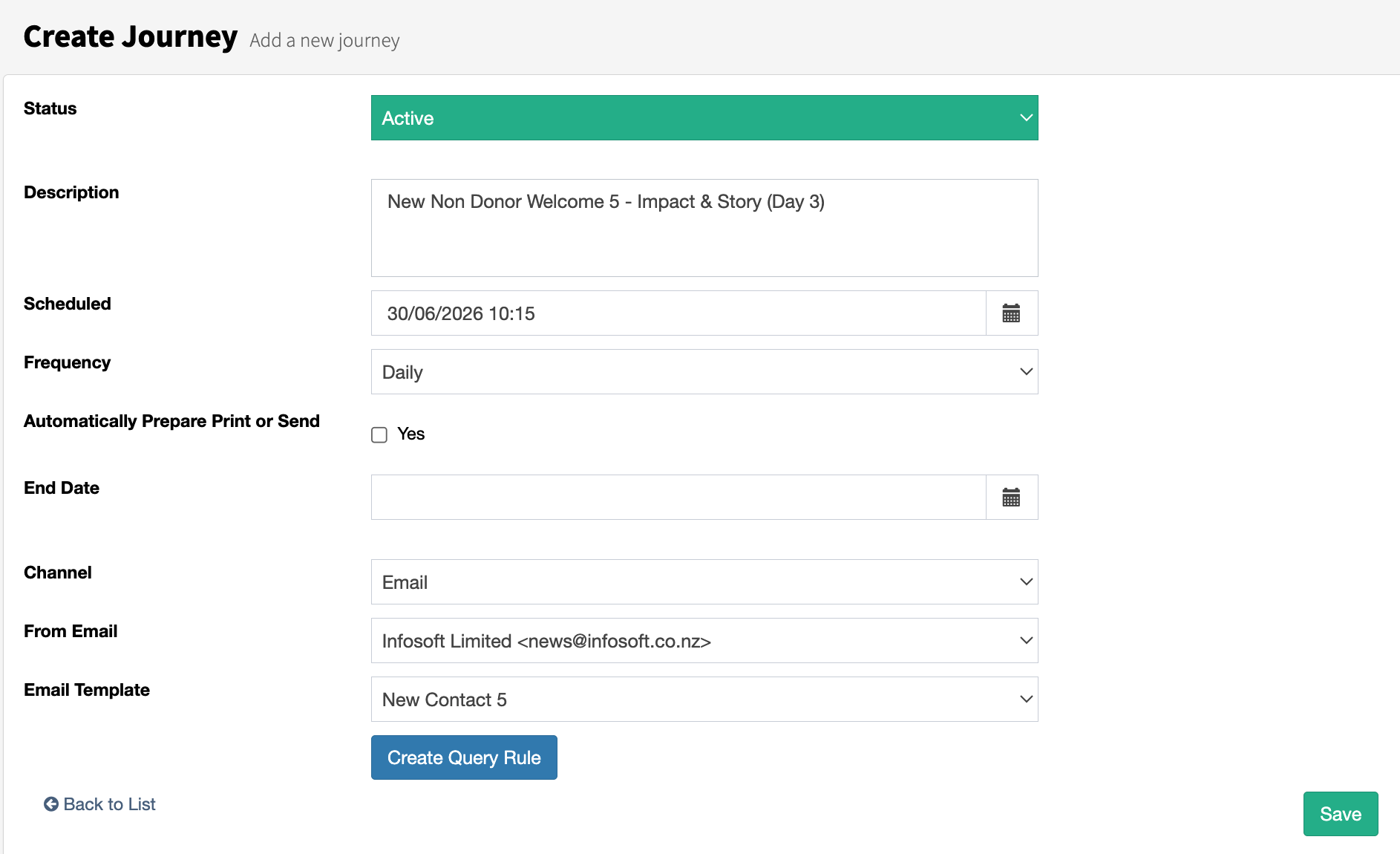
Query Conditions
Below are the conditions required to activate the New Non‑Donor Welcome Journey. It’s important that the template conditions are set correctly so the journey triggers at the right points in the timeline.
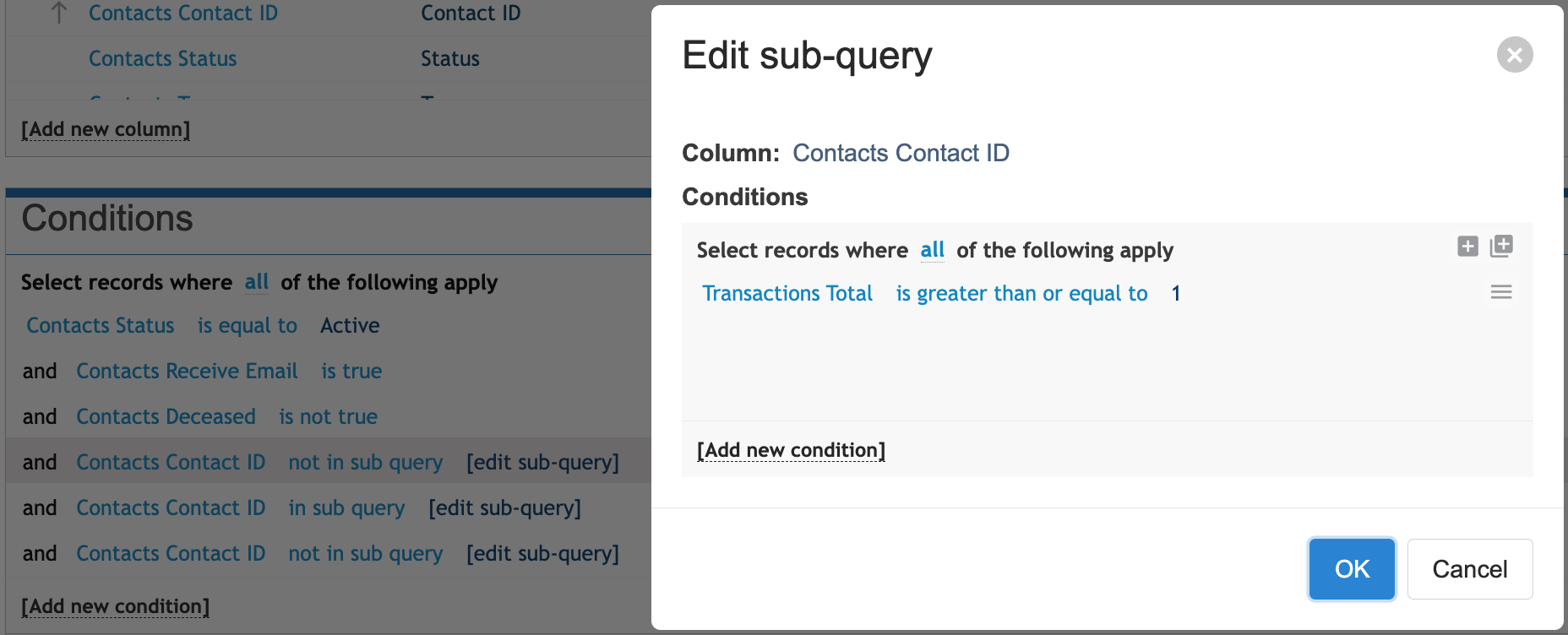
The first Not In Sub Query excludes anyone who has made a donation. It does this by checking whether there is a Transaction that is greater than or equal to 1. If a transaction exists, the person is considered a donor and is therefore excluded. This condition needs to remain in place throughout the entire journey because any contact who makes a gift at any point must be automatically excluded from continuing in the sequence.
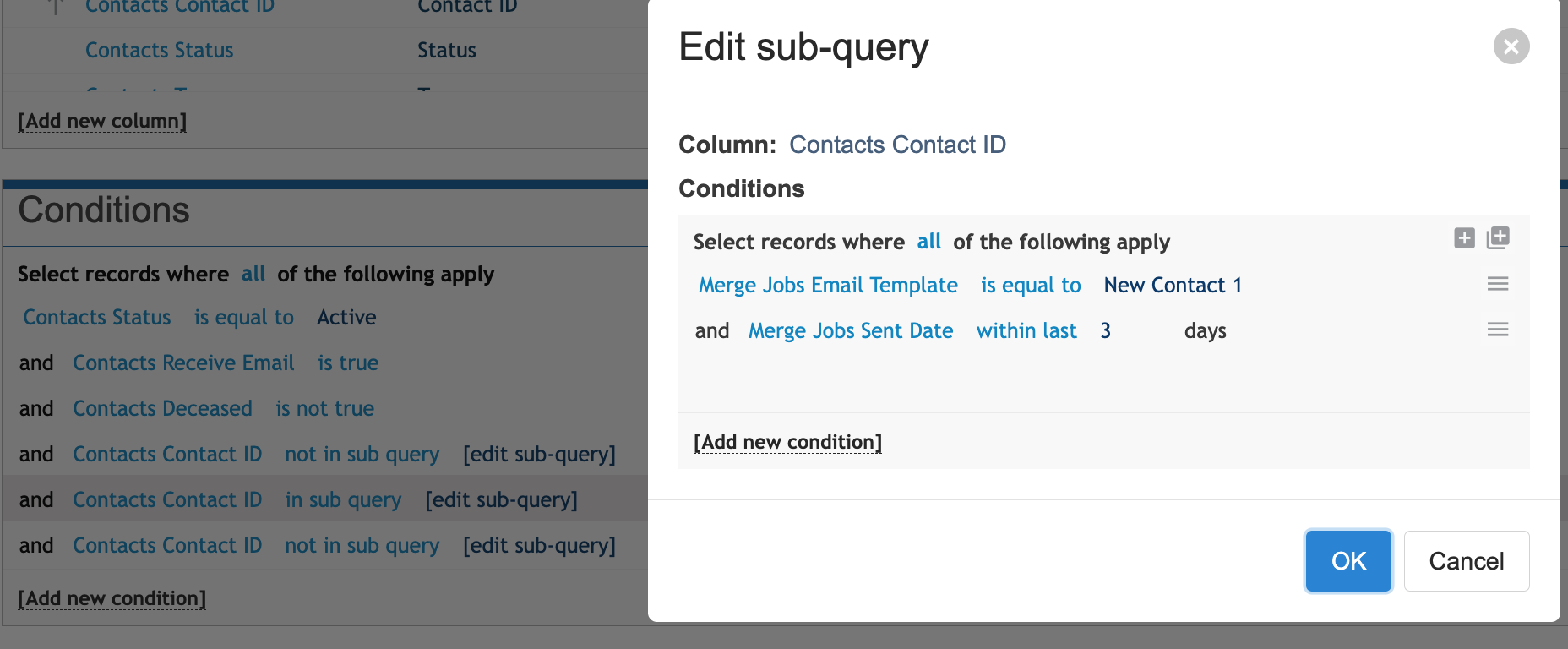
This condition ensures that only contacts who received the initial “New Contact 1” welcome template three days ago are included. As you build the remaining steps in the journey, each condition will need to match the correct point in the journey timeline so contacts progress through the sequence as intended.
The final condition is important because it excludes any contact who has already received the “New Contact 2” template, ensuring they don’t receive it a second time. As you continue building the remaining steps in the journey, each condition must align with the correct point in the journey timeline so contacts progress through the sequence exactly as intended.