

The following steps creates a donation payment page widget.
From the side menu select ‘Widgets’ and then select ‘Add New Widget’. Enter the Name of the widget this is to be used for reference only and select Type as Donation,. Leave Status as Enabled and Save Widget.
Note: This section assumes the Payment Gateway section has been set up with Products, Operations and specific Templates,
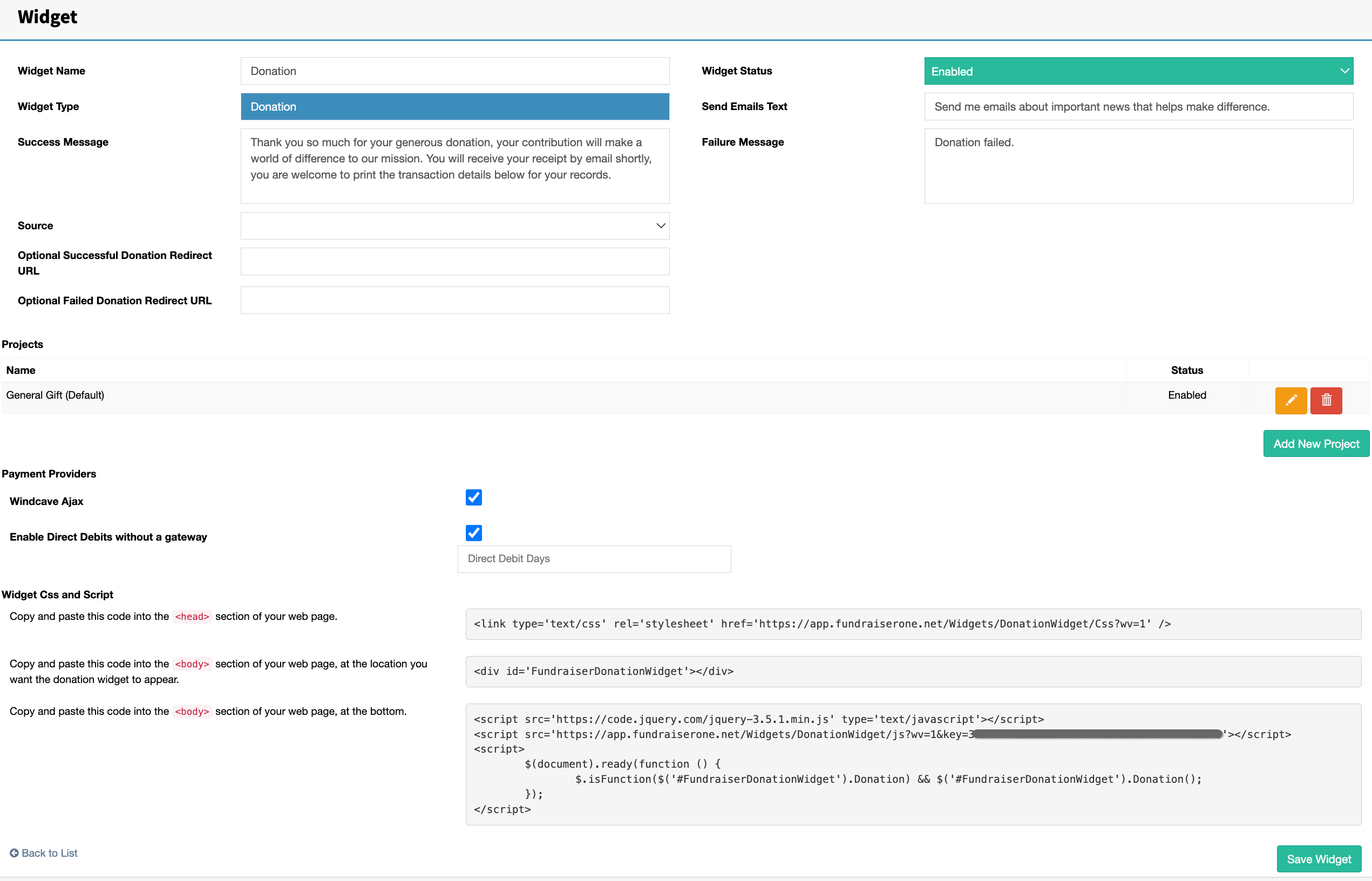
Widget Name: Name the widget this only for system use.
Success Message: Default message is ‘Thank you for signing up to our newsletter’ can be changed to anything.
Source: When a Contact is added through this widget what is their source added as in their contact card.
Optional Success URL: Leave blank for the default widget success message or add a URL which will redirect the donor when payment is successful.
Optional Failed URL: Leave blank for the default widget failed psyment message or add a URL which will redirect the donor on failed payment.
Widget Status: Disabling the widget will mean visitors will not be able to see or access the widget.
Failure Message: Default message is ‘Signup Failed’ can be changed to anything but this can be changed.
Enable Comment: This enables a comment section in the widget where donors can add comments. Enabling this also also allows for the field to be named.
Receipt Automatically: Enables transactions to be automatically receipted. Generally for Regular Giving this is unchecked as the first gift with others are receipted annually.
Payment Providers: This section bounds the payment gateway to the widget. For Example. Windcave, Flo2Cash, Paypal and others. To set Payment Gateways see Payments under Settings.
Projects
All widgets created will always have a default project. When there is only one project the project selector does not appear on the widget. Multiple projects will enable the selection to appear.

Projects are the main part of the donation widget, so let’s start by Editing the existing default project. Other projects can be added if required.
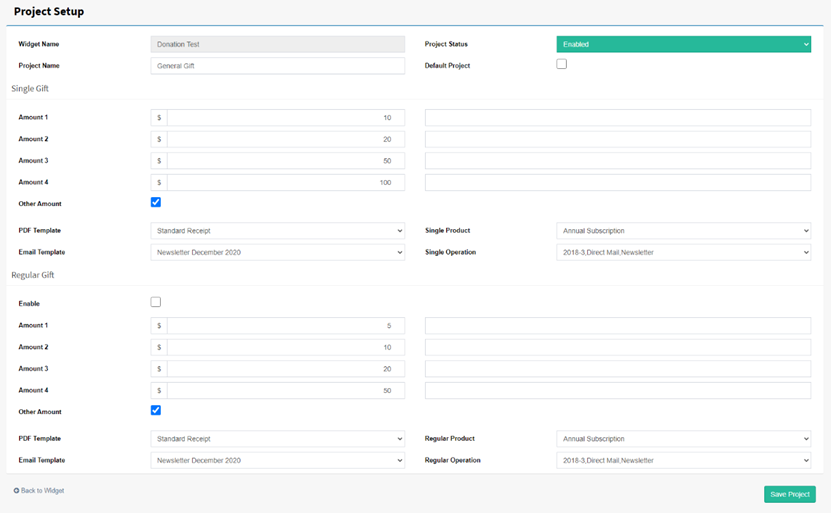
There is two main sections Single Gift and Regular Gift settings. Regular giving option can be enabled and disabled depending on the requirements.
The four amounts are in ascending order these are the dollar handles. Enter these four values, default amounts are 5 – 10, 20, 50, 100 and descriptions can also be added for each dollar handle..
Next check ‘Other Amount’ if ‘Other’ is a required this allows the donor select an amount of there choice outside the dollar handles.
Select the two templates, one being the email body and the other being the receipt template which the widget system converts to a PDF and attaches it to the body email..
Save the ‘Project.