

Summary
This is a typical reactivation journey set up step by step. It targets individual supporters who made a gift two years ago but have not donated since—this forms the trigger for the journey.
The journey begins by sending a thank-you email acknowledging their previous gift. If there is no response after 10 days, a follow-up email is sent featuring an impact story to re-engage them. A further 20 days later, if they still have not responded, a final email is sent with a direct ask to encourage renewed support.
Additional conditions and actions can be added to enhance the journey—for example, triggering different steps based on whether an email has been opened and more.
Simple Timeline Overview
Time | Journey Flow | Email Templates |
Day 0 | Lapsed donor trigger | Lapsed Donor Journey 1 |
Day 10 | Impact story | Lapsed Donor Journey 2 |
Day 20 | Ask | Lapsed Donor Journey 3 |
Set Up Reactivation Lapsed Supporter - Trigger
We will start this journey by targeting donors who last contributed two years ago and have not donated since. This group will form the trigger for the journey. We will send a thank you for their last gift and how we have missed them.
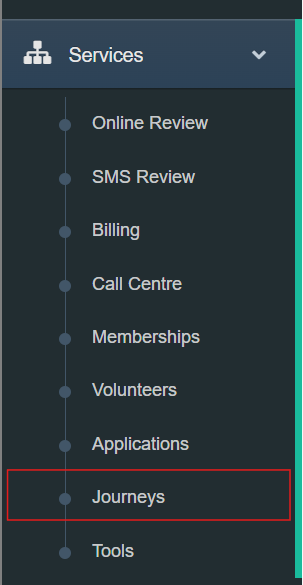
Step 1: Go to Journeys under the Services menu.
Step 2: Select Add a New Journey
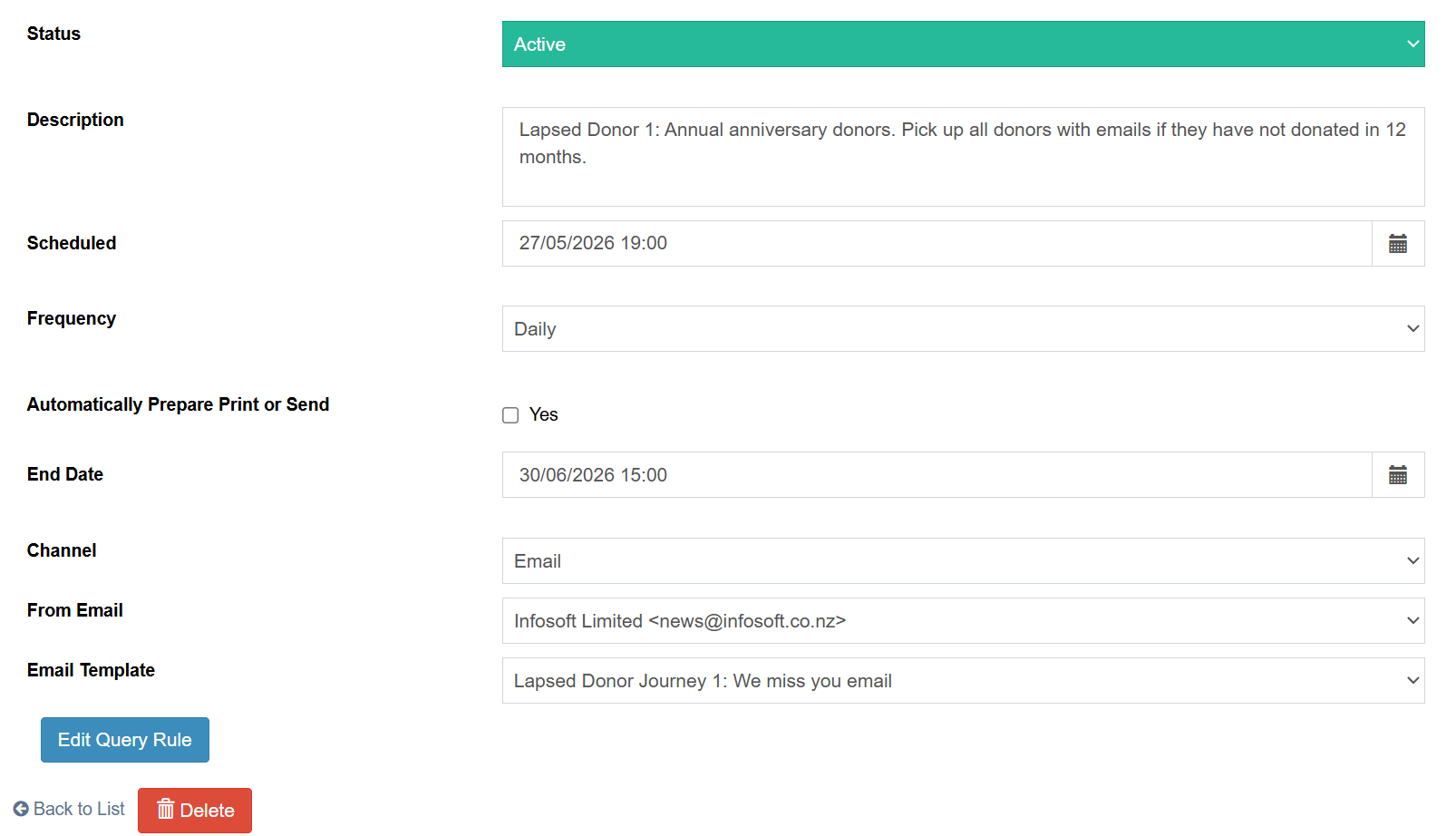
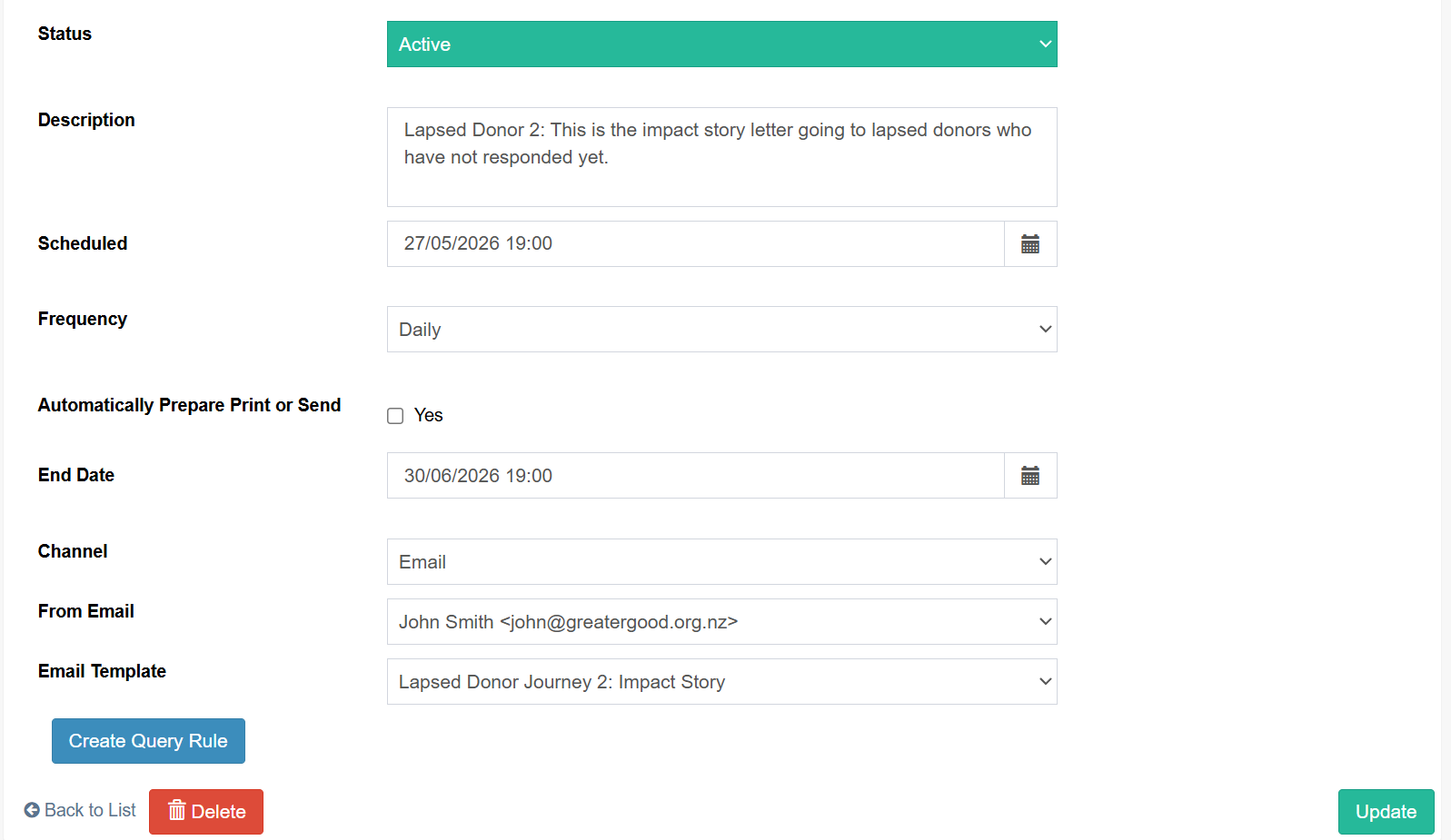
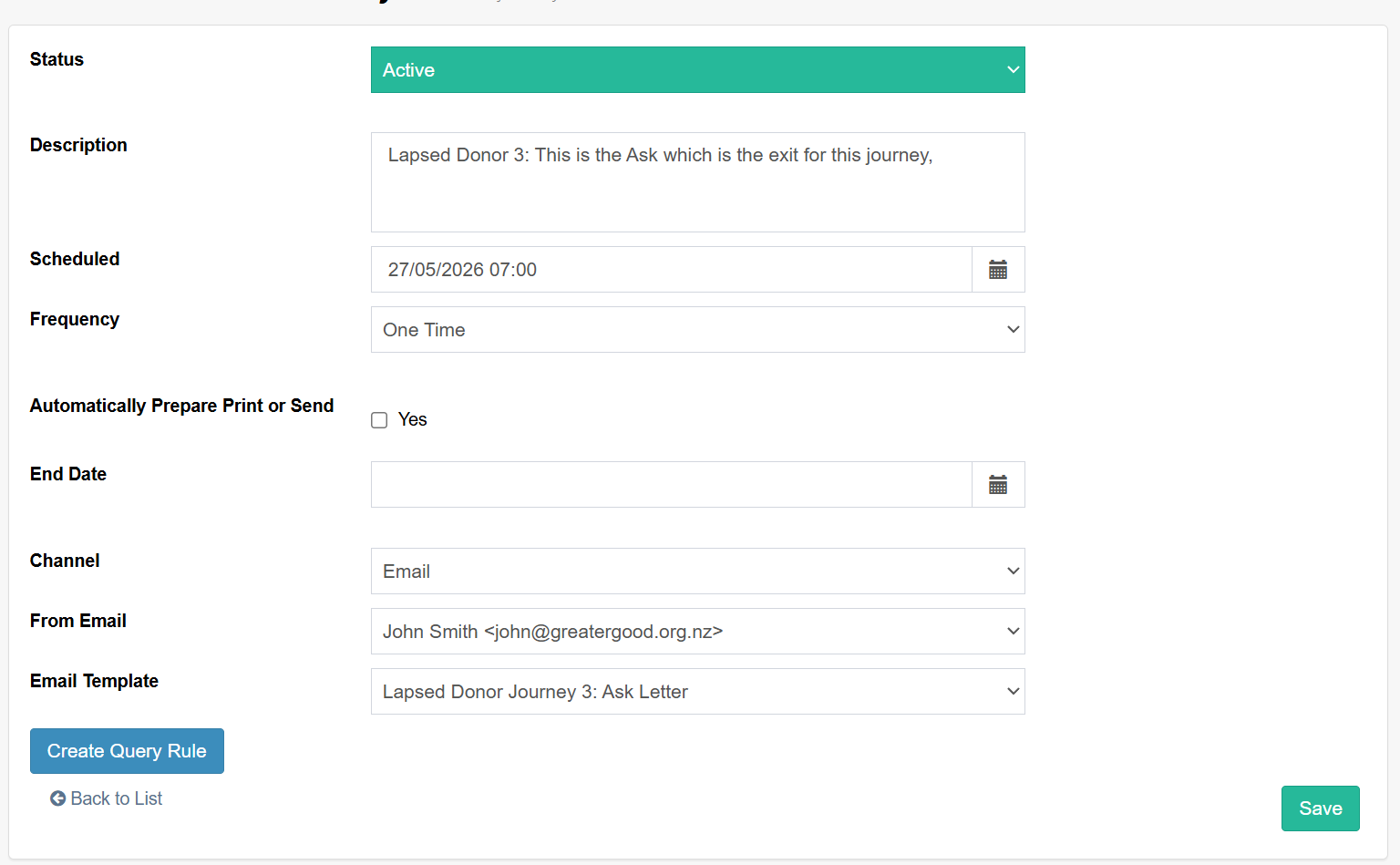
Status: Active
Description: Clearly label your journeys to reflect their purpose, and include a numerical value to define their sequence. In this example, the journey is named Lapsed Donor 1.
Scheduled: This defines when the journey will start and the time it will run. In this example, it is scheduled for 19:00, ensuring that all daily processing has been completed.
Frequency: Set to Daily to automatically capture supporters as they move into the lapsed criteria.
Automatically Prepare Print or Send: Leaving this unchecked allows journeys to remain in Merges for review before sending. Once testing is complete, this can be enabled for full automation.
End Date: This can be left blank for ongoing journeys. In this example, the journey is set to end on 30 June 2026.
Channel: Email – targeting only supporters with email addresses.
From Email: The email address the messages will be sent from.
Email Template: The template that recipients will receive.
Step 3: Create your Query Rule - This is the Trigger Rule
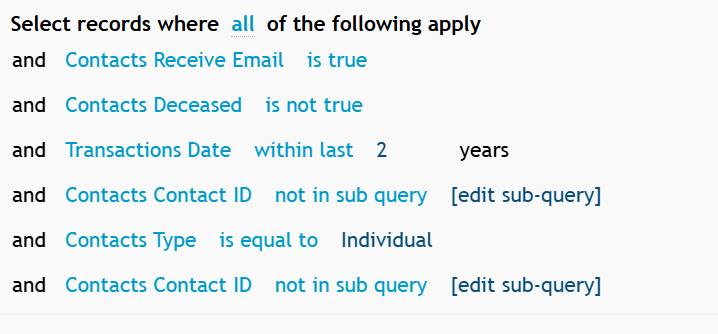
We are using the following for this Query.
Contact Must be Active.
Must Receive Emails.
Not Deceased.
Donated in the last two years.
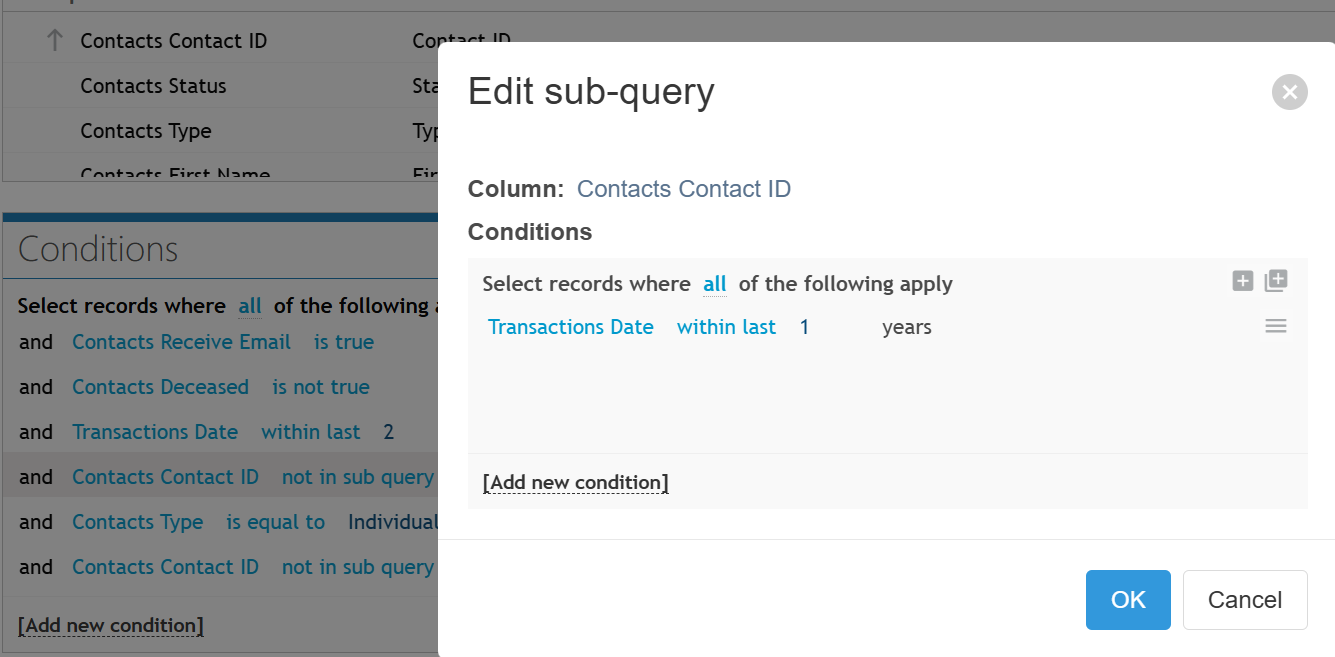
Exclude anyone that gave last year to date.
Only Individual contacts so no corporates.
Exclude anyone who has received "Lapsed Donor Journey 1"
The Summary of the Query
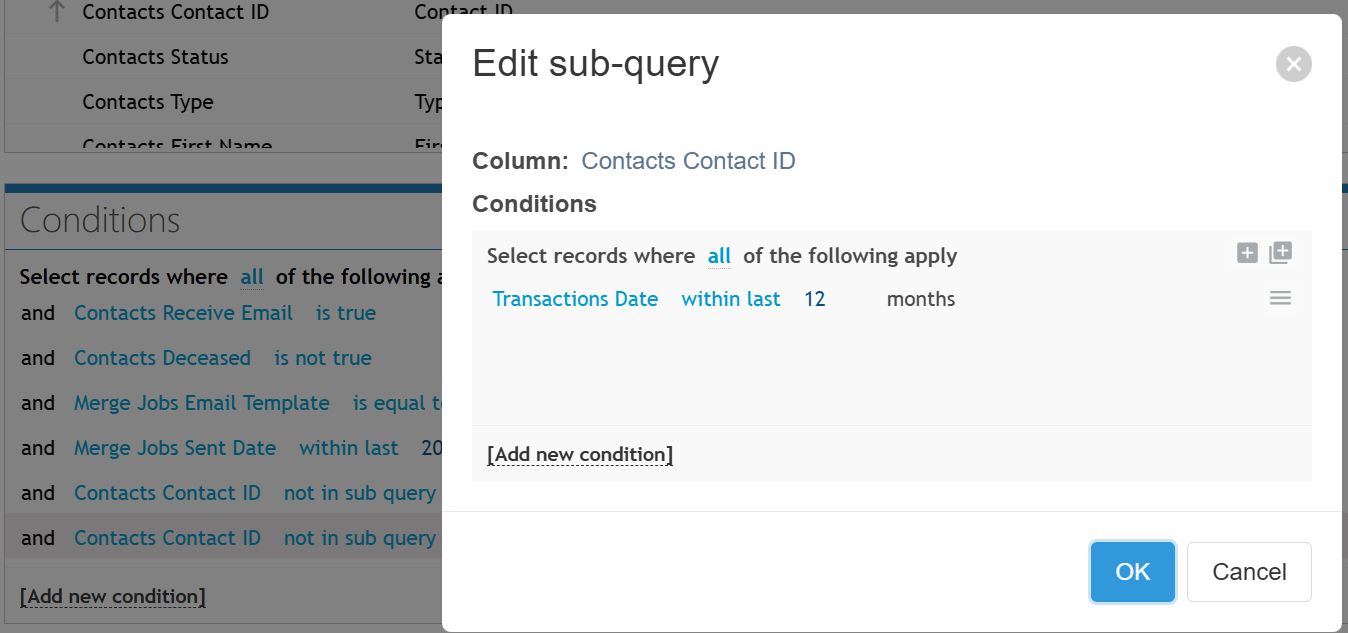
This Sub-Query removes any donors that have donated in the last year from our selection.
Note Critical Rule: Removes anyone who has previously received this template.
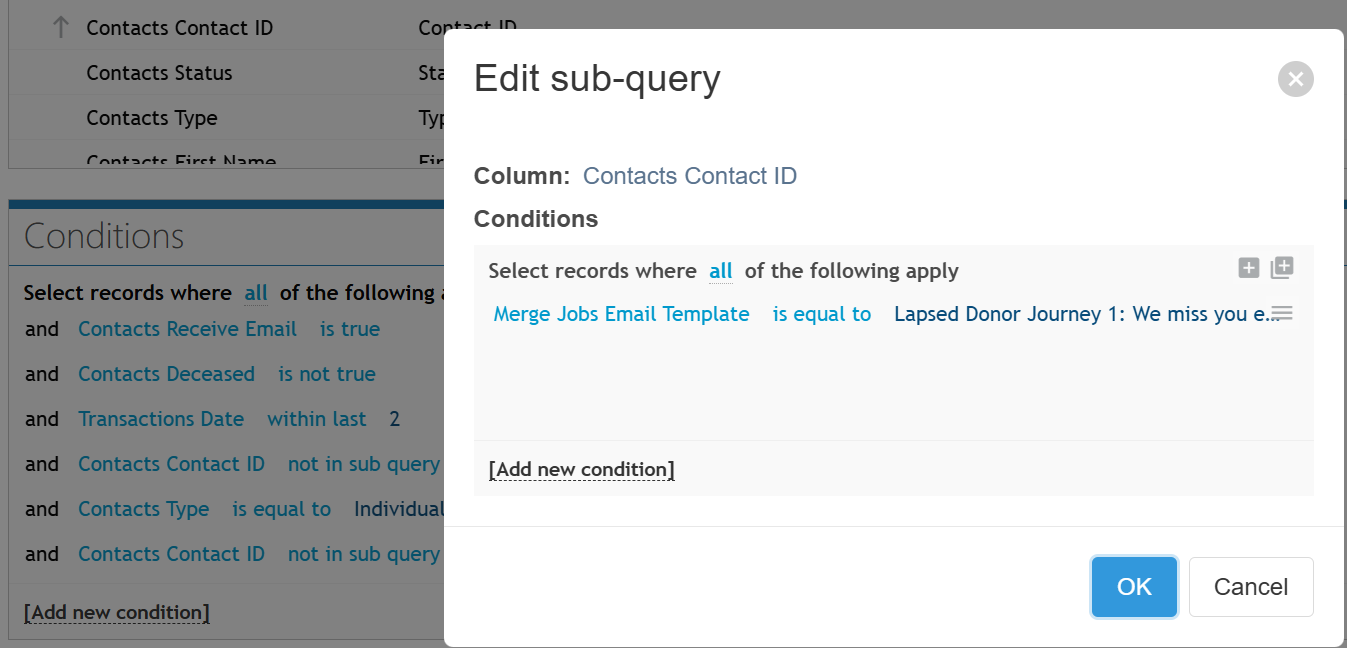
Step 4: Use Run Query to test your query and rules and adjust accordingly.
Step 5: Select Accept List to confirm the query.
Step 6: Save your Journey.
Set Up Reactivation Lapsed Supporter - Impact Story
This is the second email in the journey, sent when supporters haven’t responded with a donation. It features an impact story designed to re‑engage them and inspire renewed interest in your cause.
Step 1: Select Add a New Journey
Step 2: Create your Query Rule - This is the Impact Story Rule
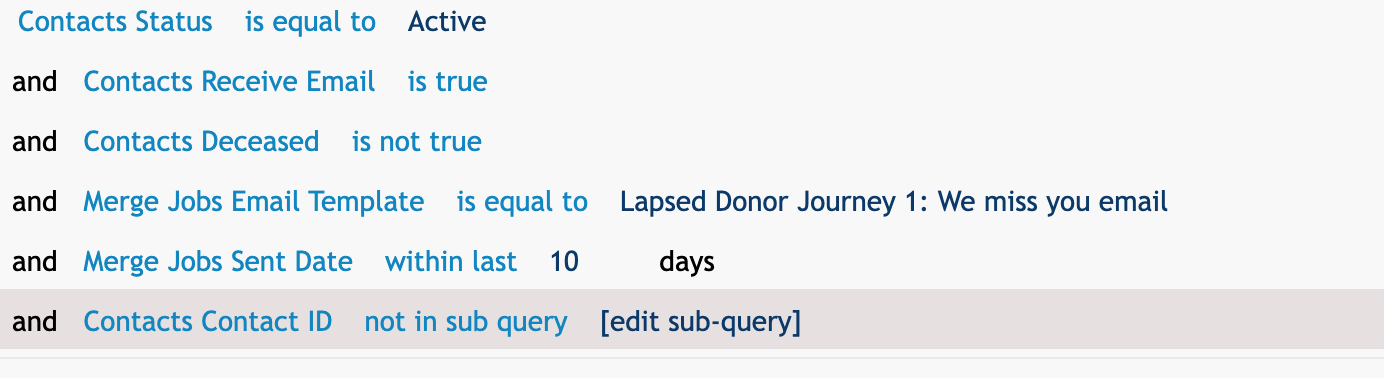
We are using the following for this Query.
Contact Must be Active.
Must Receive Emails.
Not Deceased.
Include who has received "Lapsed Donor Journey 1" - Merges equals to "Lapsed Donor Journey 1" Template AND Merges was sent last 10 days
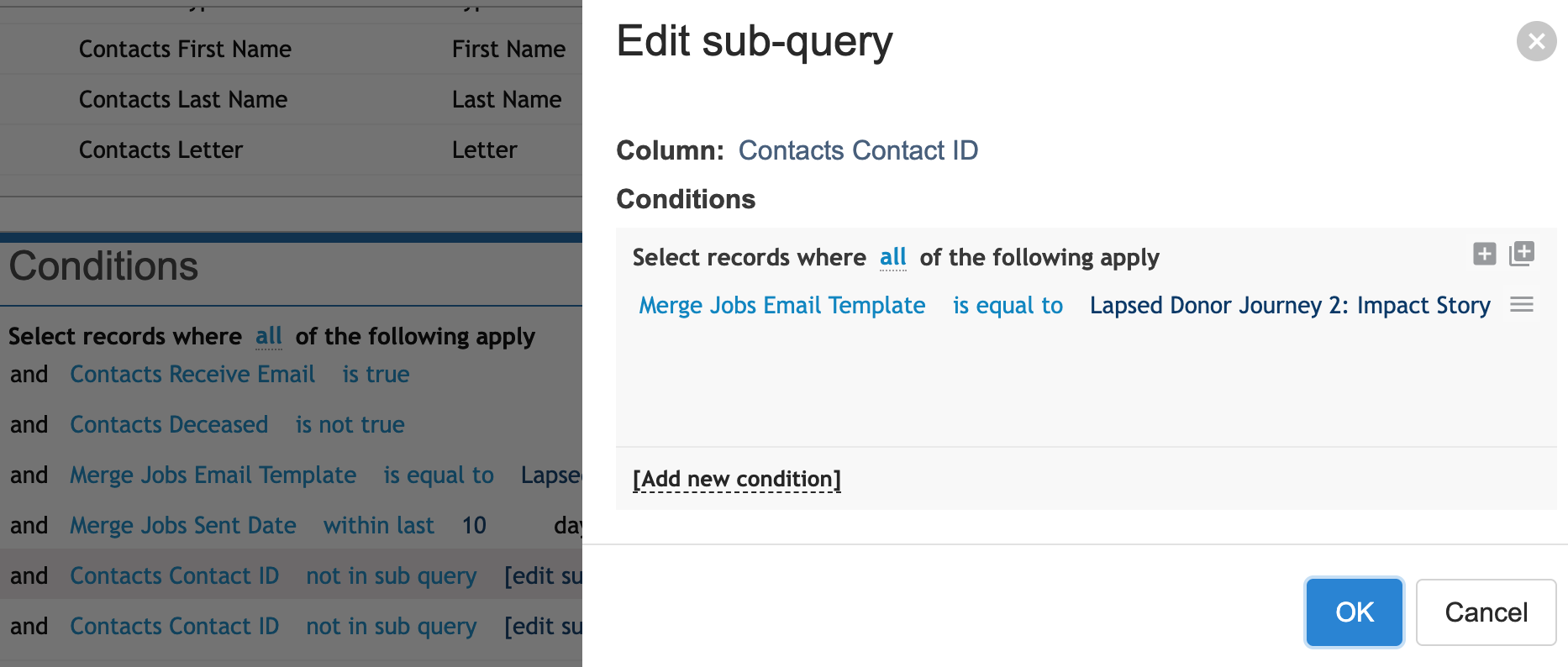
Exclude anyone who has already received "Lapsed Donor Journey 2" - Merges Exclude "Lapsed Donor Journey 2" Template
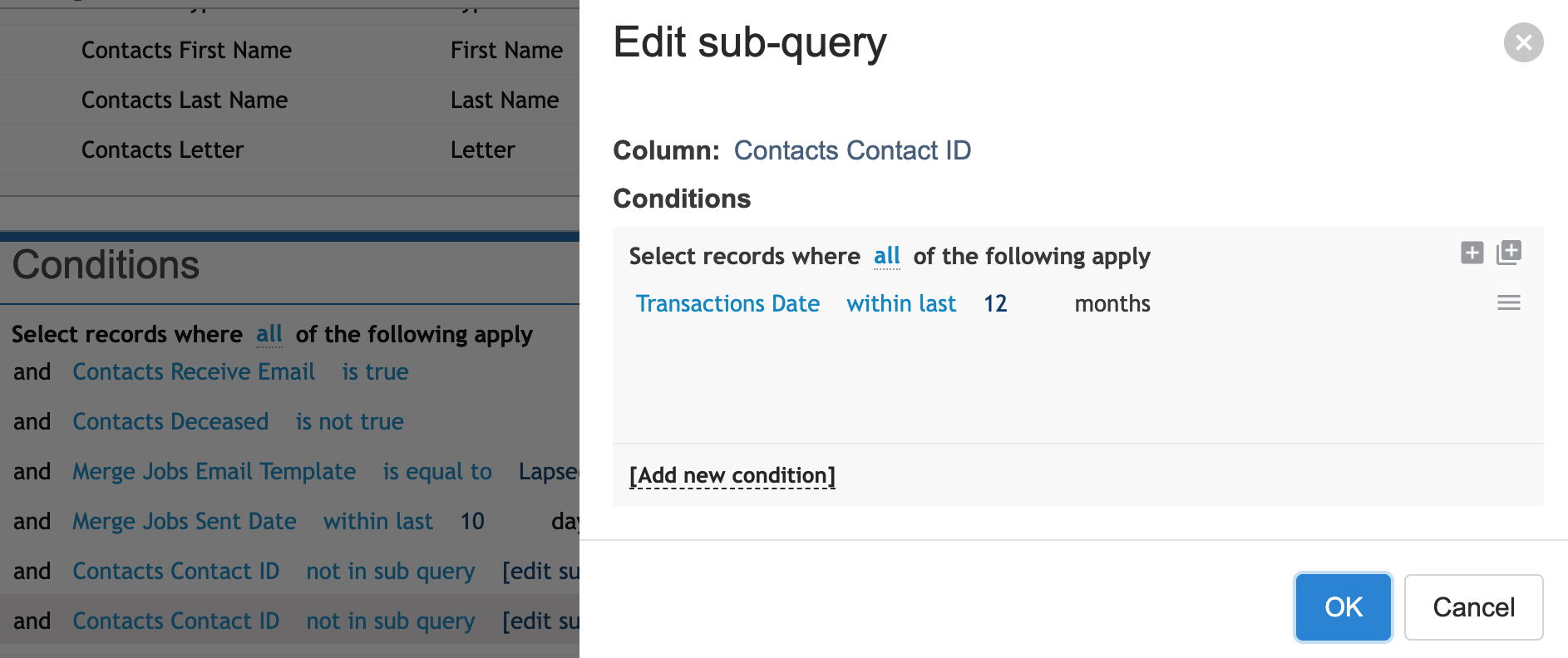
Exclude any of these contact who given recently. - Transactions Exclude given in last 12 months.
Note: It’s important to include supporters who have received the “Lapsed Donor Journey 1” template but not the “Lapsed Donor Journey 2” template. You should also exclude anyone who has donated since the first template was sent, ensuring only genuinely lapsed donors continue through the journey.
Exclude anyone who has received the “Lapsed Donor Journey 2” template.
Exclude anyone who has made a recent gift in 12 months.
Step 3: Use Run Query to test your query and rules and adjust accordingly.
Step 4: Select Accept List to confirm the query.
Step 5: Save your Journey.
Set Up Reactivation Lapsed Supporter - Ask
Although additional paths such as sending a video can be incorporated, this represents the third and final email in the journey for this example. It is sent only to supporters who have not yet responded with a donation and includes an ask message designed to re-engage them and encourage renewed support.
Step 1: Select Add a New Journey
Step 2: Create your Query Rule - This is the Impact Story Rule
We are using the following for this Query.
Contact Must be Active.
Must Receive Emails.
Not Deceased.
Include who has received "Lapsed Donor Journey 2" - Merges equals to "Lapsed Donor Journey 2" Template AND was sent last 20 days
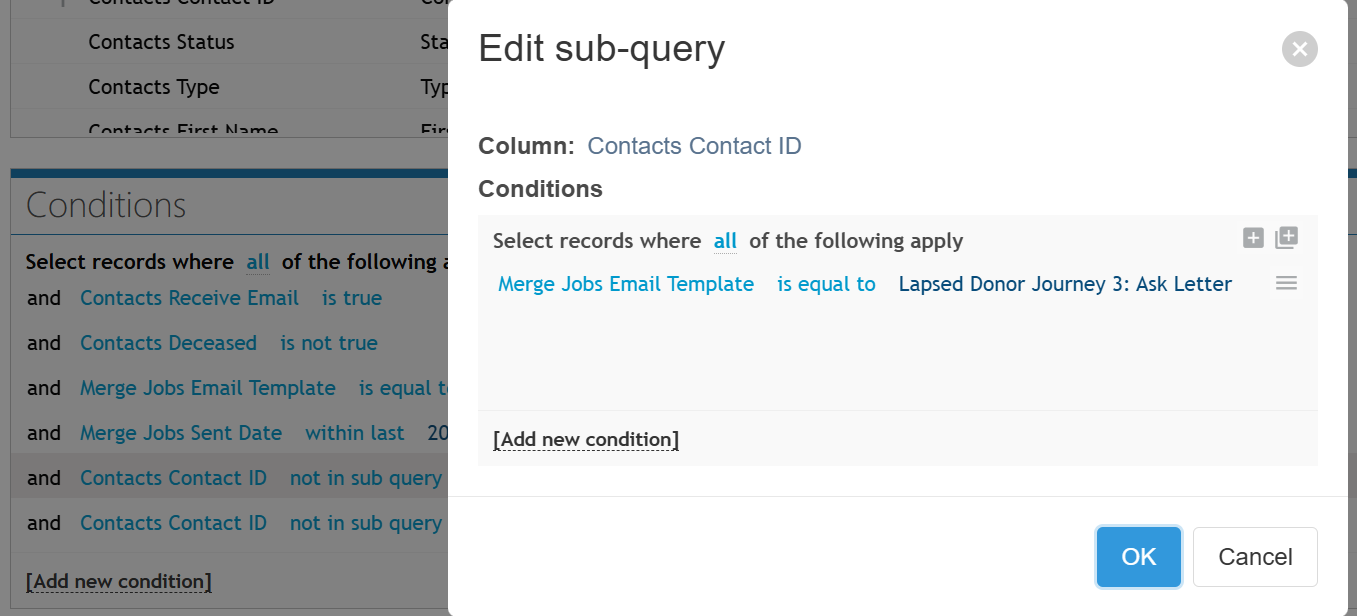
Exclude anyone who has already received "Lapsed Donor Journey 3" - Merges Exclude "Lapsed Donor Journey 3" Template
Exclude any of these contact who given recently. - Transactions Exclude given in last 12 months.
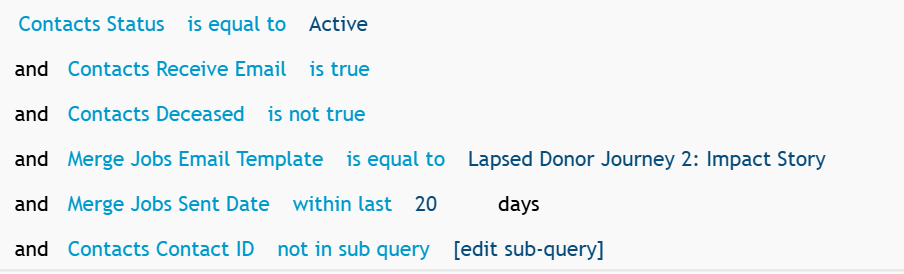
Exclude anyone who has received the “Lapsed Donor Journey 2” template.
Exclude anyone who has made a recent gift in 12 months.
Step 3: Use Run Query to test your query and rules and adjust accordingly.
Step 4: Select Accept List to confirm the query.
Step 5: Save your Journey.