

Summary
This section explains how to create new users, assign permission groups, and delete users when required.
When a staff member no longer needs access to FundraiserOne, their user account should be deleted promptly. Removing the user ensures they can no longer log in or access any information within FundraiserOne.
List of users
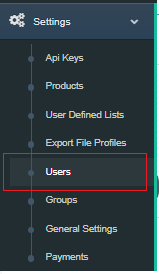
All user management tasks — including adding new users, modifying user access, resetting passwords, updating permissions, and deleting users — are managed from the Users menu under Settings.
This section displays a list of all users who currently have access to your FundraiserOne system.
Note: Only Primary Users have permission to access and manage this area.
Adding a new user
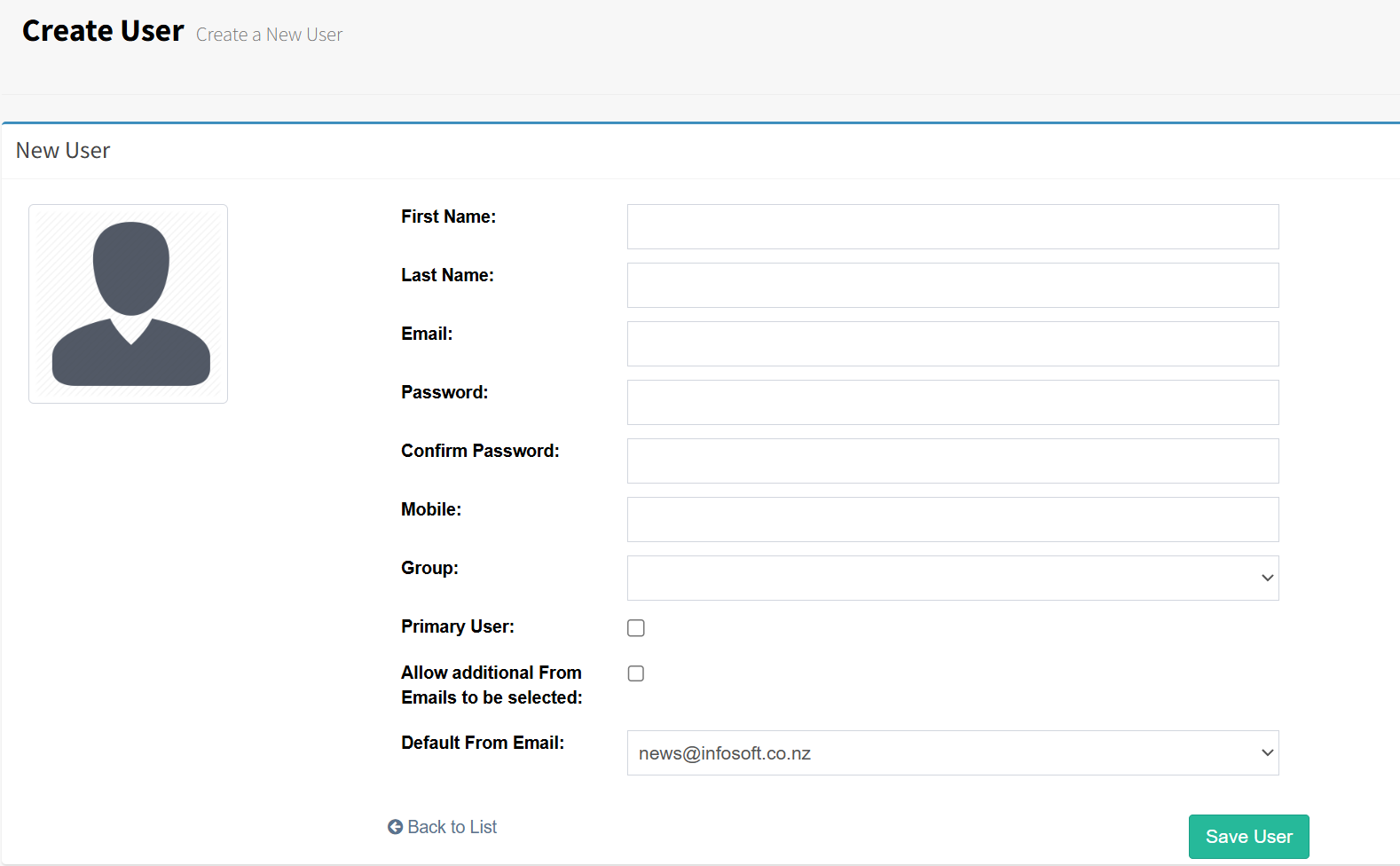
To add new users, select the Users screen described in the Accessing Users section above. Click the Add New User button to open a blank user form.

The Create User screen will appear ready for details to be entered. User accounts are strictly identified by unique email address so every user will require their own email address to sign in.
Editing a users details
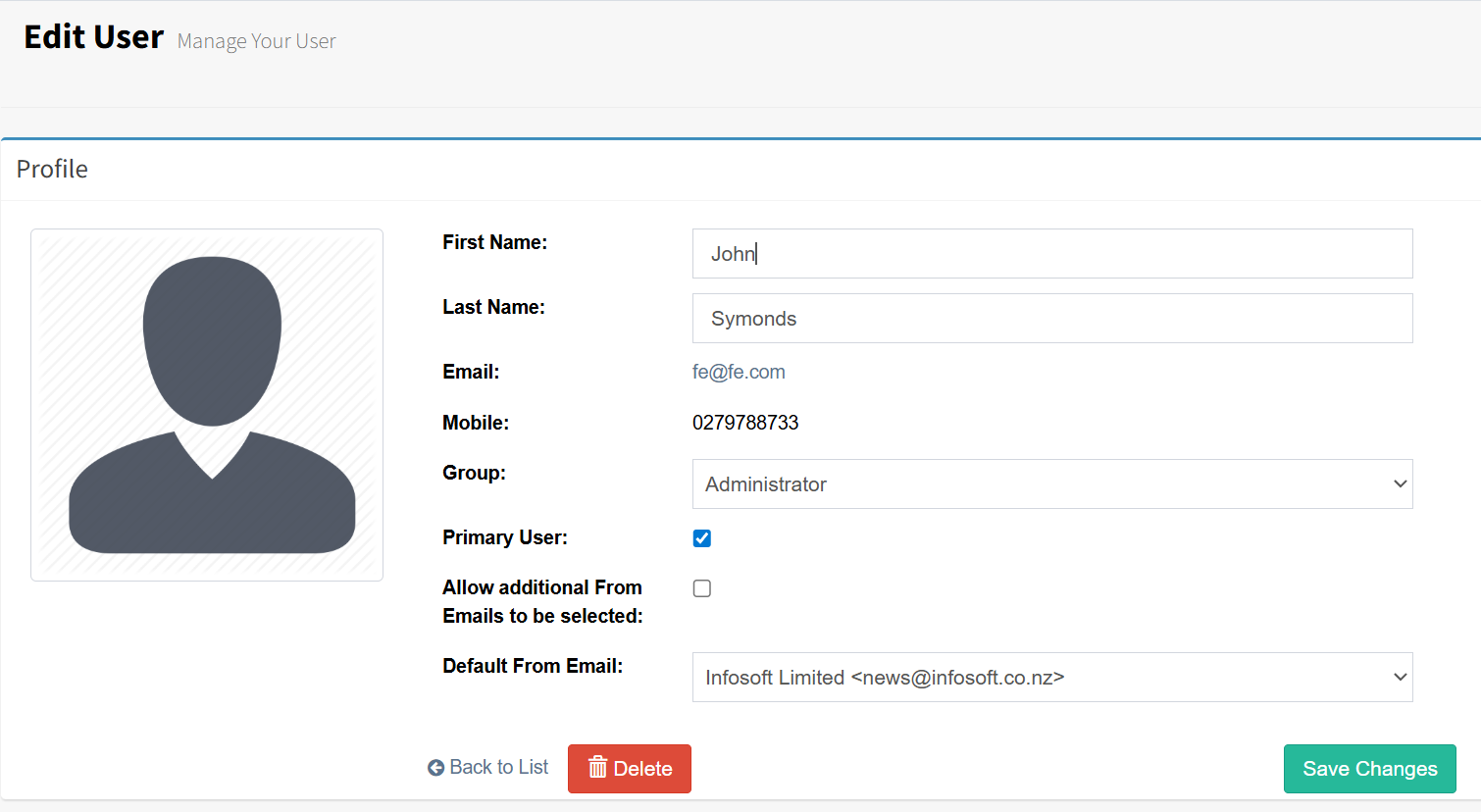
User details can be updated from the Users screen. Select the user you want to modify and click the Edit button to open their profile. Most fields can be updated as required; however, the email address cannot be changed, as it is used as the user’s login username. Once the required changes have been made, click the green Save button to apply and save the updates.
Deleting a user
To delete a user, open the user record by selecting the user and clicking the Edit button. Review the user details to ensure the correct account is selected, then click the red Delete button to permanently remove the user.
User fields definitions
Profile Picture: Click on the profile picture to add a picture.
First Name: Users first name.
Last Name: Users last name.
Password: Desired password.
Confirm Password: Repeat password here.
Mobile: Mobile number used for two-factor authentication.
Group: Allocates permissions for the user Administrator group has full access. There are related articles on how to add and update permission groups below.
Primary User: Primary users can reopen batches, process credit card refunds, and access User Defined Lists and Payments from the Settings menu.
Allow Additional From Emails to be Selected: Allows emails to be sent from different email addresses during the merging process. There are related articles on how to add more from emails below.
Default From Email: The default email address used during merging. This can be set to either a generic or personal email address.