

In some cases you will want to change your password we recommend changing your password from time to time.
It is recommend using strong passwords. Avoid using real words, and instead create a password using a combination of upper‑ and lower‑case letters, numbers, and symbols.
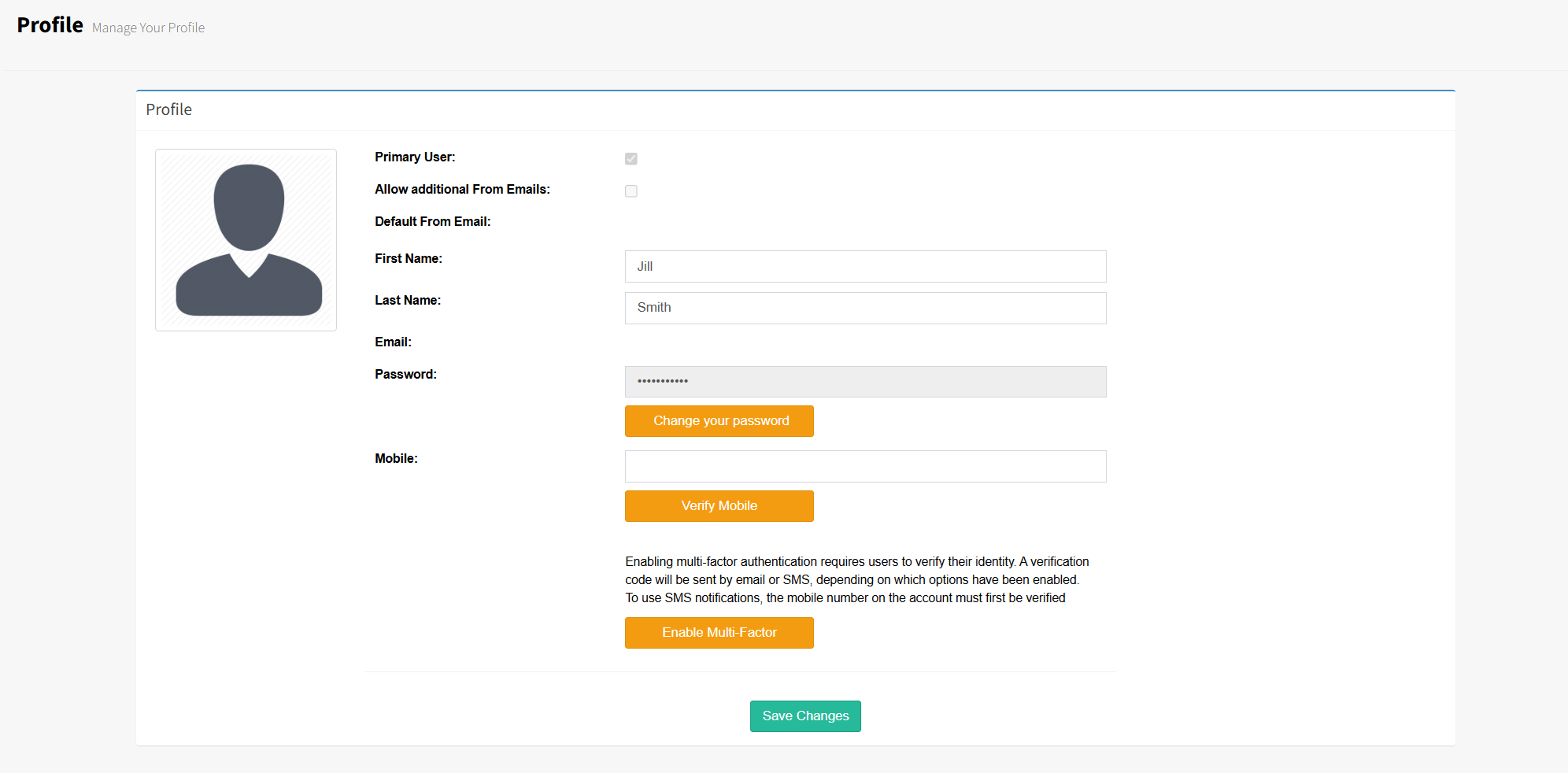
Enabling Multi‑Factor Authentication (MFA) is recommended for added security. You can enable MFA by selecting the Enable Multi‑Factor button and following the prompts to verify your identity.
By default, MFA codes are sent to your email. Your mobile phone can also be verified so that codes can be sent to either email or SMS. To do this, select Verify Mobile and follow the prompts to complete the verification.
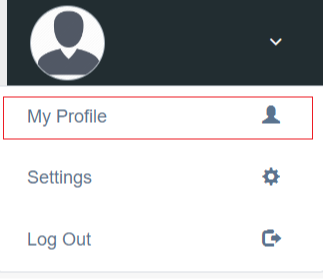
Step 1: Go to the upper right corner of the screen and click on the down arrow, from there select My Profile.
Step 2: Your user profile screen will appear, from here select the Change your password button.
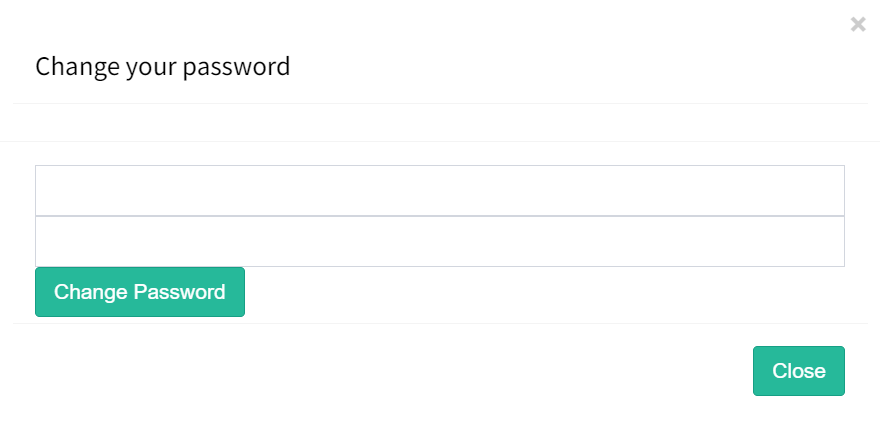
Step 3: Type your new password in the first box and repeat in the box below the passwords need match. Once complete select Change Password button and select Close.
Step 4: Password is now updated.