

Summary
Use Xero’s Bank Statement Import feature to upload bank statement data directly into FundraiserOne. This allows transactions to be matched against expected billings quickly and accurately, significantly reducing manual reconciliation time and improving overall financial visibility.
Exporting & Preparing a Xero Bank Statement File
Login to Xero and navigate to the Reporting menu. Open the Bank Reconciliation report and, once the report has loaded, change the report content type to Bank Statement.
Next, select the required Date Range and Bank Account. Leave the Column Selection set to the default option of 8 Columns Selected, as this includes all the information required for importing and reconciling transactions within FundraiserOne.
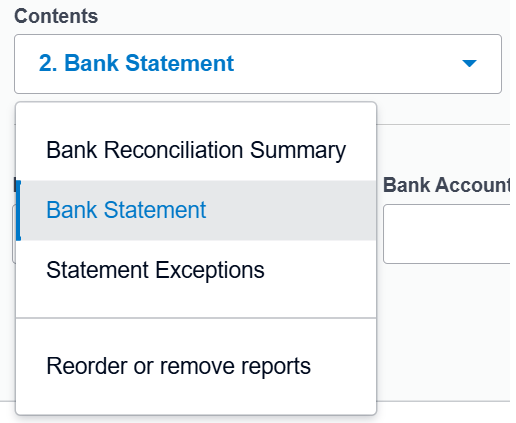
Once the report has been configured, export the report to Excel using the Export button within the Xero report.
Open the exported Excel file and select the Bank Statement worksheet. Before importing the file into FundraiserOne, remove the report title, report headers, blank rows, and any transactions that are not required for reconciliation. The worksheet should contain only the bank statement transaction data that will be imported into FundraiserOne.
Note: The exported file must remain exactly as generated by Xero, including all column names, column order, date formats, and data values. FundraiserOne validates the file structure and formatting during import, and any changes may cause the import to fail. Do not open and re-save the file in Excel or make any manual modifications before importing.

The end result of the file should look similar to the example file shown above. Once you have finished removing the report title, headers, and any unwanted transactions, review the data to ensure the columns and formatting remain unchanged.
Save the worksheet as a CSV (Comma delimited) (*.csv) file. The file is then ready for the next step, which is importing the bank statement data into FundraiserOne for reconciliation.
Importing Xero Statement into FundraiserOne
Select the Financial menu and then Transactions within FundraiserOne's menu. Locate and open the batch that the bank statement transactions need to be imported into, then click the Import Statement button.
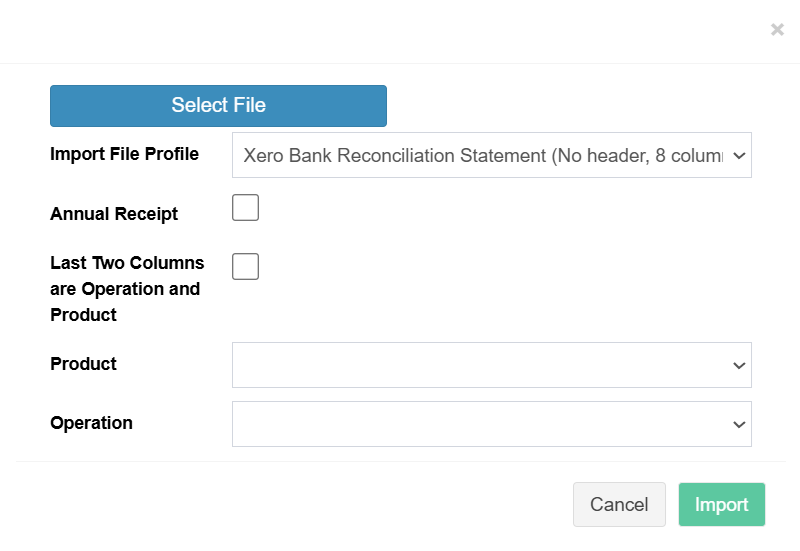
This will open the bank statement import screen where you can select the CSV file prepared in the previous steps. Once the file has been uploaded, FundraiserOne will validate the data and display the transactions ready for reconciliation.
Select the Xero Bank Statement (CSV) file.
Select the Xero Import File Profile.
Select Annual Receipt, Product and Operation.
Press Import.
File Specification
Below is file structure specifications and the fields used when importing.
Date | dd MMM yyyy | 01 Jun 2026 | |
Description | Name | A Smith | |
Date imported into Xero | Ignored | 05 Jul 2026 | |
Reference | Reference | Part=A Smith, Ref=1234 | |
Reconciled | Ignored | Yes | |
Source | Ignored | Imported | |
Amount | Decimal | 25.00 | |
Balance | Ignored | 100.00 |